LINE Auto Reply Setup & Automation Guide (2026)
How to set up auto replies on a LINE Official Account: response settings, greeting message, keyword and default replies, after-hours messages, LINE's AI Chatbot (β) in Thailand, Japan and Taiwan, and when a webhook bot makes sense.
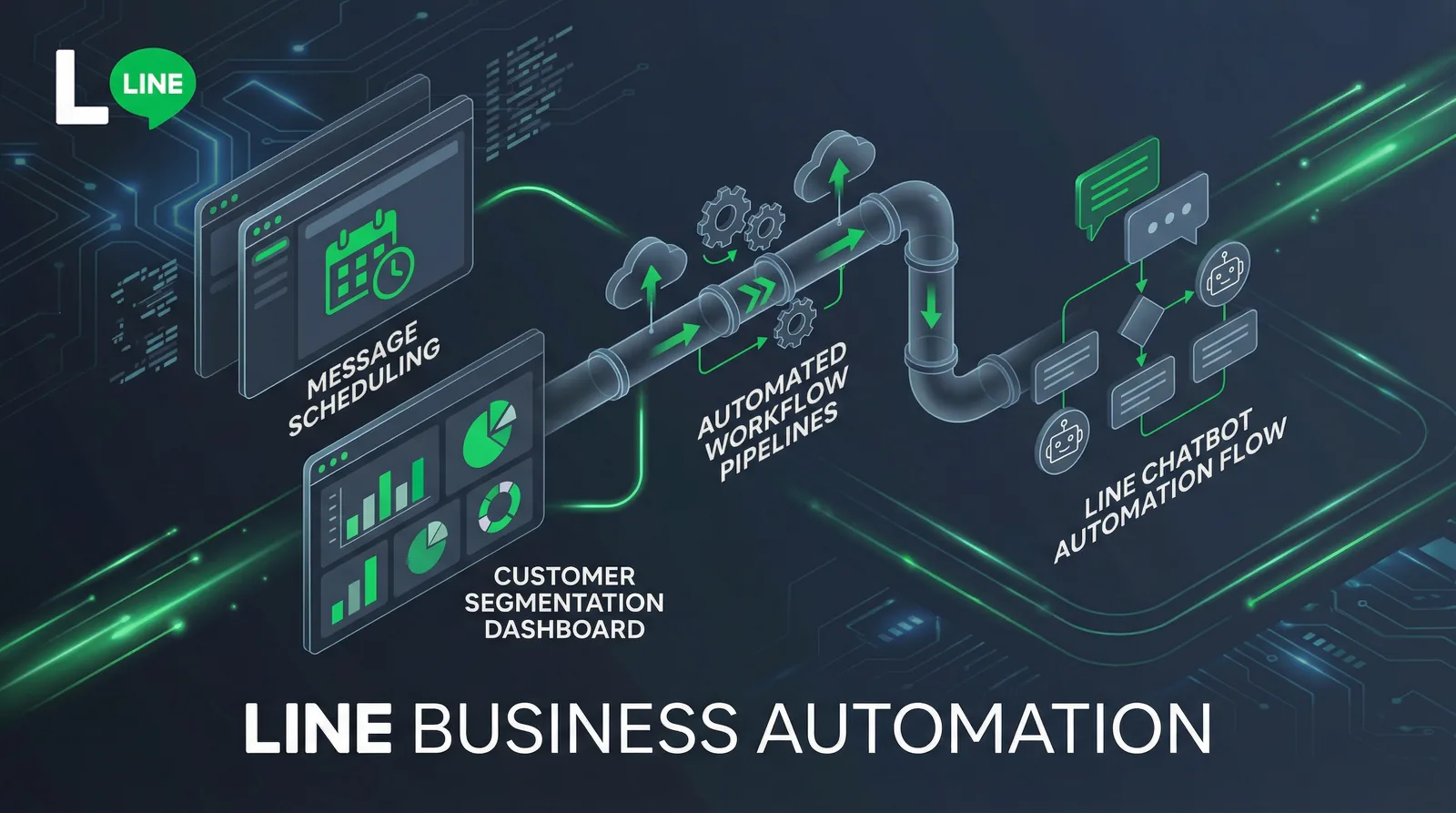
#How LINE Auto Reply Works
To set up auto replies on a LINE Official Account, open LINE Official Account Manager, go to Settings → Response settings and choose a response method that includes auto-responses. Then create your replies under Auto-response: one keyword reply per common question plus a default reply for everything else, and add a greeting message for new friends. All of it is free.
Every LINE Official Account gets the same built-in building blocks. When they stop being enough, you connect a bot through the Messaging API webhook — your own code, or a no-code AI auto-reply bot for LINE.
| Building block | What it does | Best for | Cost |
|---|---|---|---|
| Greeting message | Sent automatically when someone adds your account as a friend | Welcome, what customers can ask, where to tap | Free |
| Keyword auto-response | Replies when a message exactly matches one of your keywords | Opening hours, prices, address, booking link | Free |
| Default auto-response | Replies to any message that matches no keyword; can be scheduled | "We'll reply soon", after-hours notice | Free |
| Chat + response hours | Your team replies manually during set hours; auto-responses cover the rest | Live support by day, automation at night | Free |
| AI Chatbot (β) | LINE's AI picks the closest answer from your own Q&A list, even when the wording differs | Questions customers phrase in many ways | Paid chat add-on |
| Webhook bot (Messaging API) | Your server or a third-party tool decides what to send | Keywords inside sentences, data lookups, branded cards | Development or tool cost |
#Auto replies are one part of LINE automation
LINE automation usually starts with replies, then adds a few always-on pieces:
- Rich menu — a permanent menu under the chat. A button can open a link or send a text such as "Opening hours" that triggers your keyword reply.
- Scheduled broadcasts — write once, send at a set time. Unlike replies, broadcasts use your monthly message quota; our LINE OA broadcast guide explains how they are counted.
- Step messages (Japan) — Japan's LINE OA Manager can send a timed series of messages to new friends; these also count toward the quota.
- A webhook bot — for everything the built-in tools can't do (see below).
If you'd rather run keyword/AI replies and scheduled rich-message campaigns from one dashboard, that is what LineBot.pro's LINE OA automation tool is built for.
#Is LINE Auto Reply Free?
Yes. Greeting messages, auto-responses and one-to-one chat don't count toward your monthly message quota, and neither do reply messages sent by a Messaging API bot. LINE only counts messages your account initiates — broadcasts, targeted and push messages, step messages — multiplied by the number of recipients.
For reference, Thailand's plans as of October 2026: Free (฿0, 300 messages a month), Basic (฿1,280/month, 15,000 messages) and Pro (฿1,780/month, 35,000 messages), prices excluding 7% VAT (LINE for Business Thailand). Japan and Taiwan have their own tiers — see our LINE Official Account pricing guide.
What can cost money:
- LINE's AI Chatbot (β) only answers customers once you buy LINE's paid chat add-on (prices in the country table). Building a Q&A list and testing it is free.
- A third-party bot — the replies are free on LINE's side, but the tool or the developer time isn't.
#Set Up Auto Replies Step by Step
These steps use the web version of LINE Official Account Manager (manager.line.biz); the mobile app has the same options under Settings.
#Step 1: Decide who answers — response settings
Open Settings → Response settings. Three settings decide who replies:
- Chat — turn it on if your team will answer customers in LINE OA Manager.
- Response hours — the hours your team answers; you set the weekly schedule in the chat screen's settings.
- Response method — what happens during and outside those hours: manual chat, auto-responses, AI Chatbot (β), or a combination.
| What you want | Chat | Response hours | Response method |
|---|---|---|---|
| Fully automatic, no live chat | Off | — | Auto-responses on |
| Team chats; auto-responses answer known questions all day | On | Off | An option that includes auto-response (manual chat + auto-response) |
| Team by day, automation after hours | On | On | During hours: manual chat (optionally + auto-response). Outside hours: auto-response |
While you're there, check that Greeting message is on — a saved greeting is not sent while this switch is off. These combinations come from LINE's auto-response manual (Japanese); the Thai and Taiwanese versions have the same switches under local labels (see the country table).
#Step 2: Write a greeting message
Open Greeting message from the home screen. It is sent the moment someone adds you as a friend, so use it to say what you can help with and which keywords or menu buttons to use.
- Choose to send it only to first-time friends if you don't want it again when someone unblocks you.
- Insert the friend's display name and your account name as variables.
- Use up to 5 bubbles: text, an image, a coupon or a rich message.
Need wording? Adapt our LINE auto reply examples — greeting, keyword and after-hours messages for common businesses.
#Step 3: Create keyword auto-responses
Open Auto-response and click Create:
- Title — internal only; customers never see it.
- Keywords — the words that should trigger this reply. One auto-response can hold up to 51 keywords, and an account can have up to 1,000 auto-responses.
- Schedule (optional) — send it only within a date range or a daily time window, in the time zone you pick.
- Messages — up to 5 bubbles: text (with the friend's name if you like), stickers, images, coupons or a rich message.
- Activate it. Only active auto-responses are sent.
Tip: keyword matching is exact. A keyword reply fires only when the whole message equals the keyword — "price" matches "price", not "what's the price?". LINE ignores upper/lower case and full-/half-width differences, but extra words, punctuation or an emoji break the match.
Two ways to live with exact matching:
- Add the variants customers really type: "price", "prices", "price list", "how much".
- Let customers tap instead of type. A rich menu button set to send the text "Price list" always matches the "Price list" keyword. No menu yet? Our AI rich menu maker draws one with correctly placed buttons.
Sources: LINE's auto-response manual and creation limits (Japan) and LINE Taiwan's auto-response manual.
#Step 4: Add a default reply and an after-hours message
Create one more auto-response without keywords. It answers every message that matched no keyword, so use it to set expectations: "Thanks for your message! Our team replies 10:00–19:00. Tap the menu below for prices and bookings."
When more than one reply could apply, LINE picks in this order:
- A keyword response whose keyword matches the message exactly.
- A default reply scheduled for a date range (a holiday notice, for example).
- A default reply scheduled for a daily time window (every night 19:00–10:00, for example).
- A default reply with no schedule.
If several replies tie, LINE sends one of them at random, so keep a single default per time slot. For after-hours answers, either schedule a night-time default reply or turn on response hours and choose auto-response for outside hours (Step 1).
#Step 5: Test like a customer
Add your account as a friend from a personal LINE account and send every keyword, a misspelt keyword and a random question; tap every rich menu button too. The top of the auto-response screen shows whether auto-responses are currently being sent — if not, go back to Step 1.
#Auto Reply Not Working? Checklist
- The response method doesn't include auto-response right now. With chat and response hours on, only manual chat answers during hours unless you picked "manual chat + auto-response".
- The auto-response is inactive or outside its schedule.
- The message isn't an exact match — extra words, punctuation, or an emoji (emojis can't be keywords).
- A staff member took over that chat. During automated periods staff can switch a single chat to manual chat for a while (LINE's Japanese manual: one hour, extendable up to 7 days); auto-responses stay quiet for that customer in the meantime.
- Customers get two replies. LINE's auto-response and a webhook bot are both answering the same keyword. LINE's developer docs recommend turning off LINE's greeting and auto-responses when a bot handles them.
- The greeting didn't arrive. It is switched off in Response settings, or it is set for first-time friends only and this person had added you before.
#Thailand, Japan & Taiwan: Menus and AI Options
LINE OA Manager works the same way in all three markets, but labels, AI features and paid add-ons differ (as of October 2026):
| Thailand | Japan | Taiwan | |
|---|---|---|---|
| Response settings | ตั้งค่า → ตั้งค่าการตอบกลับ | 設定 → 応答設定 | 設定 → 回應設定 |
| Response method | วิธีตอบข้อความ | 応答方法 | 回應方式 |
| Keyword replies | ข้อความตอบกลับอัตโนมัติ | 応答メッセージ | 自動回應訊息 |
| Greeting message | ข้อความทักทาย | あいさつメッセージ | 加入好友的歡迎訊息 |
| LINE's AI option | AI Chatbot (Beta) | AIチャットボット(β) | AI 聊天機器人(β) |
| Paid add-on to switch AI on | OA แชทแพ็กเกจ: ฿555/month + 7% VAT | チャットProオプション: ¥3,000/month excl. tax | 聊天進階方案: price shown in LINE OA Manager |
What LINE's help centers in Thailand, Japan and Taiwan say about AI Chatbot (β):
- It answers by choosing from your own Q&A list (up to 100 Q&As in the Japanese and Taiwanese manuals), and Q&As can be drafted automatically from PDFs or images. It copes with paraphrases; plain auto-responses don't.
- An exact keyword auto-response always takes priority over the AI.
- You can run it only outside response hours, next to manual chat during the day.
- LINE may refuse it to accounts that handle sensitive data — medical, financial, religious, government and legal.
- LINE states that chat logs and uploaded files aren't used to train its AI.
The same paid add-ons also extend chat history from 6 months to 5 years (with download) and raise tag and note limits.
Older guides mention a free "AI response messages" feature. LINE Taiwan announced its end for May 2024 and Japan's current manual no longer lists it; Thailand's help center still describes it, so check whether your account offers it under the response method.
#Built-in Replies, AI Chatbot (β) or a Bot?
| LINE auto-response | LINE AI Chatbot (β) | Webhook bot | |
|---|---|---|---|
| How it matches | Whole message = keyword | AI picks the closest Q&A | Your logic: keyword anywhere in the sentence, AI classification, data lookups |
| What it sends | Your saved messages | Your saved answers | Any Messaging API message, including Flex Message cards |
| Setup | Minutes, no code | A Q&A list, no code | A developer, or a no-code tool |
| Cost | Free | Paid chat add-on | Development or tool fees; replies don't use LINE's quota |
A simple way to choose:
- A handful of questions customers can tap from a menu → built-in auto-responses.
- The same questions typed in many different ways → AI matching: LINE's AI Chatbot (β), or a bot that routes with AI.
- Answers that need data or your own cards (order status, a booking link per branch, branded rich messages) → a webhook bot.
#Webhook Bots with the Messaging API
A webhook bot receives every message your account gets and answers through the Messaging API. Setup, following LINE's official bot guide:
- In LINE OA Manager, open Settings → Messaging API and enable it. You pick a provider, which can't be changed later; only administrators can do this.
- In the LINE Developers Console, open the channel's Messaging API tab, enter your Webhook URL (HTTPS with a certificate from a certificate authority; one URL per channel), click Verify, then turn on Use webhook.
- If the bot handles greetings or keywords, switch LINE's own greeting message and auto-responses off to avoid double replies.
A minimal TypeScript bot with the official SDK (@line/bot-sdk v11) that replies when a keyword appears anywhere in the message:
// npm install @line/bot-sdk express
import express from "express"
import { LineBotClient, middleware, webhook } from "@line/bot-sdk"

const client = LineBotClient.fromChannelAccessToken({
  channelAccessToken: process.env.CHANNEL_ACCESS_TOKEN ?? "",
})

// First matching keyword wins. Keep every answer short and approved.
const answers = [
  { keywords: ["hours", "open"], text: "We're open Monday to Saturday, 10:00-19:00." },
  { keywords: ["price", "how much"], text: "Our price list: https://example.com/prices" },
]

const app = express()

app.post("/callback", middleware({ channelSecret: process.env.CHANNEL_SECRET ?? "" }), async (req, res) => {
  const { events } = req.body as webhook.CallbackRequest
  await Promise.all(events.map(async (event) => {
    if (event.type !== "message" || event.message.type !== "text" || !event.replyToken) return
    const text = event.message.text.toLowerCase()
    const answer = answers.find((a) => a.keywords.some((k) => text.includes(k)))
    if (!answer) return // no match: leave the chat to your team
    await client.replyMessage({ replyToken: event.replyToken, messages: [{ type: "text", text: answer.text }] })
  }))
  res.sendStatus(200)
})

app.listen(3000)
Good to know, from LINE's Messaging API reference:
- A reply token can be used once, and should be used within one minute of receiving the webhook.
- One reply can carry up to 5 messages.
- Reply messages are free; push messages — sent without a customer message to answer — count toward your quota.
- Chat can stay on alongside the webhook, so your team can still answer in LINE OA Manager whenever the bot stays silent.
Going further: our LINE chatbot development tutorial covers sessions, rich replies and deployment.
#Automate Replies with LineBot.pro
LineBot.pro is the no-code middle ground: a webhook bot you set up in a few screens, whose answers are rich messages you approved — never text made up by AI.
- Sign in with LINE or an email link — you get 50 free credits, no card needed.
- Connect your LINE OA by pasting its Channel ID, Channel secret and access token.
- Create your answers with the AI rich message generator: each is a Flex Message card (image, headline, text, button) in Thai, Japanese, Traditional Chinese or English — 8 credits per message, then reused as often as you like.
- Add intents on the automation page ("Visual LINE agent" in the menu): up to 8 per LINE account ("Prices", "Booking", "Location"…), each with up to 15 keywords and one approved answer. A keyword counts wherever it appears in the message (whole words in English), so "what's the price?" matches "price". Keyword replies cost 0 credits. Keep each keyword in one intent only — a message that matches two intents is treated as unmatched.
- Test for free in the simulator: it shows which intent a sample message triggers, without sending anything.
- Optional AI routing: when no keyword matches, AI reads the message and picks one of your intents only if it is at least 85% confident — 1 credit per AI classification, with a daily credit cap you set. It never writes its own answers; if it isn't sure, nothing is sent and your team handles the chat.
- Human handoff: phrases such as "human", "แอดมิน", "担当者" or "真人客服" (editable defaults in English, Thai, Japanese and Chinese) pause auto-replies for that customer only. Your team answers in LINE OA Manager chat, then resumes automation for that customer in LineBot.pro.
- Go live: paste the webhook URL into LINE Developers, turn on Use webhook and activate the flow. It starts disabled, and LINE validates every answer before activation. It replies 24/7 to one-to-one text chats (not group chats); daily counters show replies sent, failures and AI credits used.
What it doesn't do: send greeting messages (keep LINE's own), run conversation trees, provide a live-chat inbox, or write free-form answers. Switch off LINE auto-responses that use the same keywords to avoid double replies.
After the free credits you buy one-time credit packs — no subscription, and credits don't expire (pricing).
Set up your first intents → · or read more about the LINE AI chatbot.
#What to Automate First by Industry
| Business | Automate first (keywords or menu buttons) | Keep for your team |
|---|---|---|
| Restaurant & café | Opening hours, menu, location & parking, delivery apps, booking link | Large bookings, allergies, complaints |
| Retail & online shop | Shipping times, payment methods, size guide, returns policy, order-tracking link | Damaged items, refunds, custom orders |
| Beauty & wellness | Price list, booking link, location, aftercare instructions | Reactions after a treatment, rescheduling disputes |
| Clinic | Hours, location, booking link, what to bring | Anything medical — and LINE may not offer its AI Chatbot (β) to medical accounts |
| School & training | Class schedule, fees, enrolment steps | Individual progress, payment issues |
Copy-ready wording for these cases is in our LINE auto reply examples by business type.
#Measure Your Auto Replies
LINE OA Manager's Analytics includes a chat section. Japan's manual documents what it shows: active chat rooms, messages received and messages your team sent manually, a weekday/hour heat map of incoming chats, and how many times each auto-response was sent (downloadable).
Use it once a week:
- The auto-responses that fire most are your real FAQ — give them rich menu buttons.
- A default reply that fires a lot means missing keywords: read those chats and add the words customers used.
- Peak hours on the heat map tell you when someone should be on chat.
The chat statistics don't show how long customers waited for a person, so sample about 20 chats a week and note the wait yourself. If you use LineBot.pro, its daily counters add replies sent, failed replies and AI credits used. For response-time targets and handoff design, read our LINE customer service automation playbook.
#Frequently Asked Questions
Q: How do I set up an auto reply on a LINE Official Account?
In LINE Official Account Manager, go to Settings → Response settings and choose a response method that includes auto-responses (or turn chat off). Then open Auto-response → Create, add keywords and the reply, and activate it. Add a default reply without keywords for everything else, plus a greeting message for new friends.
Q: Is LINE auto reply free?
Yes. Greeting messages, auto-responses, one-to-one chat and Messaging API reply messages don't count toward your monthly message quota on any plan. Only LINE's AI Chatbot (β) needs a paid chat add-on before it answers customers.
Q: Why is my LINE auto reply not working?
Usually because the message isn't an exact keyword match, the response method doesn't include auto-responses at that time (common with response hours), or the auto-response is inactive or outside its schedule. If customers receive two replies, a webhook bot is answering as well.
Q: Can I use chat and auto reply at the same time?
Yes. Choose a response method such as "manual chat + auto-response", or turn on response hours so your team answers during the day and auto-responses take over outside those hours. Staff can also take over a single chat temporarily.
Q: Can a personal LINE account send automatic replies?
The auto-reply tools in this guide — greeting message, auto-response and AI Chatbot (β) — are features of LINE Official Accounts, managed in LINE Official Account Manager. Creating an account is free: see how to create a LINE Official Account.
Q: How many keywords can one auto-response have?
Up to 51 keywords per auto-response, and up to 1,000 auto-responses per account, according to LINE's manuals. Emojis can't be used as keywords.
Next steps:
- Copy-ready LINE auto reply examples for greetings, keywords and after-hours messages
- How to send a LINE OA broadcast and how messages are counted
- LINE customer service automation playbook
- Try LineBot.pro automation — 50 free credits, no card
Related Services
About LineBot.pro
LineBot.pro is an AI tool for LINE Official Accounts: it creates Rich Menus, Rich Messages and banners, sends broadcast campaigns and runs keyword auto-replies. Our team writes these guides based on hands-on work with the LINE Messaging API.
Contact usRelated Articles
LINE Auto-Reply & Greeting Message Examples (50 Templates)
Copy-paste templates for every automatic message a LINE Official Account sends: greeting (welcome) messages by industry, keyword replies, after-hours and holiday notices, staff handoff, chat scripts for admins and follow-ups, checked against LINE's rules as of October 2026.
Read More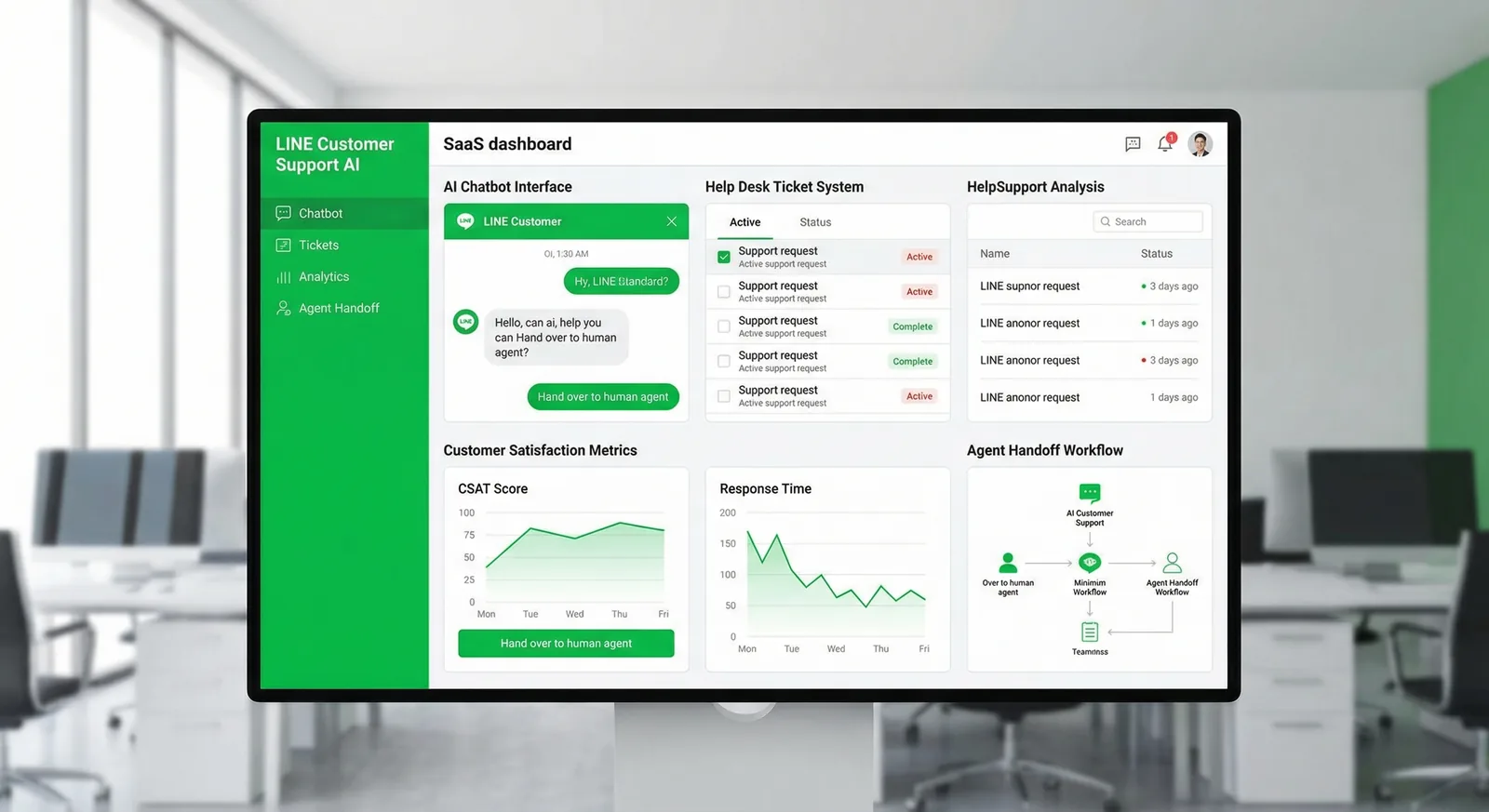
LINE Customer Service Automation: A Practical Playbook
How to automate customer support on a LINE Official Account without losing the human touch: what to automate first, FAQ coverage, handoff to staff, and the numbers to track.
Read More
LINE OA Broadcast: How to Send, Quotas & Tips (2026)
How to send a broadcast from LINE Official Account Manager on the web and in the app, which message types and filters you can use, how LINE counts messages against your monthly quota, image sizes, timing tips and ready-to-adapt examples.
Read MoreReady to Automate Your LINE Business?
Start automating your LINE communications with LineBot.pro today.