LINE Chatbot Development Tutorial 2026: Node.js & Python
Build a LINE bot step by step with the Messaging API: enable the channel, verify webhook signatures, reply with Flex Messages and quick replies, run a booking flow with postbacks, add AI answers limited to your FAQ and deploy. Node.js (@line/bot-sdk v11) and Python (line-bot-sdk v3) code.
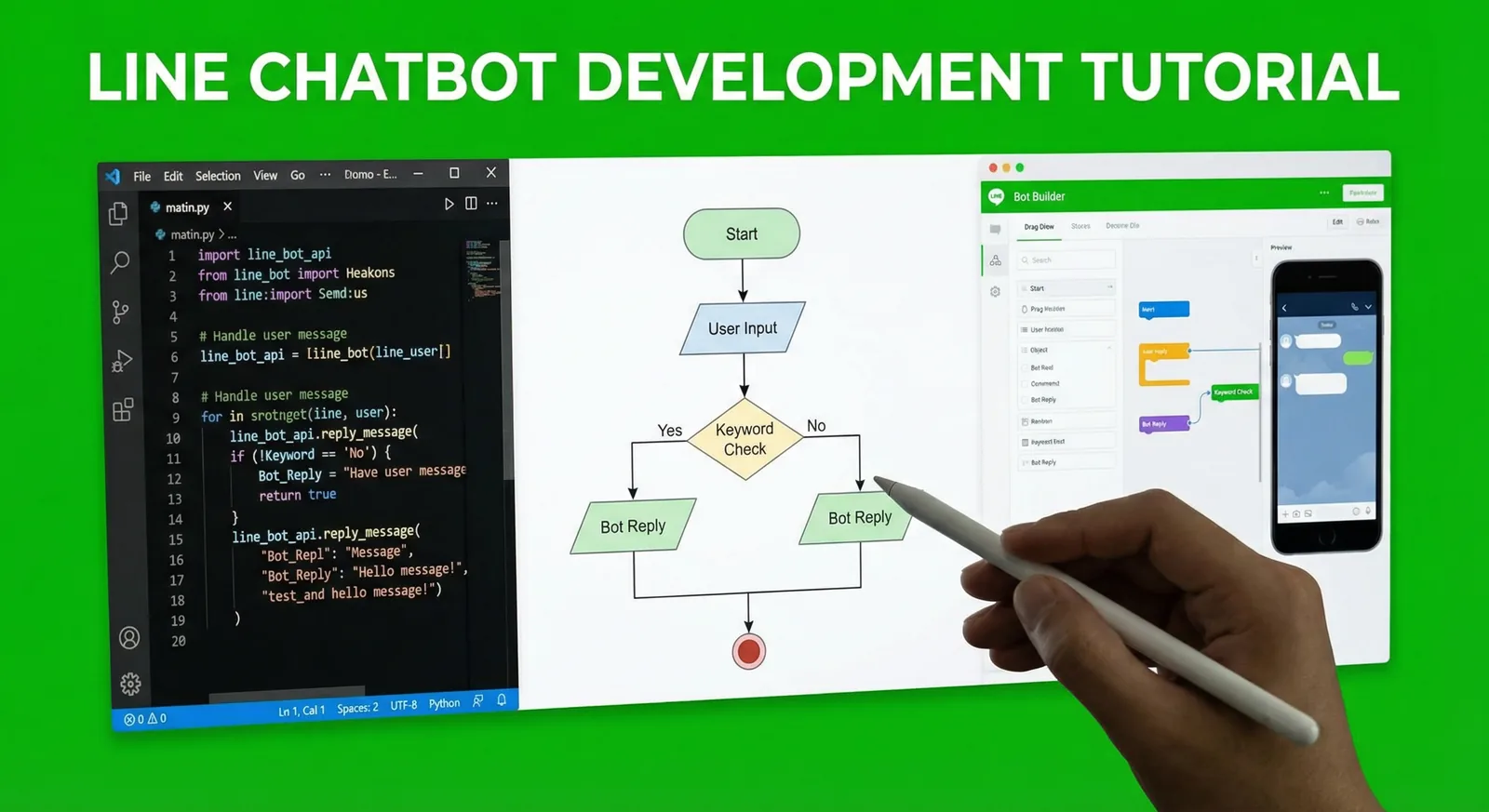
#How a LINE Bot Works
A LINE chatbot is a web service that receives webhook events from the LINE Platform and answers through the Messaging API. To build one in 2026 you need a LINE Official Account with the Messaging API enabled, an HTTPS endpoint that checks the x-line-signature header, and code that answers with the event's reply token. This tutorial builds a working bot in Node.js (TypeScript, @line/bot-sdk v11) and Python (line-bot-sdk v3): echo replies, buttons, a small booking flow, AI answers limited to your own FAQ, and a deployment checklist.
User ── message ──▶ LINE Platform ── webhook (POST + x-line-signature) ──▶ your server
                                                                              │
User ◀── answer ─── LINE Platform ◀──── Messaging API (reply or push) ────────┘
- A user sends a message, taps a button or adds your account as a friend.
- The LINE Platform sends an HTTPS POST with one or more events to your webhook URL.
- Your server verifies the signature, answers
200and processes the events. - It answers with the reply API (using the event's reply token) or later with push (using the user ID).
Reply messages don't count toward your plan's monthly message quota. Push, multicast, broadcast and narrowcast messages do, one message per recipient.
#Which kind of bot are you building?
| Type | How it works | Good for | Watch out for |
|---|---|---|---|
| Keyword bot | Matches words in the message and sends a prepared answer | FAQ, opening hours, prices | Misses phrasings you didn't list |
| Menu / postback bot | Buttons, quick replies and a Rich Menu send postback data to your server | Bookings, orders, step-by-step forms | More design work up front |
| AI-assisted bot | A language model answers free text | Varied questions, several languages | Must be limited to your facts and needs a human fallback |
| Hybrid | Buttons for the main tasks, AI for the rest, a person for edge cases | Most real businesses | More paths to test |
The code below is a hybrid for a hair salon: buttons drive the booking, the AI only answers from the salon's FAQ, and a "Staff" button hands the chat to a person.
#Prerequisites and Channel Setup
#What you need
- A LINE Official Account (free to create) with the Messaging API enabled
- Node.js 22 or later (required by
@line/bot-sdkv11) or Python 3.10 or later (line-bot-sdkv3) - A server reachable over HTTPS, and for local testing a tunnel such as ngrok or Cloudflare Tunnel
#Step 1: Create the LINE Official Account and enable the Messaging API
Since 4 September 2024 you can't create a Messaging API channel directly in the LINE Developers Console. Instead:
- Create a LINE Official Account: sign up for a Business ID and fill in the entry form. Our LINE Official Account setup guide walks through it.
- In LINE Official Account Manager, open Settings → Messaging API and enable the Messaging API.
- Choose a provider. Choose carefully: the provider can't be changed later, and the same user gets a different user ID under each provider, so keep all channels of one business under one provider.
The new Messaging API channel then appears in the LINE Developers Console.
#Step 2: Get your credentials
| Credential | Where to find it | Used for |
|---|---|---|
| Channel secret | Console → Basic settings tab | Verifying webhook signatures |
| Channel access token | Console → Messaging API tab, or issued through the API | Calling the Messaging API |
LINE offers four kinds of channel access token. A long-lived token (no expiry, one per channel, issued in the console) is the quickest way to start testing. For production LINE recommends a channel access token v2.1 with a user-specified expiration (up to 30 days), which you request with a JSON Web Token signed by your own key. Short-lived (30 days) and stateless (15 minutes) tokens also exist.
#Step 3: Configure the channel
- Webhook URL: your endpoint, for example
https://bot.example.com/webhook. It must use HTTPS with a certificate from a widely trusted authority; self-signed certificates are rejected. A channel has exactly one webhook URL. - Click Verify, then turn on Use webhook.
- In LINE Official Account Manager → Response settings, turn off the greeting message and auto-reply messages if your code handles them. Both are on by default and would answer alongside your bot. Keep Chat on if staff should be able to answer by hand.
#Step 4: Create the project
Node.js (TypeScript):
mkdir line-bot && cd line-bot
npm init -y && npm pkg set type=module
npm install @line/bot-sdk express
npm install -D typescript tsx @types/express @types/node
Add the scripts to package.json and a tsconfig.json:
{
  "scripts": {
    "dev": "tsx watch --env-file=.env src/index.ts",
    "build": "tsc",
    "start": "node dist/index.js"
  }
}
{
  "compilerOptions": {
    "target": "ES2022",
    "module": "NodeNext",
    "moduleResolution": "NodeNext",
    "strict": true,
    "outDir": "dist",
    "skipLibCheck": true
  },
  "include": ["src"]
}
Python:
mkdir line-bot && cd line-bot
python -m venv .venv
source .venv/bin/activate   # Windows: .venv\Scripts\activate
pip install line-bot-sdk flask
Put the credentials in a .env file and never commit it. The Node script loads it with --env-file; for Python, export the variables in your shell or use your host's secret manager.
LINE_CHANNEL_SECRET=your_channel_secret
LINE_CHANNEL_ACCESS_TOKEN=your_channel_access_token
PORT=3000
#Webhook: Receive and Reply
#Node.js (TypeScript, @line/bot-sdk v11)
// src/index.ts
import express from "express"
import {
  JSONParseError,
  LineBotClient,
  SignatureValidationFailed,
  middleware,
  webhook,
} from "@line/bot-sdk"

const channelSecret = process.env.LINE_CHANNEL_SECRET
const channelAccessToken = process.env.LINE_CHANNEL_ACCESS_TOKEN
if (!channelSecret || !channelAccessToken) {
  throw new Error("Set LINE_CHANNEL_SECRET and LINE_CHANNEL_ACCESS_TOKEN")
}

const client = LineBotClient.fromChannelAccessToken({ channelAccessToken })
const app = express()

// The LINE middleware checks x-line-signature against the raw body,
// so it must run before any JSON body parser.
app.post("/webhook", middleware({ channelSecret }), (req, res) => {
  res.sendStatus(200) // answer LINE first, then do the work
  const { events } = req.body as webhook.CallbackRequest
  for (const event of events) {
    handleEvent(event).catch((err) => console.error("event failed", err))
  }
})

app.use(express.json()) // other routes can parse JSON as usual

async function handleEvent(event: webhook.Event) {
  if (event.type !== "message" || event.message.type !== "text" || !event.replyToken) return

  await client.replyMessage({
    replyToken: event.replyToken,
    messages: [{ type: "text", text: `You said: ${event.message.text}` }],
  })
}

// The middleware hands errors to next(); without this handler Express answers 500.
app.use((err: unknown, _req: express.Request, res: express.Response, next: express.NextFunction) => {
  if (err instanceof SignatureValidationFailed) {
    res.status(401).send("Invalid signature")
    return
  }
  if (err instanceof JSONParseError) {
    res.status(400).send("Invalid JSON")
    return
  }
  next(err)
})

const port = Number(process.env.PORT ?? 3000)
app.listen(port, () => console.log(`LINE bot listening on :${port}`))
Start it with npm run dev, expose port 3000 through your tunnel, paste the HTTPS URL followed by /webhook into the console and click Verify. Then send your account a message from your phone: it echoes you.
What trips people up:
- Middleware first.
middleware()needs the raw body to recompute the HMAC-SHA256 signature. Ifexpress.json()runs before it, validation fails. Our @line/bot-sdk Express middleware guide covers the details. - The middleware doesn't send the 401 itself. It passes
SignatureValidationFailedorJSONParseErrortonext(); without the error handler Express answers 500. - One request object per call. In SDK v11 every method takes a single object:
replyMessage({ replyToken, messages }). The legacyClientclass andclient.replyMessage(token, message)were removed in v11.0.0 (April 2026). - Answer 200, then work. LINE recommends processing events asynchronously. Answering before processing is fine on a long-running server. On serverless platforms that stop the function once the response is sent, finish the work first or hand it to a queue.
- Reply tokens are single-use, and LINE says to use them within one minute of receiving the webhook.
- Empty event lists. LINE may send
{"destination": "...", "events": []}to check the connection (the Verify button does). Answer 200.
#Python (line-bot-sdk v3, Flask)
# app.py
import os

from flask import Flask, abort, request
from linebot.v3 import WebhookHandler
from linebot.v3.exceptions import InvalidSignatureError
from linebot.v3.messaging import (
    ApiClient,
    Configuration,
    MessagingApi,
    ReplyMessageRequest,
    TextMessage,
)
from linebot.v3.webhooks import MessageEvent, TextMessageContent

app = Flask(__name__)
configuration = Configuration(access_token=os.environ["LINE_CHANNEL_ACCESS_TOKEN"])
handler = WebhookHandler(os.environ["LINE_CHANNEL_SECRET"])


@app.post("/webhook")
def webhook():
    signature = request.headers.get("X-Line-Signature", "")
    body = request.get_data(as_text=True)  # raw body, before any JSON parsing
    try:
        handler.handle(body, signature)
    except InvalidSignatureError:
        abort(400)
    return "OK"


@handler.add(MessageEvent, message=TextMessageContent)
def handle_text(event):
    with ApiClient(configuration) as api_client:
        MessagingApi(api_client).reply_message(
            ReplyMessageRequest(
                reply_token=event.reply_token,
                messages=[TextMessage(text=f"You said: {event.message.text}")],
            )
        )


if __name__ == "__main__":
    app.run(port=int(os.environ.get("PORT", 3000)))
Run it with python app.py after exporting the two variables. WebhookHandler.handle() checks the signature against the raw body and raises InvalidSignatureError when it doesn't match. Import from linebot.v3: the 2.x LineBotApi interface is deprecated and only the linebot.v3 modules are maintained.
#Message Types and Buttons
Each of these is a message object you can pass in messages, up to five per reply or push:
import { messagingApi } from "@line/bot-sdk"

const text: messagingApi.TextMessage = {
  type: "text",
  text: "Hello! How can we help today?", // up to 5,000 characters
}

const image: messagingApi.ImageMessage = {
  type: "image",
  originalContentUrl: "https://example.com/price-list.jpg", // HTTPS, JPEG or PNG, max 10 MB
  previewImageUrl: "https://example.com/price-list-preview.jpg", // max 1 MB
}

const card: messagingApi.FlexMessage = {
  type: "flex",
  altText: "Haircut – ฿450", // shown in notifications and the chat list
  contents: {
    type: "bubble",
    hero: {
      type: "image",
      url: "https://example.com/haircut.jpg",
      size: "full",
      aspectRatio: "20:13",
      aspectMode: "cover",
    },
    body: {
      type: "box",
      layout: "vertical",
      contents: [
        { type: "text", text: "Haircut", weight: "bold", size: "xl" },
        { type: "text", text: "฿450 · 45 minutes", color: "#06C755" },
      ],
    },
    footer: {
      type: "box",
      layout: "vertical",
      contents: [
        {
          type: "button",
          style: "primary",
          color: "#06C755",
          action: { type: "postback", label: "Book", data: "action=service&id=cut", displayText: "Book a haircut" },
        },
      ],
    },
  },
}

const menu: messagingApi.TextMessage = {
  type: "text",
  text: "What would you like to do?",
  quickReply: {
    items: [
      // up to 13 buttons
      { type: "action", action: { type: "postback", label: "Book", data: "action=start_booking", displayText: "Book" } },
      { type: "action", action: { type: "message", label: "Opening hours", text: "Opening hours" } },
      { type: "action", action: { type: "location", label: "Send my location" } },
    ],
  },
}
- Text messages hold up to 5,000 characters.
- Image URLs must use HTTPS. The original can be up to 10 MB (JPEG or PNG), the preview up to 1 MB.
- Flex Messages are JSON layouts (a bubble or a carousel of bubbles).
altTextis what users see in notifications. Test layouts in LINE's Flex Message Simulator. - Quick replies show up to 13 buttons above the keyboard. Camera, camera roll and location actions only work in quick replies.
- Postback actions send your server a
postbackevent with up to 300 characters ofdata, without the user typing anything.displayTextis what appears in the chat as the user's message.
Writing Flex JSON by hand is slow. If you'd rather start from a finished card, LineBot.pro's AI Rich Message generator produces a Flex bubble (hero image, text and a button) and lets you copy its JSON to send with the code above. For the permanent menu under the chat, see how to create a LINE Rich Menu.
#Conversation Flow: Postbacks, State and Handoff
A booking takes several steps, so the bot has to remember where each user is. This version of handleEvent replaces the echo version in src/index.ts (add messagingApi to the @line/bot-sdk import). It greets new friends, runs a three-step booking with postbacks and a date picker, and lets the user switch to a person:
type Session =
  | { step: "idle" }
  | { step: "pick_date"; service: string }
  | { step: "confirm"; service: string; date: string }
  | { step: "human" } // a team member has taken over this chat

// In memory for the tutorial: it is lost on restart and isn't shared between
// instances. Use Redis or your database in production.
const sessions = new Map<string, Session>()

const SERVICES: Record<string, string> = { cut: "Haircut", color: "Hair color" }

async function handleEvent(event: webhook.Event) {
  // This tutorial handles 1:1 chats only.
  if (event.source?.type !== "user" || !event.source.userId) return
  const userId = event.source.userId

  if (event.type === "follow") {
    await reply(event.replyToken, [menuMessage("Welcome! Thanks for adding us as a friend.")])
    return
  }

  const session = sessions.get(userId) ?? { step: "idle" }
  if (session.step === "human") return // staff replies from LINE Official Account Manager

  if (event.type === "postback" && event.replyToken) {
    await onPostback(userId, session, event.postback, event.replyToken)
    return
  }

  if (event.type === "message" && event.replyToken) {
    if (event.message.type !== "text") {
      await reply(event.replyToken, [menuMessage("Thanks! I can only read text messages.")])
      return
    }
    const text = event.message.text.trim()
    if (["staff", "human"].includes(text.toLowerCase())) {
      sessions.set(userId, { step: "human" })
      await reply(event.replyToken, [
        { type: "text", text: "OK! A team member will answer in this chat during opening hours (10:00-20:00)." },
      ])
      return
    }
    await reply(event.replyToken, [menuMessage("Please choose an option below.")]) // AI section replaces this line
  }
}

async function onPostback(userId: string, session: Session, postback: webhook.PostbackContent, replyToken: string) {
  const data = new URLSearchParams(postback.data)
  const action = data.get("action")

  if (action === "start_booking") {
    await reply(replyToken, [{
      type: "text",
      text: "Which service would you like?",
      quickReply: {
        items: Object.entries(SERVICES).map(([id, label]) => ({
          type: "action" as const,
          action: { type: "postback" as const, label, data: `action=service&id=${id}`, displayText: label },
        })),
      },
    }])
    return
  }

  if (action === "service") {
    const service = SERVICES[data.get("id") ?? ""]
    if (!service) return
    sessions.set(userId, { step: "pick_date", service })
    await reply(replyToken, [{
      type: "text",
      text: `${service}: which day suits you?`,
      quickReply: {
        items: [{ type: "action", action: { type: "datetimepicker", label: "Pick a date", data: "action=date", mode: "date" } }],
      },
    }])
    return
  }

  if (action === "date" && session.step === "pick_date" && postback.params?.date) {
    const next: Session = { step: "confirm", service: session.service, date: postback.params.date }
    sessions.set(userId, next)
    await reply(replyToken, [{
      type: "text",
      text: `${next.service} on ${next.date}. Shall I send the request?`,
      quickReply: {
        items: [
          { type: "action", action: { type: "postback", label: "Confirm", data: "action=confirm", displayText: "Confirm" } },
          { type: "action", action: { type: "postback", label: "Cancel", data: "action=cancel", displayText: "Cancel" } },
        ],
      },
    }])
    return
  }

  if (action === "confirm" && session.step === "confirm") {
    sessions.delete(userId)
    // Save the request in your booking system or notify your team here.
    await reply(replyToken, [
      { type: "text", text: `Request received: ${session.service} on ${session.date}. We'll confirm the time in this chat.` },
    ])
    return
  }

  if (action === "cancel") {
    sessions.delete(userId)
    await reply(replyToken, [menuMessage("Cancelled. Anything else?")])
  }
}

function menuMessage(text: string): messagingApi.TextMessage {
  return {
    type: "text",
    text,
    quickReply: {
      items: [
        { type: "action", action: { type: "postback", label: "Book", data: "action=start_booking", displayText: "Book" } },
        { type: "action", action: { type: "message", label: "Staff", text: "staff" } },
      ],
    },
  }
}

async function reply(replyToken: string, messages: messagingApi.Message[]) {
  await client.replyMessage({ replyToken, messages })
}
What this shows:
- Postback data is your protocol.
action=service&id=cutis parsed withURLSearchParams. Keep it short (300 characters at most) and never trust it blindly: check that the step and the values make sense. - The date picker is a
datetimepickeraction; the chosen date comes back inpostback.params.date(YYYY-MM-DDindatemode). - Every event type gets an answer. Stickers, photos and locations lead back to the menu instead of silence or a crash. Group chats have their own source types and are skipped here.
- Store sessions outside memory in production, keyed by user ID, with an expiry for abandoned bookings.
- Human handoff. After "Staff", the bot stays quiet for that user and your team answers in LINE Official Account Manager's chat (keep Chat on in Response settings). Give staff a way to hand the chat back: an admin command, a button in your back office or a timeout.
- Keep the main actions in a Rich Menu so users rarely need to type.
The same postback handling in Python (line-bot-sdk v3), added to app.py:
from urllib.parse import parse_qsl

from linebot.v3.webhooks import PostbackEvent


@handler.add(PostbackEvent)
def handle_postback(event):
    data = dict(parse_qsl(event.postback.data))  # "action=service&id=cut"
    if data.get("action") == "date" and event.postback.params:
        text = f"Date chosen: {event.postback.params['date']}"
    else:
        text = f"Action: {data.get('action')}"
    with ApiClient(configuration) as api_client:
        MessagingApi(api_client).reply_message(
            ReplyMessageRequest(reply_token=event.reply_token, messages=[TextMessage(text=text)])
        )
#Adding AI Answers (Gemini Example)
A language model helps with the questions your buttons don't cover ("Do you cut children's hair?", "Is there parking?"). The risk is that it invents prices or promises. Three rules keep it safe:
- Give it only your facts, and tell it to answer
NO_ANSWERwhen they don't cover the question. - Hand over to a person instead of guessing.
- Stay inside the reply window. LINE says to use reply tokens within one minute, so cap the model call (15 seconds below). If a task takes longer, reply "One moment" and send the result later as a push message, which counts toward your monthly quota.
This example uses Google's Gen AI SDK (npm install @google/genai). The model name comes from an environment variable because model versions change; pick a current one from Google's documentation.
// src/ai.ts
import { GoogleGenAI } from "@google/genai"

const ai = new GoogleGenAI({ apiKey: process.env.GEMINI_API_KEY })
const model = process.env.GEMINI_MODEL // a current model name from Google's documentation
if (!model) throw new Error("Set GEMINI_MODEL")

// Only facts you are happy for the bot to repeat word for word.
const FAQ = `
Opening hours: 10:00-20:00, closed on Wednesdays.
Address: 12 Sukhumvit Soi 24, Bangkok (BTS Phrom Phong).
Haircut: ฿450, 45 minutes. Hair color: from ฿1,500, about 2 hours.
Booking: tap "Book" in the menu. Changes are possible up to 3 hours before.
`

export async function answerFromFaq(question: string): Promise<string | null> {
  const response = await ai.models.generateContent({
    model: model!,
    contents: question,
    config: {
      systemInstruction:
        "You answer customer questions for a hair salon using ONLY the FAQ below. " +
        "If the FAQ doesn't contain the answer, reply exactly NO_ANSWER. " +
        "Answer in the customer's language, in at most 3 short sentences. Never invent prices, times or promotions.\n\n" +
        `FAQ:\n${FAQ}`,
      temperature: 0.2,
      maxOutputTokens: 300,
      abortSignal: AbortSignal.timeout(15_000), // stay well inside the reply token's time limit
    },
  })
  const text = response.text?.trim()
  if (!text || text.includes("NO_ANSWER")) return null
  return text.slice(0, 5000) // a LINE text message holds up to 5,000 characters
}
Then, in handleEvent, replace the last line of the text branch:
// at the top of src/index.ts (ES modules need the .js extension)
import { answerFromFaq } from "./ai.js"

// in handleEvent, instead of always sending the menu for free text:
await client.showLoadingAnimation({ chatId: userId, loadingSeconds: 20 })
const answer = await answerFromFaq(text).catch(() => null)
await reply(event.replyToken, [
  answer
    ? { type: "text", text: answer }
    : menuMessage("I'm not sure about that one. Tap Staff to reach a team member."),
])
The loading animation shows a typing indicator in 1:1 chats for 5 to 60 seconds (in steps of 5) and disappears as soon as your answer arrives.
Privacy: messages you pass to an AI provider leave LINE. Mention it in your privacy policy, don't forward personal data the model doesn't need, and check the provider's terms on how it uses data.
#Deployment and Monitoring
#Docker image
FROM node:22-slim AS build
WORKDIR /app
COPY package*.json tsconfig.json ./
RUN npm ci
COPY src ./src
RUN npm run build

FROM node:22-slim
WORKDIR /app
ENV NODE_ENV=production
COPY package*.json ./
RUN npm ci --omit=dev
COPY --from=build /app/dist ./dist
EXPOSE 3000
CMD ["node", "dist/index.js"]
Any host that runs a container or a Node.js process behind HTTPS works. Pass the channel secret, the access token and the AI key as environment variables or secrets, never inside the image.
#Point LINE at the production URL
- In the LINE Developers Console → Messaging API tab, set the webhook URL to
https://your-domain/webhook. - Click Verify. LINE sends an empty event list, and your server must answer 200.
- Check that Use webhook is on, then test from a phone.
#Duplicates, retries and logs
- Webhook redelivery is off by default. If you turn it on in the console, LINE re-sends webhooks that didn't get a 2xx answer. LINE doesn't disclose how many times or how often.
- Duplicates can happen anyway. Skip events whose
webhookEventIdyou've already handled. Redelivered events carrydeliveryContext.isRedelivery: true. - Log JSON lines with the event ID so you can follow one conversation.
- Know the limits. Most Messaging API endpoints allow 2,000 requests per second per channel, multicast 200 per second, broadcast and narrowcast 60 per hour. A
429means a rate limit or your monthly message limit.
import { HTTPFetchError } from "@line/bot-sdk"

const seen = new Map<string, number>() // webhookEventId -> time received. Use Redis (SET NX + TTL) with several instances.

function firstDelivery(event: webhook.Event): boolean {
  const now = Date.now()
  for (const [id, at] of seen) if (now - at > 30 * 60_000) seen.delete(id)
  if (seen.has(event.webhookEventId)) return false
  seen.set(event.webhookEventId, now)
  return true
}

function log(level: "info" | "error", msg: string, data: Record<string, unknown> = {}) {
  console.log(JSON.stringify({ time: new Date().toISOString(), level, msg, ...data }))
}

app.post("/webhook", middleware({ channelSecret }), (req, res) => {
  res.sendStatus(200)
  const { events } = req.body as webhook.CallbackRequest
  for (const event of events) {
    if (!firstDelivery(event)) continue // same event delivered twice
    handleEvent(event).catch((err) => {
      if (err instanceof HTTPFetchError) {
        // 429: rate limit or monthly message limit; 400 "Invalid reply token": used or too old
        log("error", "LINE API error", { status: err.status, body: err.body, eventId: event.webhookEventId })
      } else {
        log("error", "event failed", { error: String(err), eventId: event.webhookEventId })
      }
    })
  }
})
#Go-live checklist
- A request with a wrong
x-line-signatureis rejected - Stickers, photos and locations get a sensible answer
- The Staff handoff works, and staff can hand the chat back
- The greeting and auto-reply settings in LINE Official Account Manager don't answer twice
- Secrets live in environment variables, not in the repository
- An alert fires on repeated 4xx or 5xx answers from the Messaging API
#LineBot.pro: the No-Code Route
If you came here because you want a bot rather than because you want to write one, there is a shorter path. LineBot.pro is not an SDK, an API or a hosting platform; it is a set of AI tools for LINE Official Accounts. The part that overlaps with this tutorial is the keyword bot in Automation:
- 1–8 intents with 1–15 keywords each, every intent answering with a Rich Message card you approved
- Keyword replies are free. Optional AI intent routing looks at messages that match no keyword (1 credit per message checked) and can only pick one of your approved cards: the AI never writes answers
- Human-handoff keywords pause the bot for that customer
- 1:1 chats only, with a free simulator to test before going live
It connects by pasting LineBot.pro's webhook URL into your channel. A channel has only one webhook URL, so it can't run alongside your own webhook server on the same channel.
Developers can still use the generators on their own: a Rich Message costs 8 credits and a Rich Menu 10 credits; you download the image and JSON, then send or upload them yourself. New accounts get 50 free credits; after that, credits come in one-time packs with no subscription and never expire (pricing). The keyword bot is described on the LINE chatbot page.
Need a bot connected to your booking system, your CRM or a LIFF app? That is custom development: see LINE development services.
#Frequently Asked Questions
Q: Can I still use new Client() from @line/bot-sdk?
No. The legacy Client was deprecated in v10.8.0 and removed in v11.0.0 on 3 April 2026. Use LineBotClient.fromChannelAccessToken() or messagingApi.MessagingApiClient, whose methods take one request object, such as replyMessage({ replyToken, messages }). Version 11 needs Node.js 22 or later.
Q: Do reply messages count toward my LINE message quota? No. Messages sent with a reply token aren't counted. Push, multicast, broadcast and narrowcast messages are, once per recipient. Plans and prices differ by country; see our LINE Official Account pricing guide.
Q: How long is a reply token valid? It works once, and LINE says to use it within one minute of receiving the webhook; later use isn't guaranteed and the limit may change. For slow work, show the loading animation, or reply at once and send the result as a push message.
Q: Why does the Verify button in the LINE Developers Console fail? Usually one of these: the URL isn't HTTPS with a trusted certificate, the path is wrong, a body parser runs before the signature check, the channel secret belongs to another channel or was reissued, or the server doesn't answer 200 to an empty event list.
Q: Does a LINE bot need AI? No. Many good bots are buttons, a Rich Menu and keyword answers. Add AI for free-text questions, limit it to your own facts and keep a person as the fallback.
Q: Can the bot work in group chats?
Yes, once you turn on Allow bot to join group chats on the Messaging API tab (off by default). Events then carry a groupId, replies go to the whole group, and the loading animation isn't available there. This tutorial handles 1:1 chats only.
Next steps:
- Go deeper on signature checks and
replyMessagewith the @line/bot-sdk Express middleware guide - Add LINE Login, LIFF and raw HTTP calls with the LINE API integration tutorial
- Give your bot a permanent menu: how to create a LINE Rich Menu
- Want it built for you? See LINE development services
- Prefer no code? Try the keyword bot on the LINE chatbot page
Related Services
About LineBot.pro
LineBot.pro is an AI tool for LINE Official Accounts: it creates Rich Menus, Rich Messages and banners, sends broadcast campaigns and runs keyword auto-replies. Our team writes these guides based on hands-on work with the LINE Messaging API.
Contact usRelated Articles

@line/bot-sdk Express Middleware Example (v11, TypeScript)
A complete, type-checked Express + TypeScript webhook for @line/bot-sdk v11: where to mount middleware(), how validateSignature works in Node, Python and PHP, replyMessage with a Flex bubble, sentMessages and quote tokens, and the errors you'll actually hit.
Read More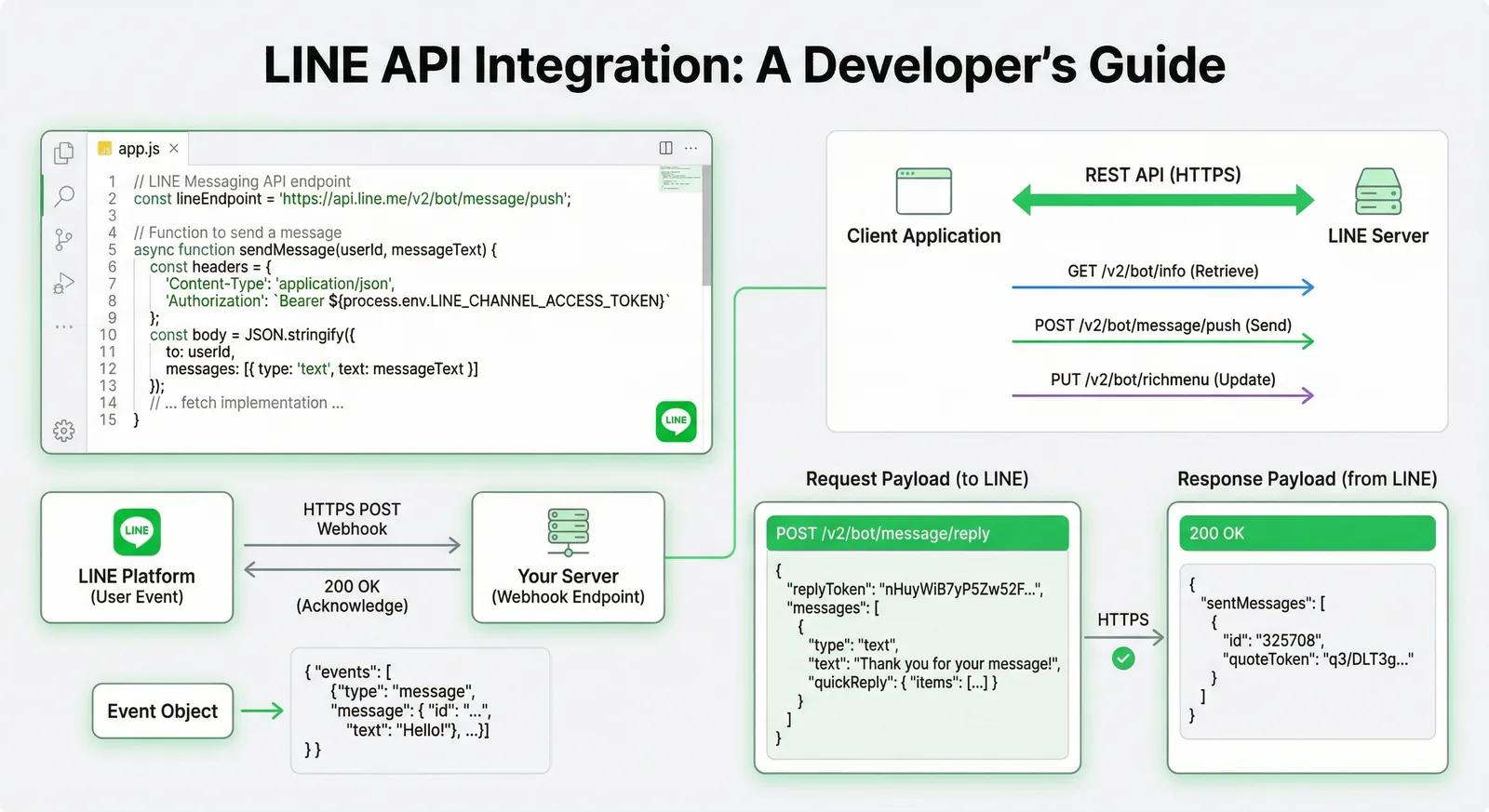
LINE API Integration Tutorial: Messaging API, Login, LIFF
A developer's map of the LINE APIs in 2026 and how to call them directly: what each API can do, channel setup, reply and push with fetch, webhook signature verification, LINE Login with PKCE, LIFF ID tokens, rate limits and error handling.
Read More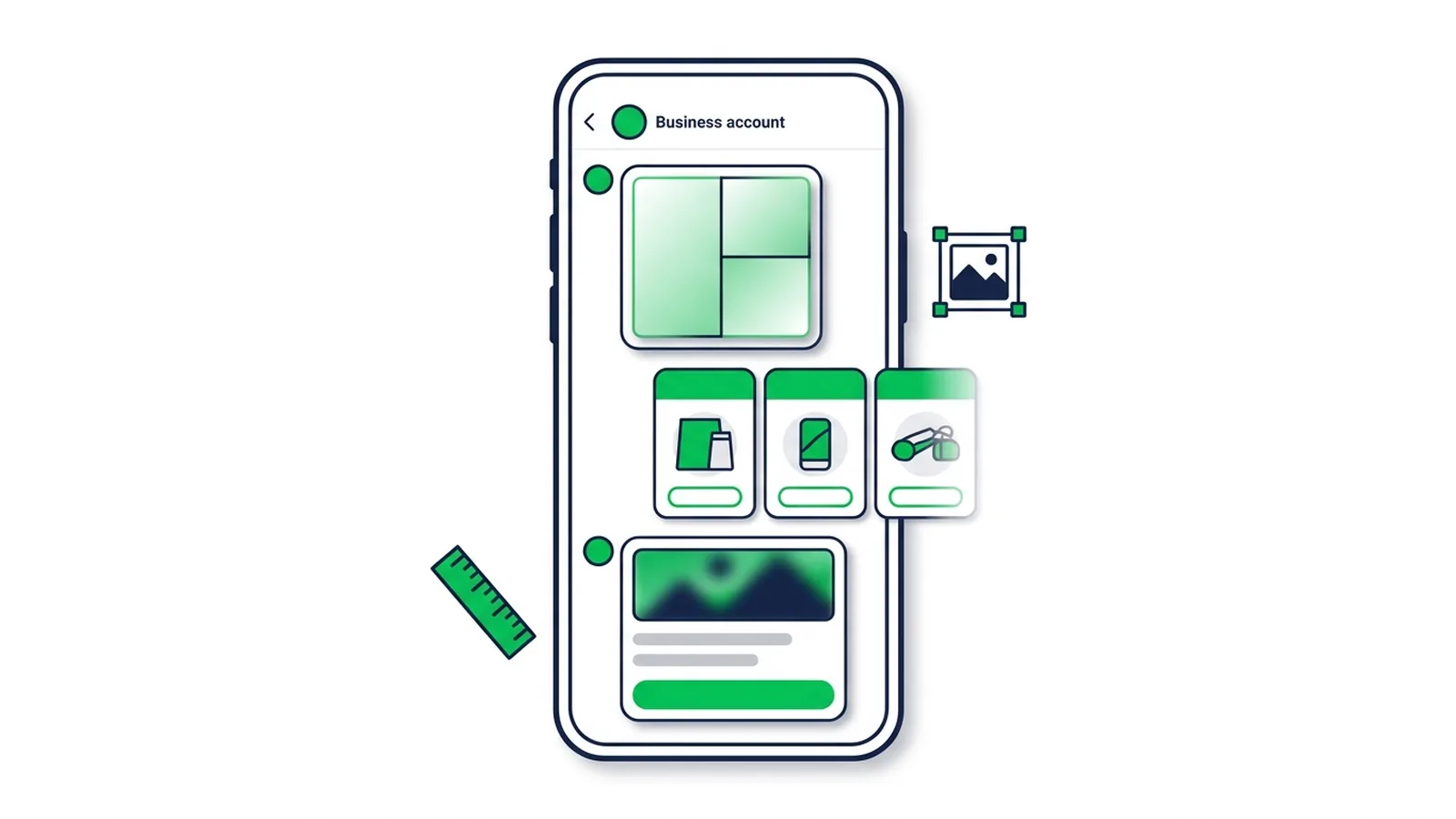
LINE Rich Message vs Card & Flex Message: Sizes & Setup
What a LINE rich message is and how it differs from card-based, rich video and Flex Messages — with LINE's official sizes, limits and step-by-step setup for each format.
Read MoreReady to Automate Your LINE Business?
Start automating your LINE communications with LineBot.pro today.