LINE Rich Menu: Sizes, Templates & Setup Guide
Create a LINE Rich Menu with the right image size, useful buttons and a clear layout. Includes templates, setup steps and an AI-assisted design workflow.

#What is a LINE Rich Menu?
A LINE rich menu is the tappable image menu pinned to the bottom of a LINE Official Account chat. You upload one image (2500×1686 or 2500×843 px is standard), split it into up to 6 tap areas in LINE Official Account Manager (up to 20 with the Messaging API) and give each area an action, such as opening a link or sending a text.
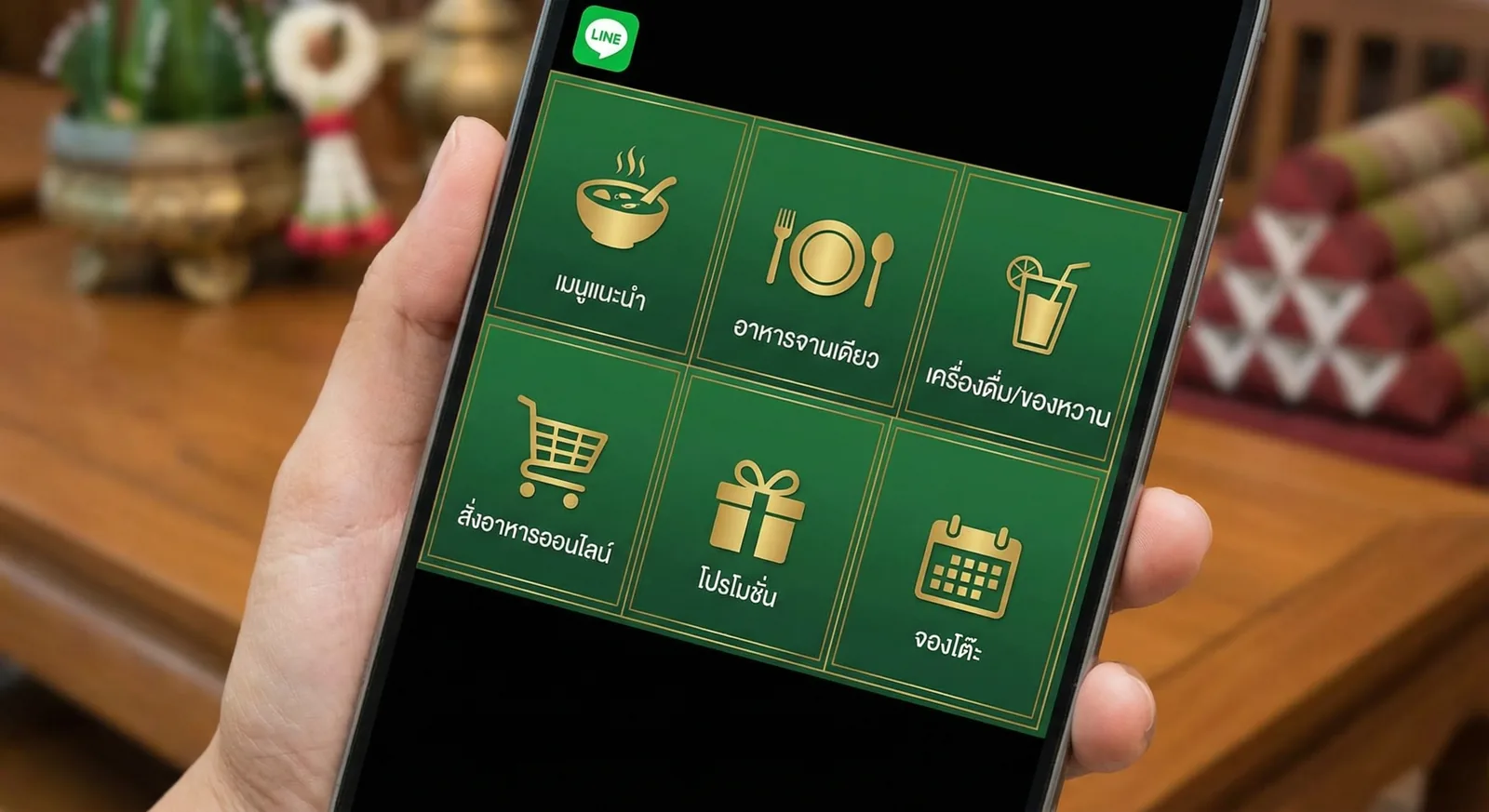
To publish one, you need three things:
- A LINE Official Account. It is free to open; our LINE Official Account setup guide walks you through it.
- One image at the right size, JPEG or PNG, 1 MB at most. Design it yourself, start from a free template, or generate it with an AI rich menu maker.
- A short list of actions, one per tap area: a web page, a booking link, a text such as "Opening hours", a coupon.
Taps on a rich menu never use your monthly message quota. The menu appears in the LINE app on iOS and Android, but not on LINE for PC (macOS and Windows). It is also different from a LINE rich message: a rich message is an image you send once, usually in a broadcast, while the rich menu stays in the chat.
#Why Rich Menus Matter for Business
The rich menu is the one part of your LINE OA that sits in the chat every time a friend opens it, whether they arrive from a broadcast, a QR code or a search. Used well, it does four jobs:
- Self-service answers. Opening hours, prices, location and the booking link are one tap away, so your admins type the same replies less often.
- Free, always-on traffic. Links open in LINE's in-app browser and taps cost nothing, unlike broadcasts that count against your quota.
- A front door for automation. A button that sends a text such as "Opening hours" can trigger a keyword auto-reply. See how to set up LINE auto replies.
- Measurable results. LINE Official Account Manager shows how often the menu was displayed and its click-through rate, so you can compare a new design with your own baseline.
Changing the menu doesn't notify your friends, so you can refresh it for every season or campaign without spending a single message.
#Rich Menu Size Requirements & Specifications
As of October 2026, LINE Official Account Manager offers two template shapes, each accepted at three sizes (official manual, in Japanese):
| Template | Accepted image sizes (px) | Tap areas | Best for |
|---|---|---|---|
| Large | 2500×1686, 1200×810, 800×540 | 1–6 (7 layouts) | 4–6 buttons, or a banner plus buttons |
| Compact | 2500×843, 1200×405, 800×270 | 1–3 (5 layouts) | 1–3 buttons, keeps more of the chat visible |
- Format and weight: JPEG or PNG, 1 MB maximum.
- Use the 2500 px version. LINE displays all three sizes in the same frame, so the smaller files can look rough on high-resolution phones.
- Six areas maximum in OA Manager. The template defines the tap areas; your image is a single picture drawn to match them.
- Messaging API (developers): any image 800–2500 px wide and at least 250 px high, with a width ÷ height ratio of 1.45 or more (so a 2500 px wide menu is at most 1724 px tall), and up to 20 tap areas (API reference).
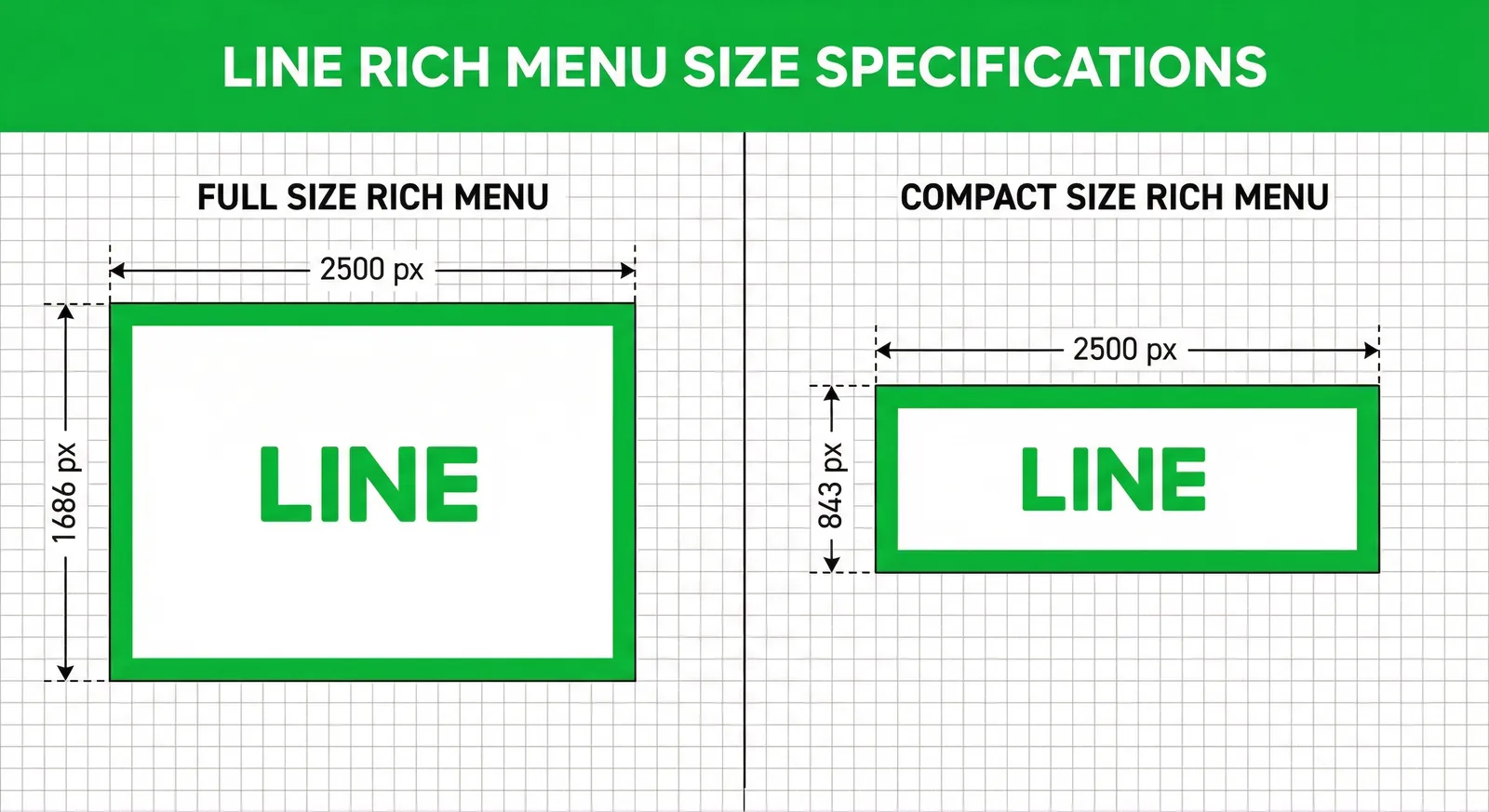
Tile coordinates, compression tips and upload errors are covered in our dedicated LINE rich menu size guide.
#Design Best Practices
#Plan the buttons before you open a design tool
- List what customers ask for most. Scroll through last month's chats: booking, prices, location, opening hours, promotions and "talk to staff" usually top the list.
- Keep three to six actions. Everything else belongs on one web page linked from the menu.
- Put the main action in the biggest or top-left tile, and keep "Contact us" in the same place every time you redesign.
- Choose the template from the number of buttons. These are the layouts LINE OA Manager offers:
| Buttons | Large (2500×1686) | Compact (2500×843) |
|---|---|---|
| 1 | Full panel | Full strip |
| 2 | Two rows or two columns | Two halves, or one-third + two-thirds |
| 3 | One big tile + two small tiles | Three columns |
| 4 | 2×2 grid, or a wide banner above three tiles | — |
| 6 | 3×2 grid | — |
There is no five-area template in OA Manager: use four or six areas, or build a custom layout with the Messaging API.
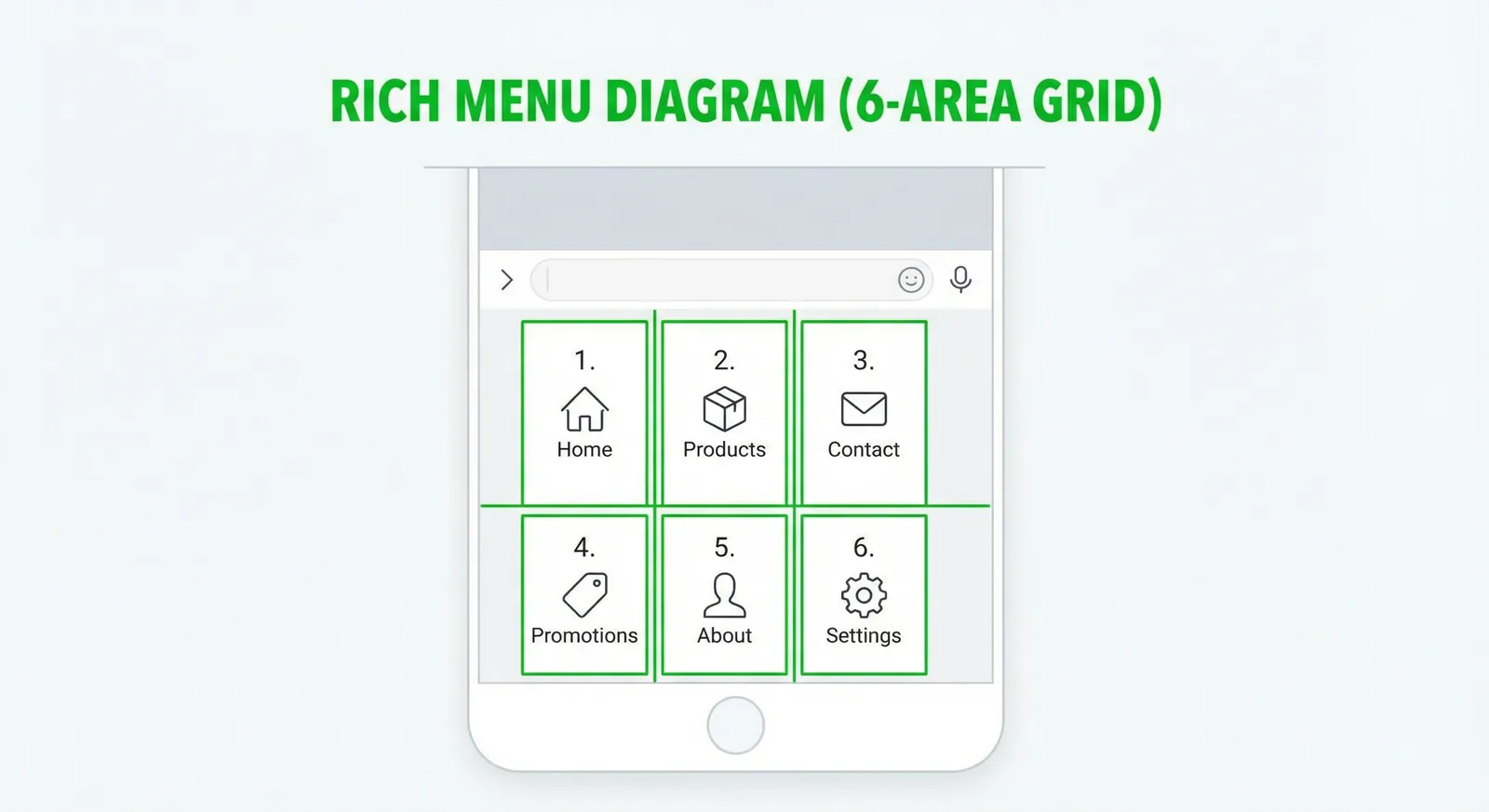
#Make every label readable on a phone
- The 2500 px image is shrunk to the width of the phone screen. Zoom your design out to about 15%, roughly its size in the chat, and check that every label is still easy to read.
- Use one icon and a two- or three-word label per tile. No sentences.
- Keep strong contrast between text and background, and avoid text on busy photos.
- Leave a margin inside each tile and draw visible borders or gaps. Tap areas are invisible, so the artwork has to show where one button ends.
- Replace the default menu bar text with a call to action such as "Menu ▾" or "Book here". With the Messaging API it is limited to 14 characters.
#Stay on brand
- Use one or two brand colours on a neutral background, and a single icon style.
- Add your logo only if it doesn't take space away from the buttons.
- Keep photos for large tiles, where they remain recognisable.
#Free Rich Menu Templates
A template saves the layout work, but you still pick the matching OA Manager template and set every action when you upload it. Reliable free sources:
| Source | What you get | Good to know |
|---|---|---|
| Design guide in LINE OA Manager | Blank template images for every layout | Button on the rich menu creation page |
| OA Manager image editor (web) | Build the image area by area with text, icons, colours and borders | Fast, but basic |
| LINE Rich Menu Maker by LINE Thailand | 7 large and 5 compact layouts, icon sets by business type, Thai text | Saves a 2500 px wide JPEG to your device |
| LY Marketing Campus (Japan) | Free template images for rich menus, rich messages and coupons | In Japanese |
| LINE Biz-Solutions Taiwan downloads | Rich menu templates for retail, F&B, beauty and seasonal campaigns | In Traditional Chinese |
| Canva | Many rich menu templates, including community collections | Set the canvas to 2500×1686 or 2500×843 before exporting |
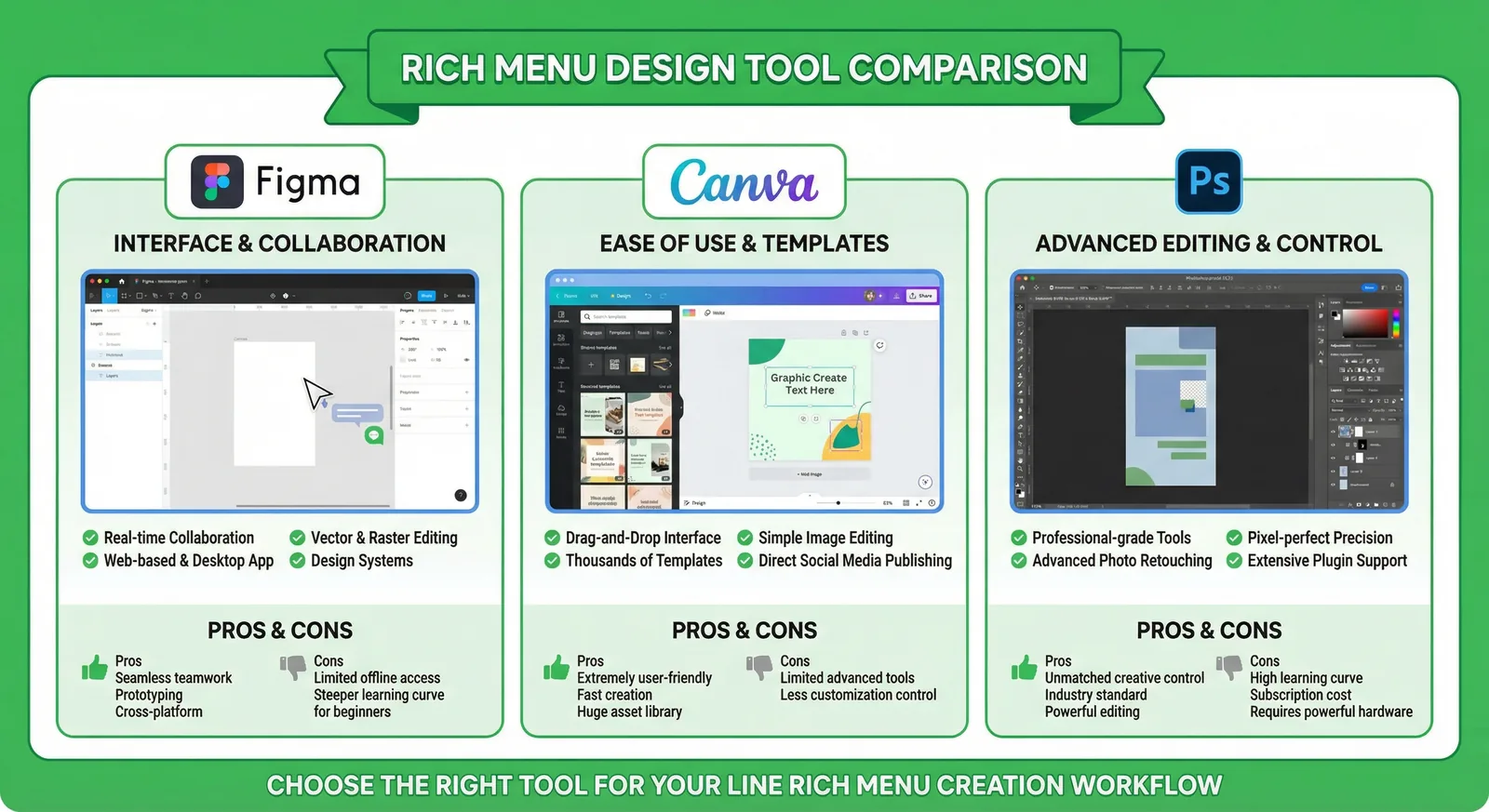
Would you rather describe the menu than edit a template? Jump to making the image with AI.
#Step-by-Step: Create It in LINE OA Manager
These steps follow LINE's official manuals for Thailand, Taiwan and Japan. The LINE Official Account mobile app offers the same settings, but uploading images is easier on the web version.
- Open the editor. Sign in to LINE Official Account Manager, choose your account, click Rich menus in the left menu, then Create.
- Title. An internal name that customers never see (LINE Thailand's manual allows up to 30 characters).
- Display period. Set the start and end date and time. Only one rich menu can be displayed at a time, so periods can't overlap; a period in the future saves the menu as scheduled.
- Template. Pick the large or compact layout that matches your image. The Design guide button downloads blank templates.
- Image. Upload your JPEG or PNG (1 MB at most, at one of the six sizes), or build one with the built-in editor.
- Actions. For each area, choose a link, a coupon, a text, a reward card or no action. Links and coupons also need an action label of up to 20 characters, which screen readers read aloud. At least one area must have an action.
- Menu bar text. The label on the bar under the chat that opens and closes the menu.
- Default display. "Show" opens the menu automatically when a friend opens the chat; "Hide" displays only the menu bar.
- Save. Customers see the new menu the next time they leave and re-enter the chat. It can take a while, depending on the network and your number of friends.
#What each action can do
| Action | What happens | Available in |
|---|---|---|
| Link (URI) | Opens a web page in LINE's in-app browser | OA Manager and API |
| Text (message) | The customer sends a preset text such as "Opening hours"; pair it with a keyword auto-reply | OA Manager and API |
| Coupon / reward card | Opens a coupon or reward card created in OA Manager | OA Manager |
| Postback | Sends hidden data to your bot's webhook | Messaging API |
| Datetime picker | Lets the customer pick a date or time, sent to your webhook | Messaging API |
| Rich menu switch | Switches to another rich menu, like a tab | Messaging API |
If a developer also sets rich menus through the Messaging API, theirs win: per-user menus come first, then the API default menu, then the menu published in OA Manager.
#Advanced: Messaging API, Tabs & Per-User Menus
OA Manager covers most businesses. Move to the Messaging API when you need more than six areas (up to 20), a custom layout, postback or date-picker actions, tab-style menus, or different menus for different customers.
#The four API calls
- Create the menu with
POST https://api.line.me/v2/bot/richmenu(check the JSON first withPOST https://api.line.me/v2/bot/richmenu/validate). - Upload the image with
POST https://api-data.line.me/v2/bot/richmenu/{richMenuId}/contentand aContent-Typeofimage/jpegorimage/png. - Show it to everyone with
POST https://api.line.me/v2/bot/user/all/richmenu/{richMenuId}. - Or link it to one customer with
POST https://api.line.me/v2/bot/user/{userId}/richmenu/{richMenuId}(the bulk endpoint takes up to 500 user IDs per request).
{
  "size": { "width": 2500, "height": 843 },
  "selected": true,
  "name": "main-menu-2026-10",
  "chatBarText": "Menu",
  "areas": [
    {
      "bounds": { "x": 0, "y": 0, "width": 833, "height": 843 },
      "action": { "type": "uri", "label": "Book", "uri": "https://example.com/booking" }
    },
    {
      "bounds": { "x": 833, "y": 0, "width": 834, "height": 843 },
      "action": { "type": "message", "label": "Opening hours", "text": "Opening hours" }
    },
    {
      "bounds": { "x": 1667, "y": 0, "width": 833, "height": 843 },
      "action": { "type": "postback", "label": "Contact", "data": "action=contact", "displayText": "Contact us" }
    }
  ]
}
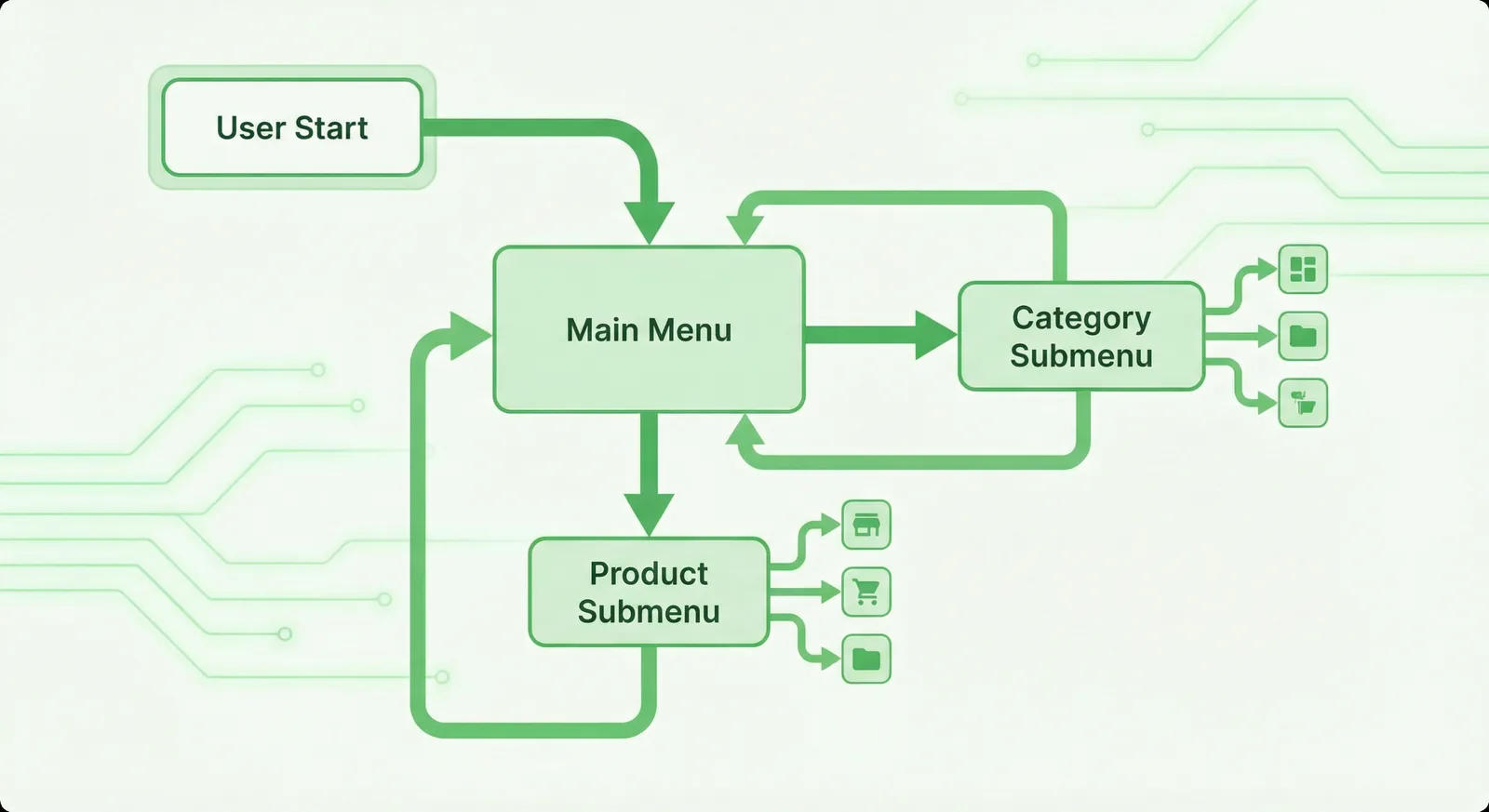
#Tabs with rich menu aliases
Create one rich menu per tab, upload each image, give each menu an alias with POST https://api.line.me/v2/bot/richmenu/alias (alias IDs up to 32 characters), then add a richmenuswitch action that points to the other tab's alias. LINE switches the menu on the phone and sends a postback event to your webhook.
#Limits worth knowing
- Up to 1,000 rich menus and 1,000 aliases per LINE Official Account through the API. Delete old menus with
DELETE https://api.line.me/v2/bot/richmenu/{richMenuId}. - An uploaded image can't be replaced. To change the design, create a new menu, upload the new image, switch the default, then delete the old menu.
- Menus made in OA Manager and menus made through the API are managed separately: the API can't list OA Manager menus, and OA Manager doesn't show API menus.
- Per-user changes appear immediately; a new default menu appears when the customer reopens the chat (it can take up to a minute for API defaults).
#Make the Image with AI (LineBot.pro)
Design is where most owners get stuck. LineBot.pro's AI rich menu maker turns a short description into the image and the layout file:
- Describe your business and the buttons (one to six) in Thai, Japanese, Traditional Chinese or English, and paste the links you want. You can also start from a quick-start form for service businesses, online shops, restaurants or info and support menus.
- The AI writes a creative brief, draws the artwork with your button labels inside the tiles and checks the result, redrawing it when a label or tile is wrong. Only the links you typed are used.
- You get a ready-to-upload image at the exact size LINE expects: 2500×843 for one to three buttons, 2500×1686 for four to six (2×2, 2 + 3 or 3×2), compressed under 1 MB. It comes with the rich menu JSON, whose tap areas match the artwork. Preview it in a phone mockup, then download everything or copy the JSON.
What it doesn't do: LineBot.pro doesn't publish the menu to LINE for you, and you can't upload your own logo or photos. Upload the image in LINE OA Manager with the matching template (one to three buttons as compact, four as 2×2, six as 3×2) and set each area's link or text as in the steps above. The five-button layout has no OA Manager template, so use it through the Messaging API JSON, or choose four or six buttons. Each button opens a link or sends a text, which also works with keyword replies in our LINE chatbot, where keyword matches cost 0 credits.
Cost: 10 credits per rich menu. New accounts get 50 free credits, enough for 5 menus, with no card needed. Failed generations are refunded automatically. After that, one-time credit packs (no subscription, credits don't expire) are listed on the pricing page.
Create your rich menu image with AI →
#Common Mistakes to Avoid
- Wrong size, or a file over 1 MB. OA Manager only accepts the six template sizes. Export 2500×1686 or 2500×843 as a JPEG and compress it.
- Artwork that doesn't match the template. Taps then land on the wrong button. Choose the template first and design on its grid.
- Labels too small to read. Check the design at phone size before uploading.
- Too many buttons. Six is the OA Manager maximum; group extra links on one web page.
- Untested links. After saving, open the chat on your own phone and tap every area.
- A forgotten end date. When the display period ends, the menu disappears from the chat.
- Expecting it on desktop. Rich menus don't appear on LINE for PC, so repeat key links in your greeting message and profile.
- Two systems fighting. A default menu set through the Messaging API overrides the one in OA Manager.
- Never updating it. Refresh the artwork for seasons and campaigns; friends aren't notified, so it costs nothing.
#Frequently Asked Questions
Q: What size should a LINE rich menu image be?
2500×1686 px for the large template or 2500×843 px for the compact one, as a JPEG or PNG under 1 MB. OA Manager also accepts 1200×810, 800×540, 1200×405 and 800×270, but the 2500 px versions look sharpest.
Q: How many buttons can a LINE rich menu have?
Up to 6 tap areas with LINE OA Manager's templates (3 on the compact ones) and up to 20 with the Messaging API. For readability, three to six buttons is plenty.
Q: Is a LINE rich menu free?
Yes. Rich menus are part of every LINE Official Account plan, including the free plan, and taps don't use your message quota. You only pay if you hire a designer or use a paid design tool.
Q: Why isn't my rich menu showing?
Leave the chat and open it again: OA Manager changes appear when the chat is reopened and can take a while. Then check the display period, the default display setting and the device, because rich menus don't appear on LINE for PC. A menu set through the Messaging API also takes priority over the OA Manager one.
Q: Can different customers see different rich menus?
Not with OA Manager, which shows one menu to everyone at a time (you can schedule several by display period). Per-user menus and tab switching require the Messaging API.
Q: How do I change the image of a live rich menu?
In OA Manager, open the menu from the list, upload the new image and save, or copy the menu and schedule the new version. Through the Messaging API, an uploaded image can't be replaced: create a new menu, upload the image, set it as the default and delete the old one.
Next steps:
- Check every spec in the LINE rich menu size guide
- See how LINE rich messages differ from rich menus
- New to LINE OA? Start with the LINE Official Account setup guide
- Generate a menu image with the AI rich menu maker
Related Services
About LineBot.pro
LineBot.pro is an AI tool for LINE Official Accounts: it creates Rich Menus, Rich Messages and banners, sends broadcast campaigns and runs keyword auto-replies. Our team writes these guides based on hands-on work with the LINE Messaging API.
Contact usRelated Articles
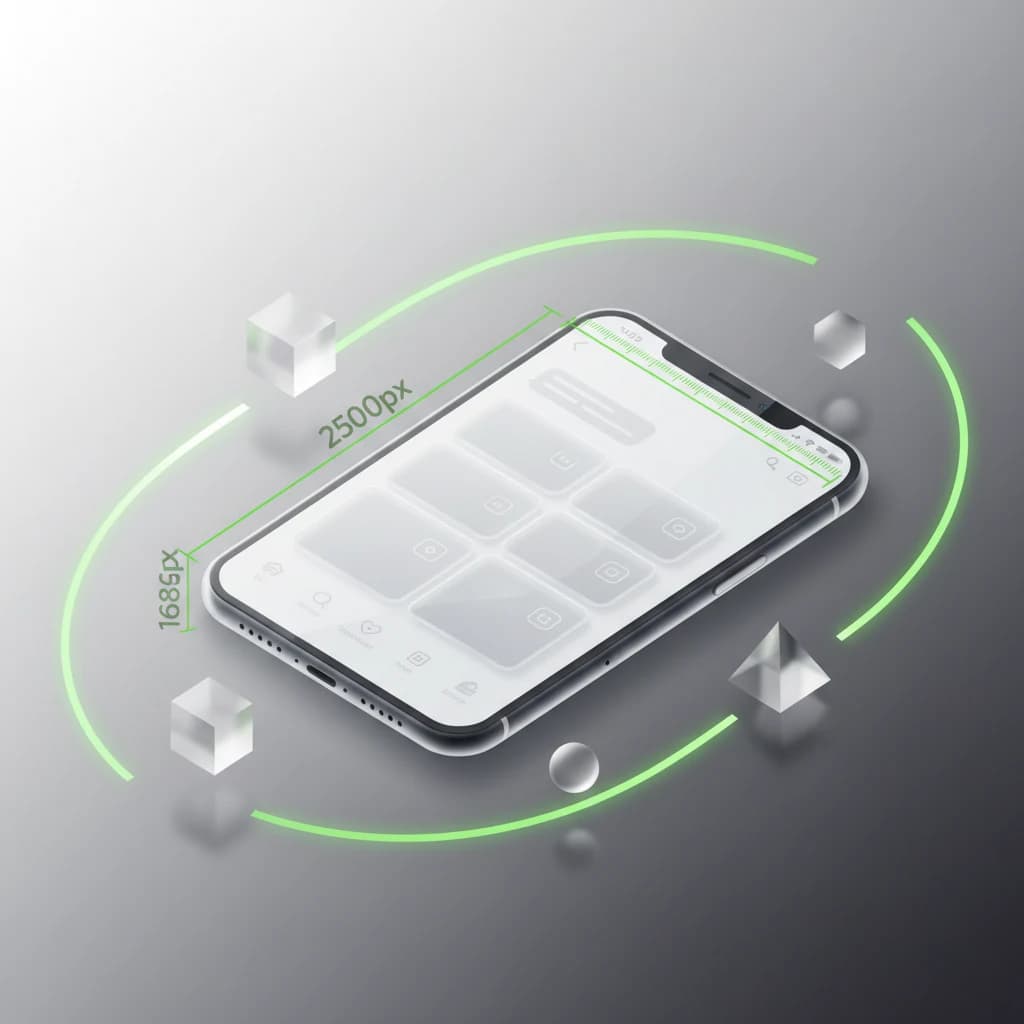
LINE Rich Menu Size 2500x1686: Specs & Templates (2026)
LINE rich menu image sizes at a glance: 2500x1686 (large) and 2500x843 (compact), file format, max file size, the 1,000-per-channel limit and ready-to-use templates. Updated for 2026.
Read More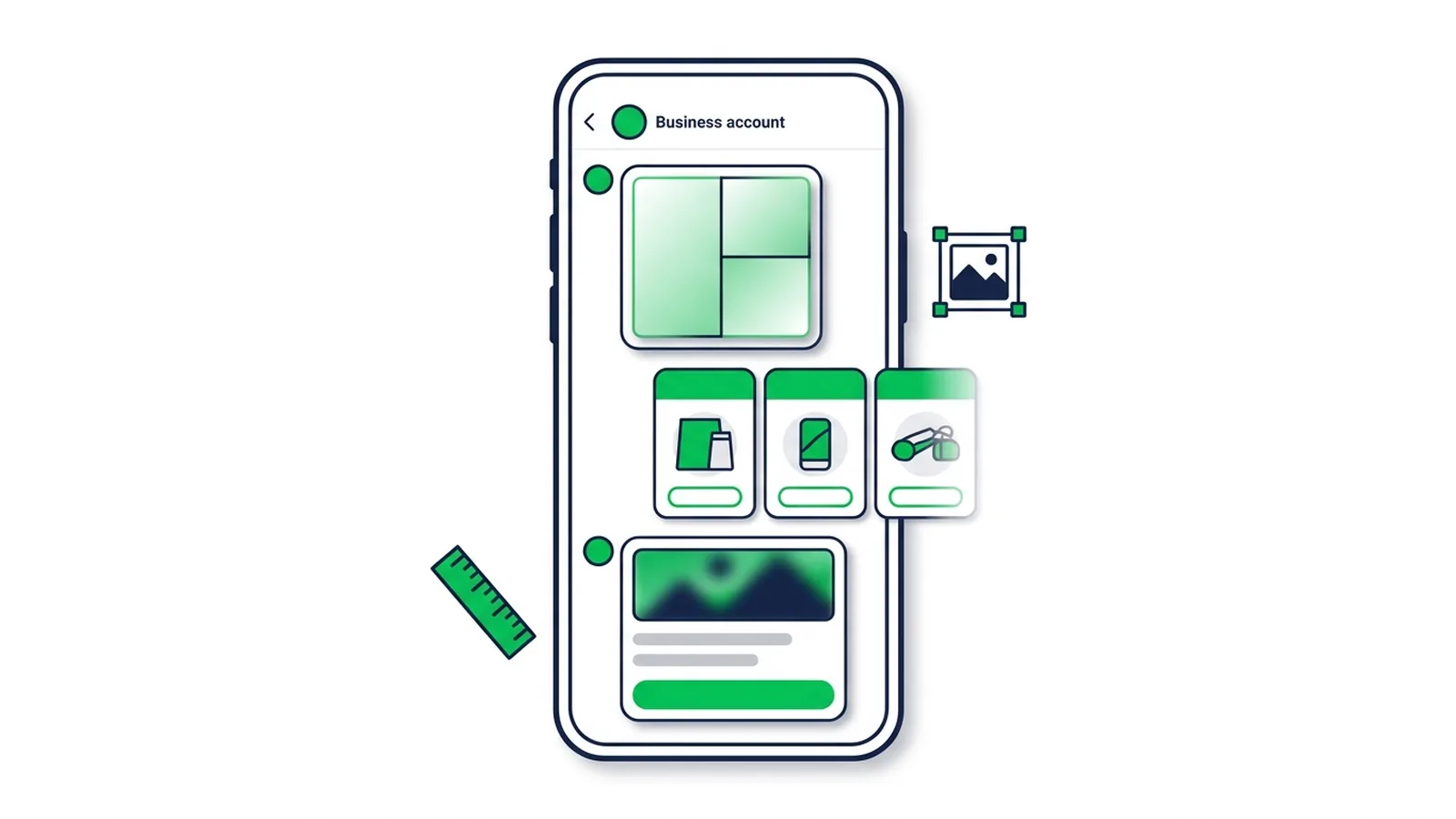
LINE Rich Message vs Card & Flex Message: Sizes & Setup
What a LINE rich message is and how it differs from card-based, rich video and Flex Messages — with LINE's official sizes, limits and step-by-step setup for each format.
Read More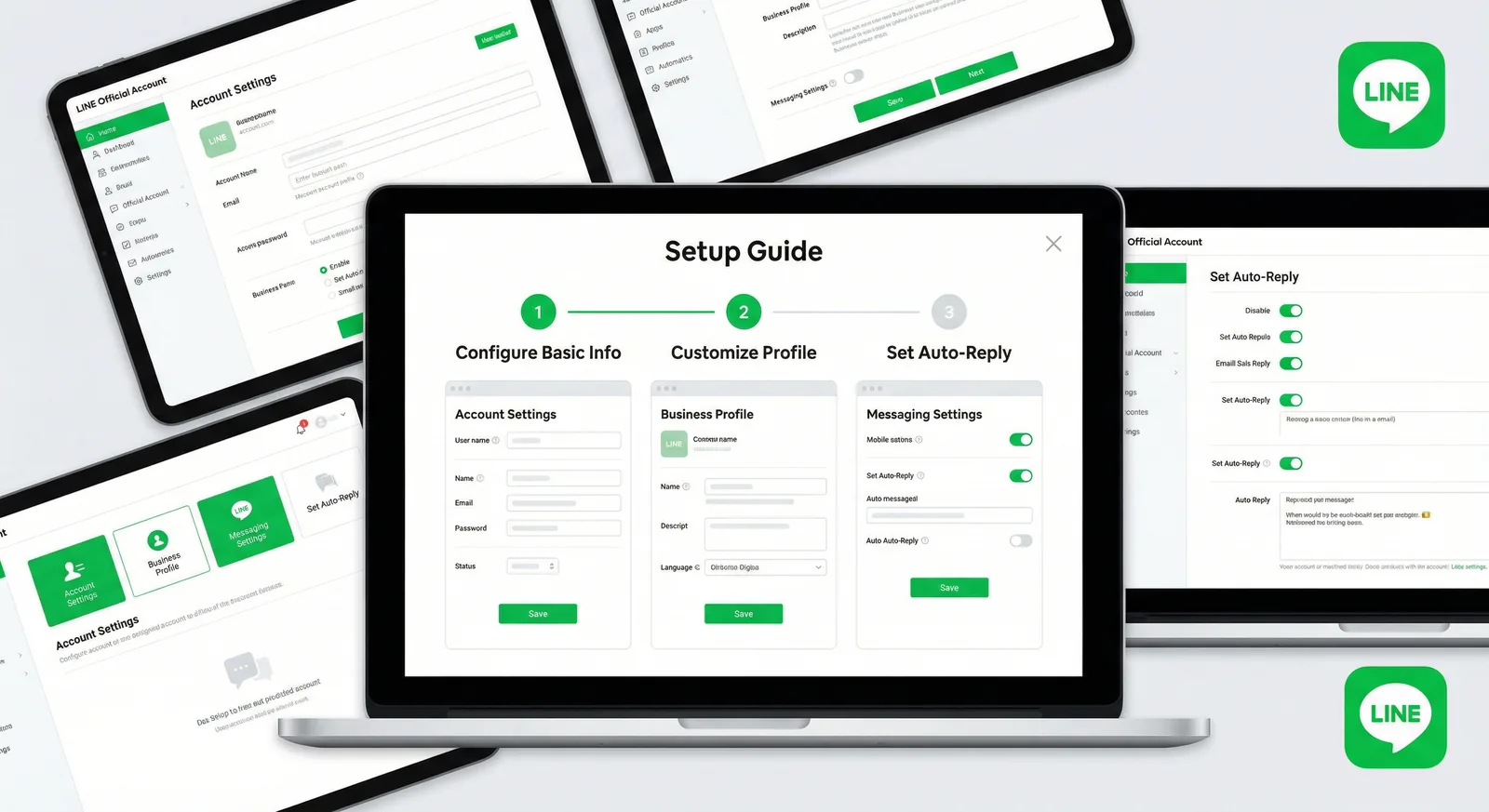
How to Create a LINE Official Account (LINE OA) in 2026
Open a free LINE Official Account step by step: web and app sign-up, the April 2026 badge changes, day-one settings, verification by country and a 10-point launch checklist.
Read MoreReady to Automate Your LINE Business?
Start automating your LINE communications with LineBot.pro today.