LINE OA Broadcast: How to Send, Quotas & Tips (2026)
How to send a broadcast from LINE Official Account Manager on the web and in the app, which message types and filters you can use, how LINE counts messages against your monthly quota, image sizes, timing tips and ready-to-adapt examples.
#What Is a LINE OA Broadcast?
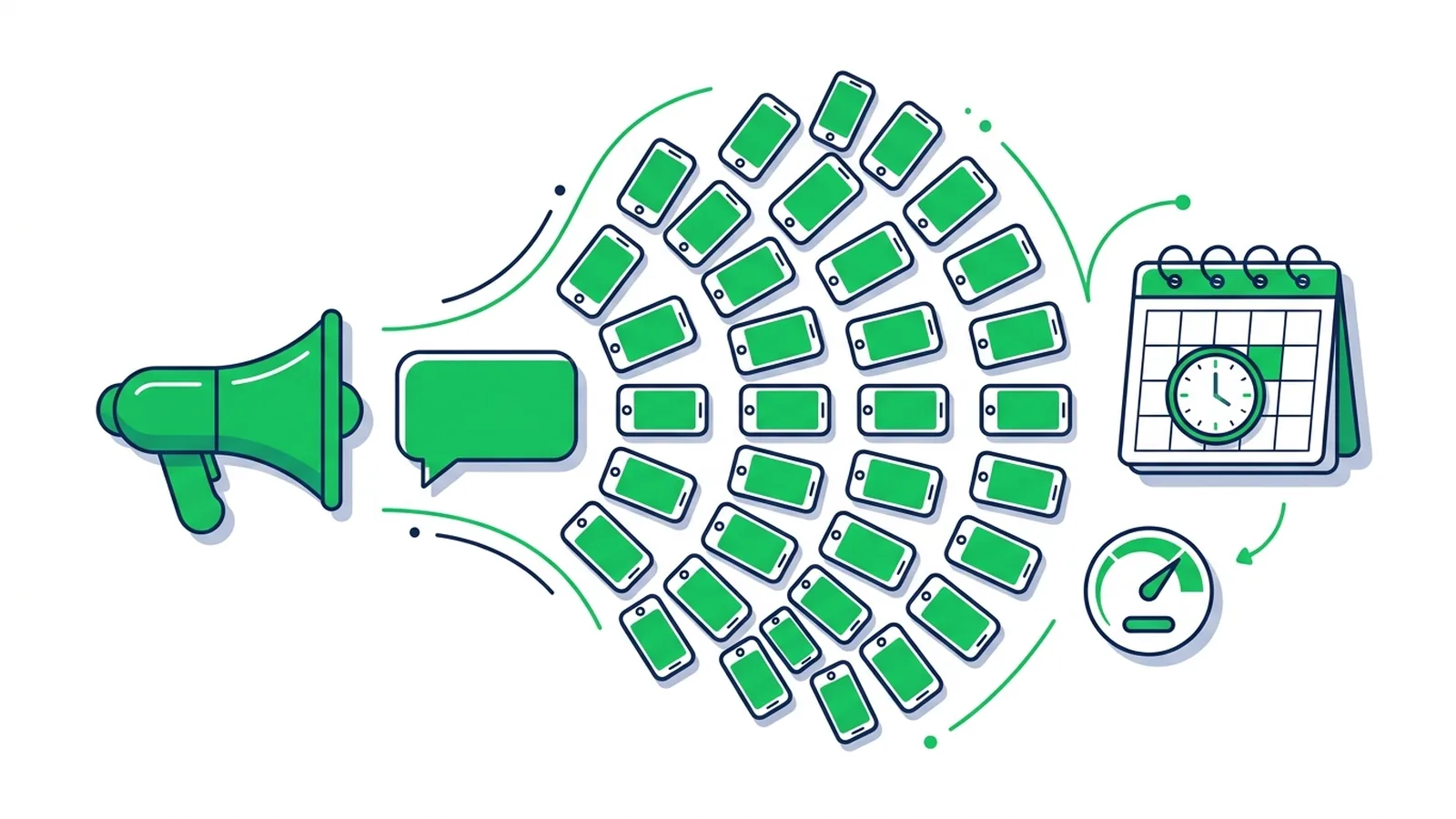
A LINE OA broadcast is a message your LINE Official Account sends to all of its friends at once, or to a filtered group, from LINE Official Account Manager or the Messaging API. It lands in each friend's chat list with a push notification. Every delivery counts against your plan's monthly message quota; replies stay free.
That direct reach is why broadcasts are the core marketing feature of a LINE OA, and also why they need care: friends who feel spammed block the account, and a blocked friend receives nothing from you again.
| Broadcast to all friends | Targeted broadcast | Replies | |
|---|---|---|---|
| Who receives it | Every friend who can receive messages | Friends matching demographic filters or an audience | Only the person who wrote to you or just added you |
| Uses your quota | Yes, one message per recipient | Yes, one message per recipient | No |
| Typical use | Promotions, new products, announcements | Local events, re-sending to people who clicked | Greeting message, auto-replies, keyword replies, 1:1 chat |
Because replies are free, well-run accounts push only what can't wait and let automatic replies handle the rest (see these LINE auto-reply message examples). If you want the visual, the copy and the scheduling in one place, our LINE broadcast tool covers that; details are further down.
#How to Send a Broadcast, Step by Step
#In LINE Official Account Manager (web)
- Sign in at manager.line.biz and open your account.
- Click Home → Broadcast → Create new.
- Under Recipients, keep all friends or choose Filter by demographic (see the targeting section below).
- Choose the timing: send immediately, or enter a date and time to schedule the broadcast.
- Optional: tick Set broadcast volume to cap how many friends receive it. LINE then picks the recipients at random.
- Add up to three bubbles: text, photo, rich message, card message, coupon, video and more.
- Send a test to yourself, check it on a real phone, then send it or save it as a draft.
#In the LINE Official Account app
Tap Home → Broadcast → Create broadcast → Add, pick a message type, write it and tap Next. On the next screen, set the recipients, the timing and, if you need it, Broadcast volume, then send. Rich video messages and audiences can only be created in the web version.
#Scheduling, tests and corrections
- A scheduled broadcast can be cancelled until it goes out. In LINE's Japanese manual, a cancelled reservation moves back to drafts, so you can fix it and schedule it again.
- LINE warns that busy times can delay delivery and suggests avoiding round times such as 00:00 or 12:00. Schedule 12:07 rather than 12:00.
- A sent broadcast can't be edited or deleted. Test every time.
- A text bubble holds up to 500 characters.
#Message Types You Can Broadcast
One broadcast holds up to three bubbles, and you can mix formats:
| Format | What it is | Good for |
|---|---|---|
| Text | Up to 500 characters, emoji allowed | Short news, the hook of a promotion |
| Sticker | LINE's standard stickers | A friendly touch next to text |
| Photo | One image, up to 10 MB | Product shots, posters |
| Video or voice | Up to 200 MB each (MP4 recommended for video) | Demos, a voice note from the owner |
| Rich message | An image split into tap areas that open links (up to six in the six-area template) | One promotion with a clear call to action |
| Rich video message | Autoplaying video with a link; can't be saved or forwarded | Launches, reviews |
| Card message | A carousel of up to 9 cards: product, location, person or image | Several products or branches |
| Coupon | A coupon created in LINE OA Manager | Store visits, repeat purchases |
| Survey | A LINE OA survey | Customer feedback |
In Japan, accounts connected to LINE's reservation service can also send a booking-form link. Rich messages and card messages have their own layouts and image rules; our LINE rich message guide covers them in depth.
#Targeted Broadcasts: Filters and Audiences
Sending to everyone is the default. LINE OA Manager lets you narrow a broadcast in two ways.
1. Filter by demographic. Pick friends by how long they have been friends, gender, age, OS and region. The rules, as of October 2026:
- Your account needs a target reach of at least 100. Target reach is LINE's count of active friends whose attributes it can estimate with high confidence, so it is usually lower than your friend count.
- After filtering, the estimated audience must be 50 people or more.
- Gender, age and the other attributes are LINE's estimates from app usage, not data your customers entered, and they lag about three days behind. Treat them as approximate.
- Region options follow each market: Bangkok, Pattaya and six regions in Thailand; prefectures in Japan; cities and counties in Taiwan.
2. Audiences. Create them on the web under Home → Broadcast → Audiences → Create new. The basic types:
- Click retargeting: people who tapped a link in an earlier broadcast.
- Impression retargeting: people who opened an earlier broadcast.
- User ID upload: a list of user IDs you upload.
- Chat tag audience: people you tagged in 1:1 chats (delivered to those chats only).
Depending on the market, LINE OA Manager also offers rich menu, friend-source and web traffic (LINE Tag) audiences. Audiences expire 180 days after creation (chat tags excepted), most need at least 50 people, and LINE's Japanese manual allows up to 10 per message, each one included or excluded.
Targeting also protects your quota. With 20,000 friends, a broadcast to a 1,500-person audience uses 1,500 messages.
#How Messages Are Counted (and What Happens at the Limit)
LINE counts recipients × sends:
- One broadcast to 4,000 friends uses 4,000 messages, not one.
- Up to three bubbles in the same broadcast still count once per recipient. The Messaging API allows up to five message objects per request, also counted once per recipient.
- Friends who blocked you don't receive it and aren't counted.
- Counted: broadcasts and targeted broadcasts, plus Messaging API push, multicast, broadcast and narrowcast (and step messages in Japan).
- Not counted: 1:1 chat, auto-replies, keyword replies, greeting messages and Reply API messages.
- The quota resets every month. Unused messages don't roll over.
Free monthly messages by market (as of October 2026):
| Market | Free plan | Mid plan | Top plan | Sending beyond the quota |
|---|---|---|---|---|
| Thailand | 300 | Basic: 15,000 | Pro: 35,000 | Basic and Pro, billed per message |
| Japan | 200 | Light: 5,000 | Standard: 30,000 | Standard only |
| Taiwan | 200 | Mid usage: 3,000 | High usage: 6,000 | High usage only |
Monthly prices, per-message rates and Taiwan's price change of 1 November 2026 are in our LINE Official Account pricing guide. Sources: LINE for Business Thailand, LY Corporation plans (Japan), LINE Biz-Solutions Taiwan.
When you reach the limit:
- On the free plans, and on Japan's Light and Taiwan's mid-usage plan, you can't send beyond the quota. Upgrade your plan or wait for the next month.
- On plans with extra messages, set the additional message limit before you need it: Settings → Dashboard (under Activity and billing), then Set target limits under "Messages sent this month".
- If a broadcast needs more messages than you have left, it ends in an error. To send anyway, set a broadcast volume that fits your remaining quota, and LINE picks the recipients at random.
- Check your usage on the same dashboard, next to "Free messages sent".
#LINE Broadcast Image Sizes
LINE sets file limits for broadcast media, and fixed pixel sizes only for rich messages (and rich menus):
| Format | Official limits |
|---|---|
| Photo | JPG or PNG, up to 10 MB; compressed when uploaded |
| Rich message | Square, 1040 × 1040 px, up to 10 MB |
| Card message image | JPG or PNG, up to 10 MB; recommended ratio 1.54:1 (product and location cards) or 1.11:1 (image cards) |
| Video | Up to 200 MB, MP4 recommended |
| Rich video message | Up to 200 MB; landscape, square or portrait |
Practical tips:
- LINE compresses photos on upload, so small text inside images can blur. Use large type and check a test send on a phone.
- Photo messages have no required pixel size. If you are unsure, about 1040 px wide (the rich message width) is a safe choice.
- In notifications and the chat list, a rich message shows the title you typed when creating it, not the image. Write that title for customers.
#Best Practices: Timing, Frequency and Copy
#Pick the time by market
- Thailand: LINE Thailand suggests sending when customers are most likely to see it, such as before lunch, after work or just before a promotion starts, and 2–4 broadcasts a month for a shop that is just starting. Payday at the end of the month and double-date sales (9.9, 10.10, 11.11, 12.12) are natural hooks.
- Japan: in a LINE Yahoo survey, about 20% of users open a LINE Official Account message as soon as it arrives, about half within 3–6 hours and about 80% the same day. If the offer is for today, send it in the morning or around midday.
- Taiwan: start by testing the lunch break and the evening after the commute, and plan around Double 11, department-store anniversary sales and holidays such as Mother's Day and the Mid-Autumn Festival.
- Everywhere: avoid exact round times and late nights.
#Frequency and block rate
- LINE OA Manager's Insights show friends added and blocks per day. Check blocks the day after every broadcast.
- If one kind of broadcast causes a jump in blocks, send it less often or only to people who clicked before (a click retargeting audience).
- Evergreen information (menu, opening hours, booking link) belongs in your rich menu, not in repeated broadcasts.
#Write the notification first
- Notifications and the chat list show only a short preview: the first words of a text bubble, or the title (alt text) of a rich message or Flex message. Put the offer and the deadline there: "Today only: 2nd drink 50% off until 6 pm".
- LINE Thailand's formula works in any language: offer + reason to care + call to action.
- One message, one goal, one button.
- LINE emoji appear as plain text in notifications, and device-specific emoji can't be used in broadcasts.
- LINE's manual advises against shortened URLs.
#Coupons and replies
- Coupons are built into LINE OA Manager. A coupon bubble under the promotion gives people a reason to act now.
- Ask for a reply ("Reply BOOK to reserve") and catch it with a keyword auto-reply. The conversation that follows uses no quota.
#Broadcast Message Examples
Five templates to adapt. The first line is what shows in the notification; "[Button]" marks the call to action of a rich or Flex message.
1. Promotion (café)
☕ Today only: 2nd latte 50% off until 6 pm
Show this message at the counter. Valid at every branch.
[Button: See the menu]
2. New product (skincare)
✨ New: Rice Water Sunscreen SPF50+
Light, no white cast, made for humid days.
Pre-order this week and get a free travel size.
[Button: Pre-order]
3. Back in stock (fashion)
📦 Back in stock: the linen shirt in sand, sizes S–XL
Quantities are limited in every size.
[Button: Shop now]
4. Event (workshop)
🕯️ Candle-making workshop, Sat 14 Nov, 2–4 pm
12 seats only. Reply "BOOK" to save your place.
5. Last-chance reminder (11.11)
⏰ 6 hours left: your 11.11 coupon ends at midnight
Use code LINE1111 at checkout for 15% off.
[Button: Use my coupon]
#Measuring Results in LINE OA Manager
LINE OA Manager's Insights show results for each broadcast:
| Metric | Meaning |
|---|---|
| Delivered | People the message was sent to |
| Opened | Unique people who viewed it; an open counts when any bubble is fully displayed, including in the preview |
| Impressions | How many times a bubble was displayed |
| Clicks | Taps on links in the message, and how many people tapped |
| Video plays | Plays and completions of video or audio |
| Conversions | Available once LINE Tag is set up |
- Statistics are collected for 14 days after sending.
- Small numbers are hidden for privacy: below 20, opens show 0 and other metrics show a dash (LINE's official manual).
- Results can be downloaded as CSV, and in Japan you can group several broadcasts under one campaign.
- To connect broadcasts to sales, add UTM parameters to your links and read them in your web analytics.
#Broadcasting With the Messaging API
Developers can send the same messages with a Messaging API channel access token:
| Endpoint | Sends to | Rate limit |
|---|---|---|
| Broadcast | All friends | 60 requests per hour |
| Narrowcast | Demographic filters, audiences or the recipients of an earlier send | 60 requests per hour |
| Multicast | Up to 500 user IDs per request | 200 requests per second |
| Push | One user, group chat or multi-person chat | 2,000 requests per second |
Rules worth knowing (LINE Developers, October 2026):
- Up to five message objects per request, counted once per recipient. Blocked users and non-existent user IDs aren't counted.
- Narrowcast with demographic filters needs a target reach of 100 or more, and the final recipients, like each audience used, must number at least 50 (audiences of uploaded user IDs are exempt).
- Narrowcast runs in the background, so check its progress endpoint.
limit.max,upToRemainingQuotaandforbidPartialDeliverydecide what happens when the quota can't cover everyone. - In Thailand, users under 20 are excluded when you filter recipients by certain conditions.
GET /v2/bot/message/quotareturns your monthly limit andGET /v2/bot/message/quota/consumptionwhat you have used.- Statistics: per request for broadcast and narrowcast (updated for 14 days); for push and multicast only through custom aggregation units, and values under 20 come back as null.
curl -X POST https://api.line.me/v2/bot/message/broadcast \
  -H 'Content-Type: application/json' \
  -H 'Authorization: Bearer {channel access token}' \
  -d '{"messages":[{"type":"text","text":"Today only: 2nd latte 50% off until 6 pm"}]}'
#How LineBot.pro Helps
LINE OA Manager is free and handles sending well. What usually takes time is making every broadcast look good and getting it out on schedule. That is the part LineBot.pro handles, in Campaigns:
- Connect your LINE OA once by pasting its Channel ID, channel secret and channel access token from the LINE Developers console.
- Click New Campaign, name it and choose the LINE account.
- Describe the message in a prompt, for example "Thai tea buy 1 get 1 today until 6 pm, warm café photo, button to our menu". The AI writes the copy and draws the visual, an AI reviewer checks the image and redraws it if needed, and code builds a valid Flex message card: a 1200 × 675 px hero image, headline, text and a button. It costs 8 credits, and a failed generation is refunded automatically.
- Check the preview, then choose the audience: Broadcast (all friends) or Targeted, a list of LINE user IDs you paste (they start with "U", and your webhook receives them when people interact with your bot).
- Pick Send Now or Schedule.
Sending costs 0 credits. LINE counts the messages against your monthly quota exactly as described above, and the campaign page shows the delivery status, your current follower count and your account's monthly message quota. If LINE reports that the quota is used up, you see that error in plain words.
Good to know before you start:
- The campaign name becomes the notification text customers see, so write it like a headline ("Thai tea buy 1 get 1, today only"), not "October promo v2".
- LineBot.pro has no open or click statistics, no demographic filters or audiences, no step or drip sequences and no coupons. Use LINE OA Manager for those; both work on the same account.
New accounts get 50 free credits with no card, enough for 6 AI campaign messages. After that, buy one-time credit packs: no subscription, and credits don't expire. Only need the card itself (image and Flex JSON) for your developers? Use the AI rich message maker.
Create your first broadcast campaign →
#Frequently Asked Questions
Q: Is a LINE OA broadcast free?
Yes, within your plan's monthly quota: 300 messages on Thailand's free plan and 200 in Japan and Taiwan, as of October 2026. Each recipient counts as one message, so a free account with 300 friends in Thailand can broadcast to all of them about once a month. Replies, auto-replies and greeting messages never use the quota.
Q: How many messages does one broadcast use?
One per person it reaches. A broadcast with three bubbles sent to 2,000 friends uses 2,000 messages, and friends who blocked you aren't counted.
Q: Can I edit or delete a broadcast after sending it?
No. Sent messages can't be edited or deleted, so send a test to yourself first. A scheduled broadcast can still be cancelled before it goes out.
Q: Why can't I filter recipients by demographic?
Your account needs a target reach of at least 100, and the filtered estimate must be 50 people or more. Until then, send to all friends or use an audience such as click retargeting.
Q: What is the best time to send a LINE broadcast?
When customers can act on it: before lunch or after work in Thailand (LINE Thailand's suggestion), morning or midday in Japan for same-day offers, the lunch break or the evening in Taiwan. Avoid exact round times, then compare opens and blocks in Insights.
Q: Can I schedule a LINE broadcast?
Yes. In LINE OA Manager on the web or in the app, set a date and time instead of sending immediately. Tools built on the Messaging API, including LineBot.pro, can schedule sends too.
Next steps:
- See how campaigns work in our LINE broadcast tool
- Create your first AI broadcast in LineBot.pro Campaigns, with 50 free credits
- Compare plans and extra-message rates in the LINE Official Account pricing guide
- Make stronger cards with the LINE rich message guide
Related Services
About LineBot.pro
LineBot.pro is an AI tool for LINE Official Accounts: it creates Rich Menus, Rich Messages and banners, sends broadcast campaigns and runs keyword auto-replies. Our team writes these guides based on hands-on work with the LINE Messaging API.
Contact usRelated Articles
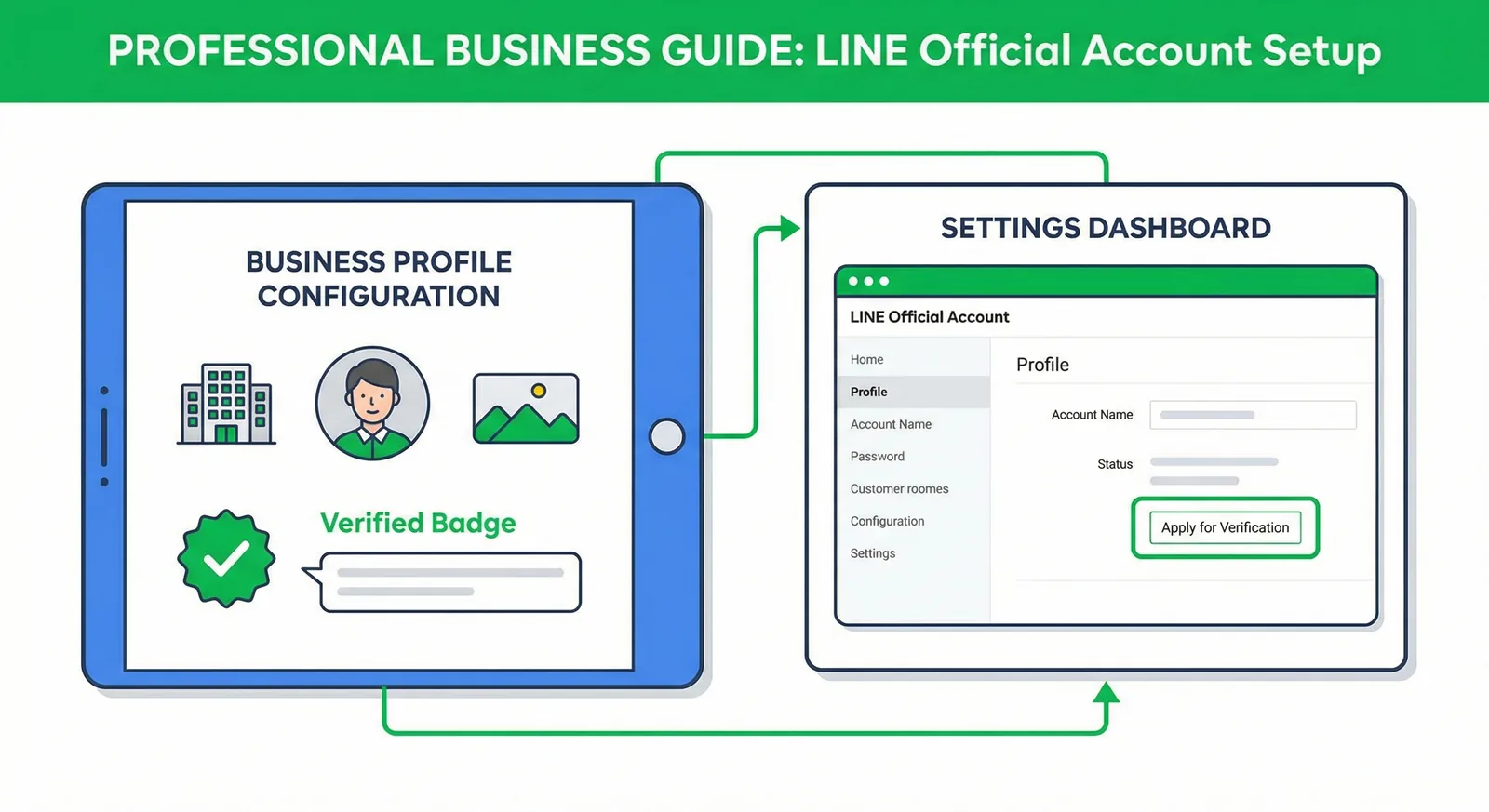
LINE Official Account Pricing 2026: Plans by Country
What a LINE Official Account really costs in October 2026: free and paid plans in Thailand, Japan and Taiwan, extra-message prices, Taiwan's November 1 price change, how messages are counted, worked examples and ways to cut your bill.
Read More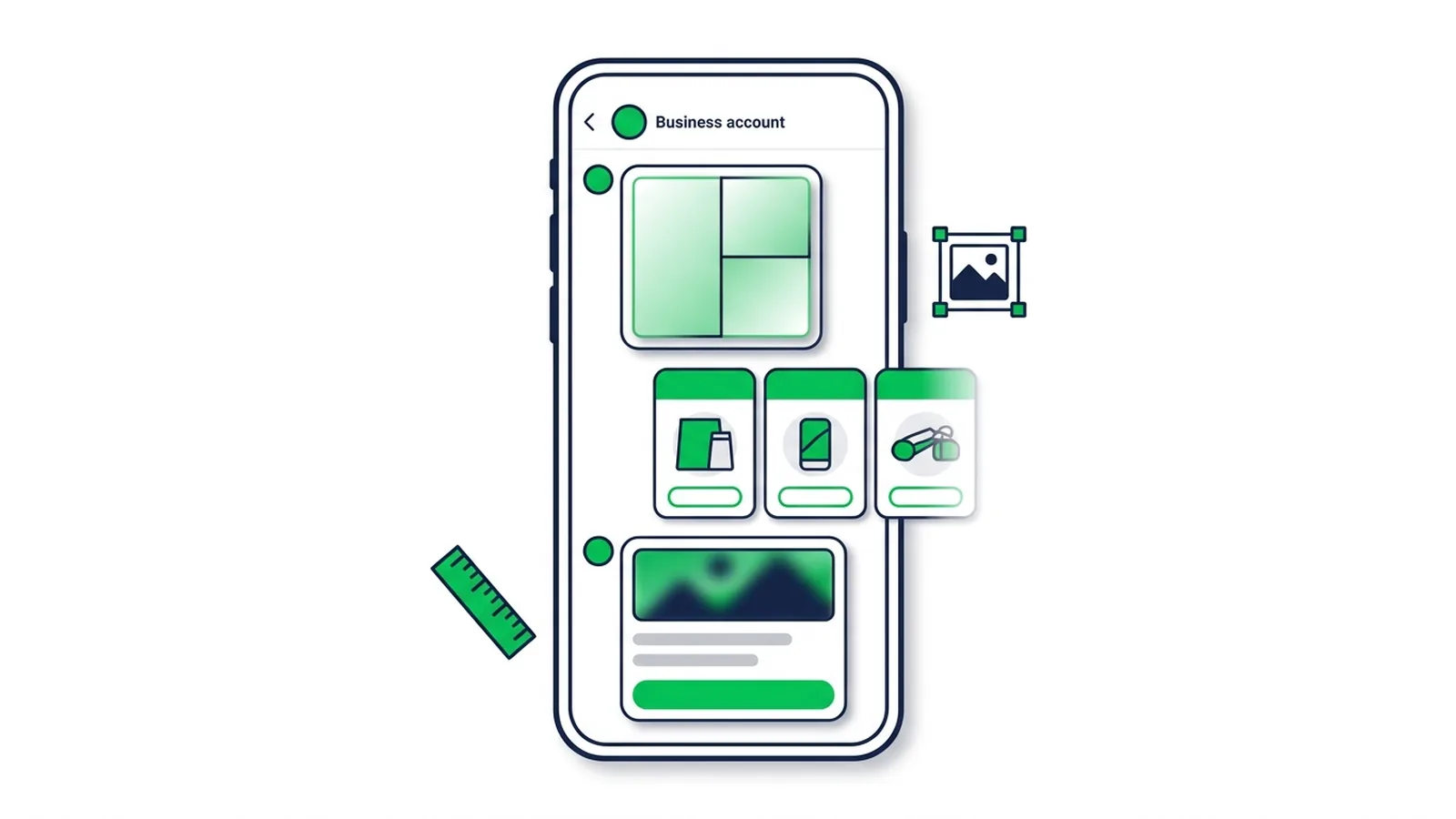
LINE Rich Message vs Card & Flex Message: Sizes & Setup
What a LINE rich message is and how it differs from card-based, rich video and Flex Messages — with LINE's official sizes, limits and step-by-step setup for each format.
Read More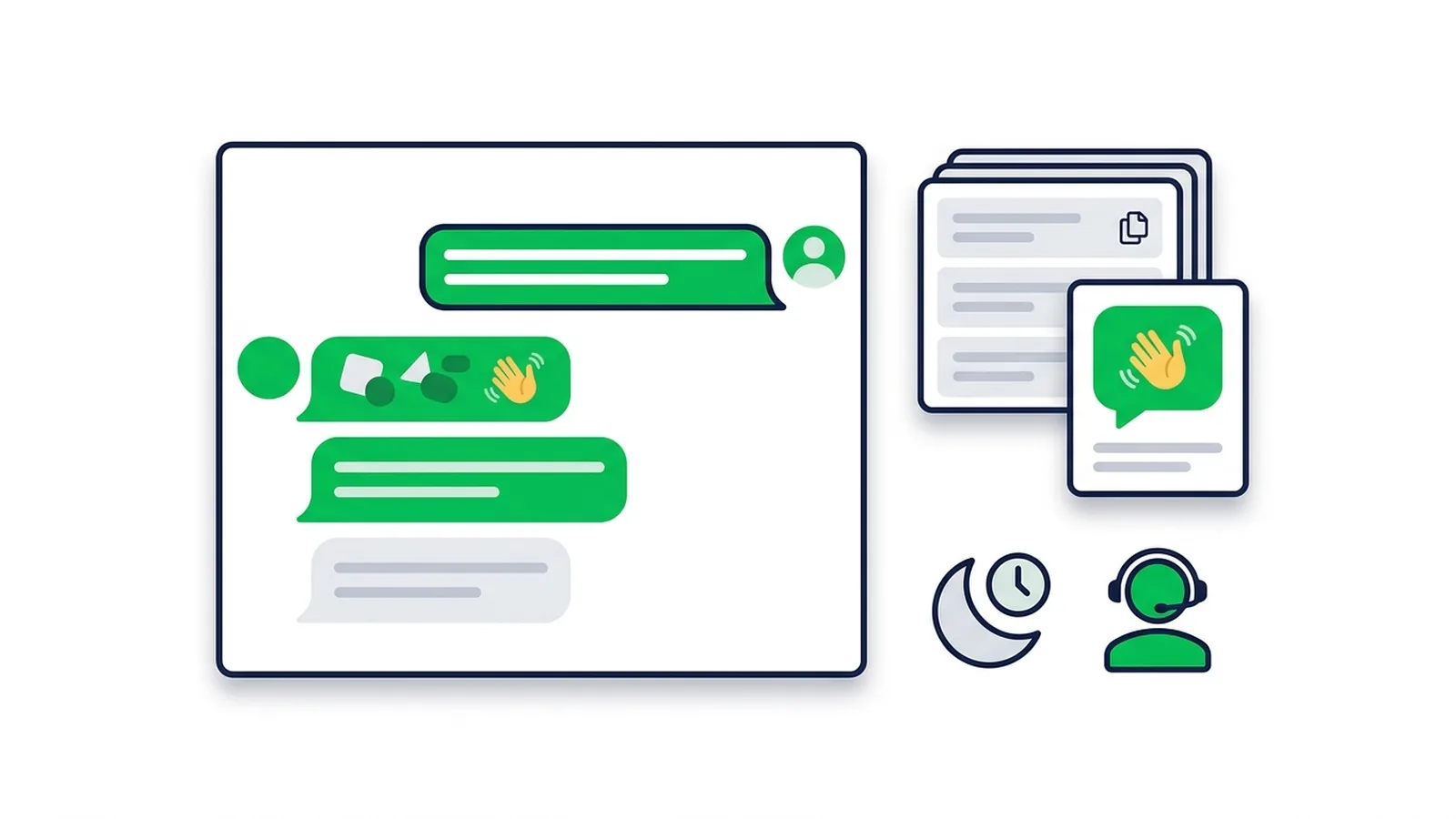
LINE Auto-Reply & Greeting Message Examples (50 Templates)
Copy-paste templates for every automatic message a LINE Official Account sends: greeting (welcome) messages by industry, keyword replies, after-hours and holiday notices, staff handoff, chat scripts for admins and follow-ups, checked against LINE's rules as of October 2026.
Read MoreReady to Automate Your LINE Business?
Start automating your LINE communications with LineBot.pro today.