1Common Challenges
Wrong size, blurry or rejected
LINE expects fixed sizes such as 2500×1686 or 2500×843, often with a 1 MB file limit. A resized poster gets cropped, blurry or refused at upload.
Describe your business and the buttons you want. AI writes the labels, draws the menu at LINE's exact size (2500×843 or 2500×1686) and builds the tap-area JSON to match — ready to upload to your LINE Official Account in minutes.
Your prompt
Café in Chiang Mai, warm minimal style. 6 buttons: Menu, Order online (link), Promotions, Branches (map link), Opening hours, Contact us
Your Café
LINE Official Account
yourcafe.com/order
Tap a button to see its action
Tap area 2 · Link → yourcafe.com/order
rich-menu.json · Tap areas match the image
1–6
buttons per menu
2500×1686
large size (4–6 buttons)
10
credits per menu
4
label languages
Built for LINE Official Accounts
LINE Messaging API
Free to start
50 credits at sign-up
TH · JA · ZH · EN
Thai, Japanese, Chinese, English
From a few lines of text to an image plus tap-area JSON. You decide every label and link.
Write 10–1,000 characters: your business, the buttons in order (up to 6), the link for each one and the look you like. Pick your industry if you want.
Google's Gemini turns your text into a brief: short labels in your customers' language, an icon per tile, colours and style. It only uses the facts and links you gave.
The Nano Banana Pro image model draws the menu on the real grid: 2500×843 for 1–3 buttons, 2500×1686 for 4–6, compressed under 1 MB.
A second AI checks every label's spelling and that each tile sits on its tap area. Failed images are redrawn with corrections; if a generation still fails, credits are refunded automatically.
The rich menu JSON (size, tap areas, actions, menu-bar text) is generated by code from the same grid as the image, so you never measure coordinates.
Check it in the phone preview, click "Download assets + JSON" or copy the code, then set it up in LINE Official Account Manager: new rich menu → template → image → actions → save.
Built around LINE's own rules, so the menu works the first time you upload it.
1–3 buttons: one row at 2500×843 (compact). 4–6 buttons: 2×2, 2+3 or 3×2 at 2500×1686 (large). Every file stays under 1 MB.
The JSON's tap areas come from the same grid the image is drawn on, tile for tile, so each button responds exactly where customers tap.
A button opens a link you typed, or sends its label as a text into the chat — handy for questions your auto-reply already answers, like opening hours.
Labels are written in your prompt's language (Traditional Chinese for Taiwan), kept short enough to read on a phone and spell-checked on the image.
Save your brand name, colour, tone and rules once in AI Studio; every rich menu follows them.
The AI never adds prices, discounts or links you didn't give it. If a fact isn't in your prompt or brand profile, it isn't on the menu.
Misspelled labels and misaligned tiles are caught and redrawn. If a generation still fails, your credits come back automatically.
Phone-mockup preview, one download for the image and JSON, copyable code, and a History page to re-download or delete past menus.
The number of buttons in your prompt decides the layout. The image is drawn on this grid, and the JSON uses exactly the same tap areas.
| Preview | Buttons | Layout | Image size | LINE OA Manager template |
|---|---|---|---|---|
| 1 | One full-width tile | 2500×843 | Compact, 1 area | |
| 2 | Two tiles side by side | 2500×843 | Compact, 2 equal areas | |
| 3 | Three tiles in one row | 2500×843 | Compact, 3 areas | |
| 4 | 2 × 2 grid | 2500×1686 | Large, 2 × 2 | |
| 5 | Two wide tiles above three | 2500×1686 | No matching template: use the Messaging API | |
| 6 | 3 × 2 grid | 2500×1686 | Large, 3 × 2 |
LINE's rules as of October 2026: JPG or PNG, up to 1 MB (LINE for Business image specifications). LINE Official Account Manager offers 7 large and 5 compact templates with fixed splits: the 1–4 and 6-button layouts above each have a matching one, but there is no 5-area template, so a 5-button menu must be published with the Messaging API, which uses the JSON's areas as they are (template list in LINE's official manual, in Japanese). Every size option, including the smaller variants, is in our LINE rich menu size guide.
All four can give you a working rich menu. They differ in cost, time and how much you do yourself.
| LineBot.pro (AI) | Freelance designer | Canva template | LINE OA Manager image tool | |
|---|---|---|---|---|
| Cost | 10 credits per menu (50 free credits at sign-up) | From about ฿700 per menu on Fastwork (Thailand, October 2026 listings) | Free templates (paid plan optional) | Free, built into LINE OA Manager |
| Time to a finished menu | A few minutes | Brief, wait for delivery, revision rounds | As long as you spend designing | As long as you spend designing |
| Right LINE size | Automatic: 2500×843 or 2500×1686, under 1 MB | Yes, if it's in the brief | You set the size and check the file size | Automatic (made for the template) |
| Tap areas | JSON with areas that match the image | You set them in LINE OA Manager | You set them in LINE OA Manager | Set in the same editor |
| Thai / Japanese / Chinese labels | Written and spell-checked by AI | Yes | You type and fit them | You type them |
| Your logo and photos | No upload — describe the look instead | Yes | Yes | Yes, you can add your own images |
| Design | AI-drawn icons and labels in your brand colours | Fully custom | Template-based | Basic: text, background colours, icons |
| Going live | Upload in LINE OA Manager (5-button menus: Messaging API) | Upload in LINE OA Manager | Upload in LINE OA Manager | Done in the same place |
All four are valid choices. A designer is the right call when you need your exact logo, product photos or a fully custom look; the AI maker is the quick option for everyday menus and frequent seasonal changes.
LineBot.pro doesn't push menus to LINE for you. Uploading takes a few minutes:
Sign in to LINE Official Account Manager (manager.line.biz) and choose your account.
Open the rich menu section and create a new menu. Add a title (customers don't see it), a display period and the menu-bar text.
Choose the template that matches your layout: compact for 1–3 buttons, large 2×2 for 4, large 3×2 for 6. There is no 5-area template, so publish a 5-button menu with the Messaging API instead, or regenerate it with 4 or 6 buttons.
Upload the image you downloaded from LineBot.pro.
Set each area's action as listed in the JSON: a link with its URL, or a text with its label.
Save. Customers see the new menu the next time they open the chat.
Developers can create the same menu through the Messaging API with the JSON, upload the image and set it as the default — see LINE's rich menu documentation.
Screens and design tips for every step: how to create a LINE rich menu.
Prefer to have it set up with you? Our LINE Official Account setup service and audit include a rich menu review.
50 free credits = 5 rich menus
Each rich menu costs 10 credits, refunded automatically if the generation fails. When you need more, buy a one-time credit pack: no subscription, and credits don't expire.
Copy a set into your prompt and add your links. Buttons with a link open your page; buttons without one send their label as a text your chat can answer.
6 buttons (3×2): Menu · Order online · Promotions · Book a table · Branches · Contact us
6 buttons (3×2): Book now · Treatments & prices · Promotions · Our team · Location · Chat with us
4 buttons (2×2): Shop now · New arrivals · Track my order · Contact
6 buttons (3×2): Courses · Timetable · Fees · Register · Location · Ask a question
4 buttons (2×2): Projects · Book a visit · Promotions · Contact sales
6 buttons (3×2): New models · Test drive · Book a service · Promotions · Showroom map · Contact
1–6
From one full-width tile to a 3×2 grid, laid out from your button count.
2
Compact 2500×843 and large 2500×1686, compressed under 1 MB.
10
Pay per menu, no subscription. Failed generations are refunded.
4
Thai, Japanese, Traditional Chinese and English.
Start with a comprehensive analysis of your LINE presence
Professional audit of your LINE presence with actionable recommendations
For complex setups or several accounts, tell us what you need and we will scope a tailored audit with you.
Contact UsA rich menu is the tappable panel fixed at the bottom of your LINE Official Account chat. It stays there until you change it, and taps on it don't count toward your monthly message quota. A rich message is something you send: it appears in the chat history and counts toward the quota when you broadcast it.
The size follows your number of buttons: 2500×843 px (compact) for 1–3 buttons and 2500×1686 px (large) for 4–6 buttons, the two main sizes of LINE Official Account Manager's templates. Every image is compressed under 1 MB, which fits both LINE OA Manager and the Messaging API, so you can upload it without resizing.
From 1 to 6. One to three buttons sit in a single row; four make a 2×2 grid; five make two wide tiles above three; six make a 3×2 grid. Just list the buttons in your prompt in the order you want them. Good to know: LINE Official Account Manager has templates for the 1-, 2-, 3-, 4- and 6-button layouts but none with 5 areas, so a 5-button menu has to be published with the Messaging API using the JSON. If you'll set the menu up in LINE OA Manager, choose 4 or 6 buttons.
Each button either opens a link (website, booking page, online shop, Google Maps…) or sends a short text into the chat, such as "Opening hours", which your auto-reply can answer. The AI only uses links you typed yourself. Coupon and reward-card actions aren't generated, but you can still choose them in LINE Official Account Manager when you set up the menu.
No. You download the image and the JSON, then set the menu up yourself in LINE Official Account Manager: create a new rich menu, give it a title and display period, choose the template that matches your layout (there is one for 1–4 and 6 buttons; a 5-button menu needs the Messaging API), upload the image, set each area's action (link or text) and save. It takes a few minutes. Developers can send the same JSON and image with the Messaging API instead.
Links, yes: you can change them anytime in LINE Official Account Manager or in the JSON. Button labels are drawn into the image, so new wording means generating a new image. Menus created from an AI Studio campaign brief also let you change their links inside the app for free.
Thai, Japanese, Traditional Chinese and English. The AI writes the labels in the language of your prompt (or your app language when the prompt only lists names), and a reviewer checks that the text on the image is spelled exactly as planned.
Not as uploads: the generator works from text only. Describe the look you want (for example "minimal, cream and gold") and save your brand colour and tone in the AI Studio brand profile so every menu follows them. Each tile shows an icon and a label, without a logo. If your logo must appear, add it to the image in an editor afterwards and keep the file under 1 MB.
An AI reviewer checks every image for spelling and tile alignment and redraws it when it fails. If a generation still fails, your credits are refunded automatically. If the menu works but you want a different look, adjust the prompt and generate again (10 credits per generation).
10 credits per rich menu. New accounts get 50 free credits — enough for 5 menus — with no credit card. After that you buy one-time credit packs: no subscription, and credits don't expire.
Get a free consultation: tell us what you want to do on LINE and we'll recommend the right tools or quote the custom work.

Create a LINE Rich Menu with the right image size, useful buttons and a clear layout. Includes templates, setup steps and an AI-assisted design workflow.
Read Article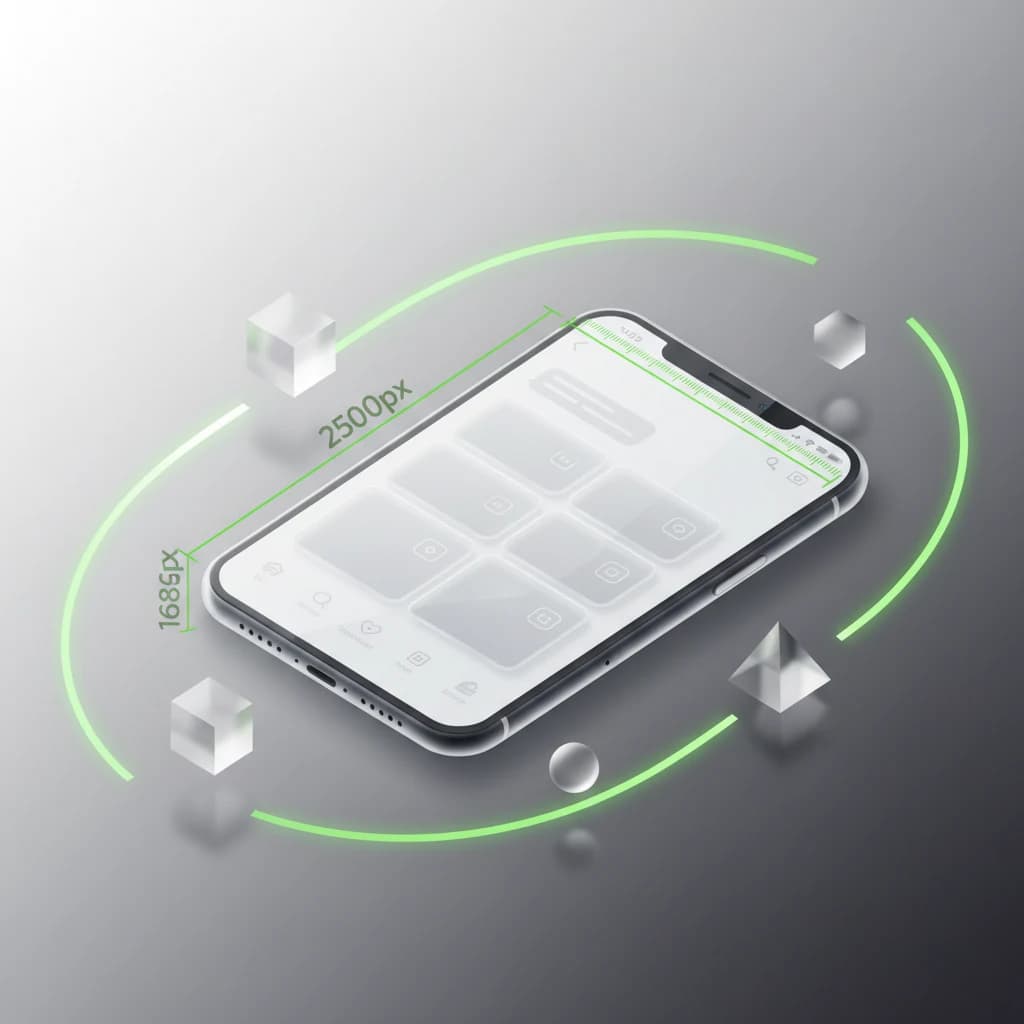
LINE rich menu image sizes at a glance: 2500x1686 (large) and 2500x843 (compact), file format, max file size, the 1,000-per-channel limit and ready-to-use templates. Updated for 2026.
Read Article
What a LINE rich message is and how it differs from card-based, rich video and Flex Messages — with LINE's official sizes, limits and step-by-step setup for each format.
Read ArticleStart with 50 free credits — enough for 5 rich menus. No credit card, no subscription.