How to Create a LINE Official Account (LINE OA) in 2026
Open a free LINE Official Account step by step: web and app sign-up, the April 2026 badge changes, day-one settings, verification by country and a 10-point launch checklist.
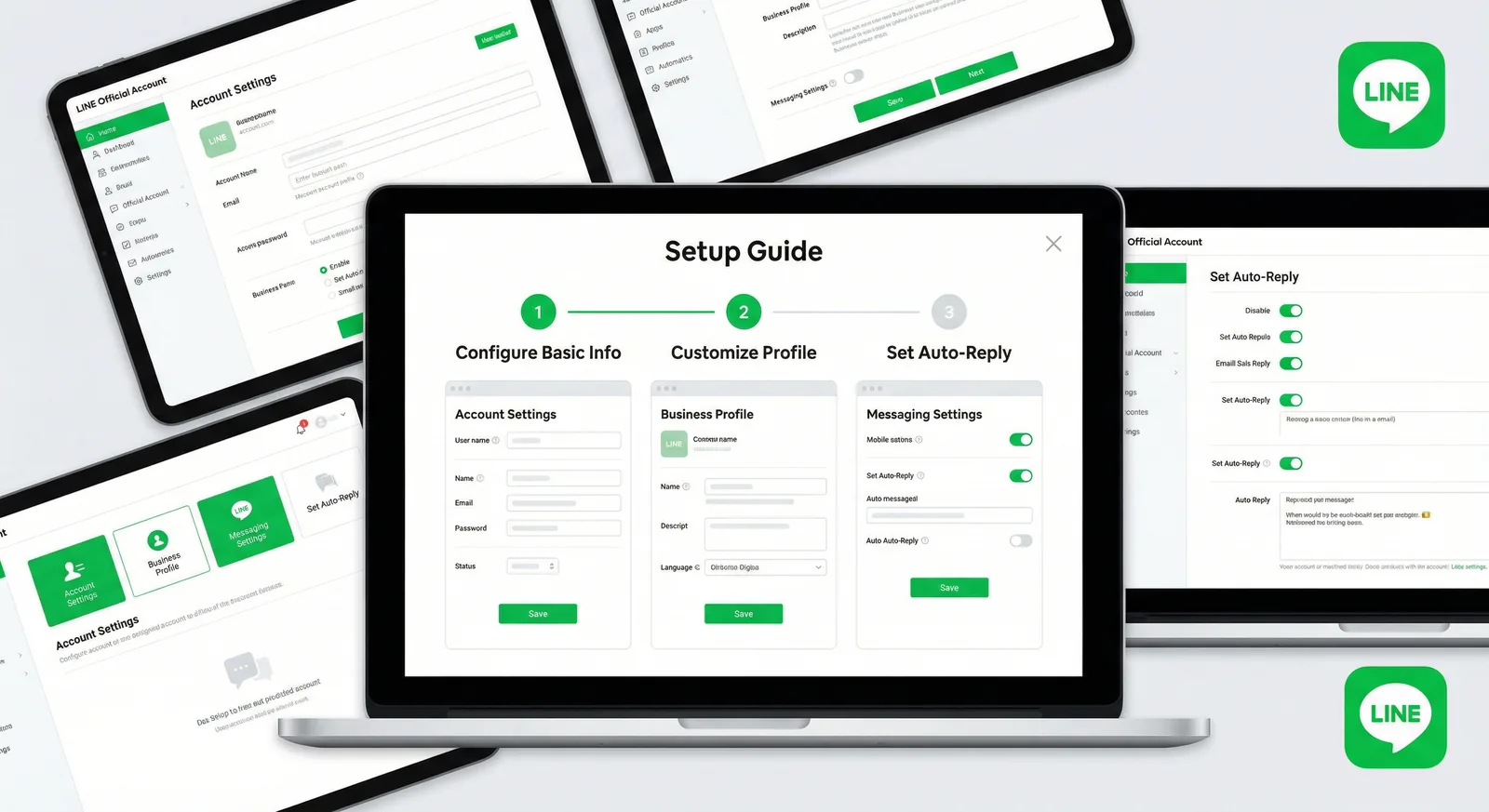
#What is a LINE Official Account (LINE OA)?
A LINE Official Account (LINE OA) is LINE's free business account: customers add it as a friend, and you chat 1:1, broadcast messages, set auto-replies and show a rich menu. To create one, sign in to LINE Official Account Manager or its app with a LINE account or email, fill in the entry form, and it's live in minutes.
Already have an account and just need to log in? Use LINE Official Account Manager on a computer, or the LINE Official Account app on iOS and Android.
This guide follows the sign-up flow as it works in October 2026 in Thailand, Japan and Taiwan, including the badge changes LINE made in April 2026 and the settings worth finishing on day one. If you would rather have an expert do it with you, see our LINE OA setup service.
#LINE OA vs a personal LINE account
| LINE Official Account | Personal LINE account | |
|---|---|---|
| Friends | No limit on friends | Limited friend list |
| Reaching people | Broadcast to all friends, or to a targeted group | One chat or group at a time |
| Message formats | Text, rich messages, card-based messages, rich video messages, coupons, reward cards | Text, photos, videos, links |
| Menu under the chat | Rich menu (up to 6 tap areas in LINE Official Account Manager, up to 20 through the Messaging API) | None |
| Automation | Greeting message, keyword auto-responses, bots through the Messaging API | None |
| Team | Up to 100 members, each with their own login and role | One person |
| Statistics | Recipients, opens, clicks, new friends and blocks | None |
| Trust badge | Verified badge after a review (Thailand, Japan, Taiwan) | None |
| Price | Free plan; you only pay for extra broadcasts | Free |
Sources: LINE for Business Thailand and LINE's permissions manual, October 2026.
Seeing "LINE@" in older articles? LINE@ ("LINE at") was the previous name of LINE's business accounts. Those accounts became LINE Official Accounts and are managed in the same LINE Official Account Manager.
#Account types and badges after April 2026
Every new LINE OA starts as an unverified account: free, and open to companies and individuals alike. You can later apply to become a verified account after a review by LINE. Reviews are only offered in Japan, Taiwan and Thailand; everywhere else, accounts stay unverified (LINE help center).
On April 1, 2026 LINE redesigned its badges in all three markets, and the grey shield that used to mark unverified accounts is gone:
| Market | Unverified account | Verified account | Large brands |
|---|---|---|---|
| Thailand | No shield. Users see a "Watch out for fraud using LINE" notice before adding the account | Blue shield (บัญชีรับรอง) | Green shield (บัญชีพรีเมียม), arranged through LINE agencies |
| Japan | No badge | Green check mark (認証済アカウント) | The former Premium tier was merged into Verified |
| Taiwan | No shield | Blue badge (認證官方帳號) | Green badge (企業官方帳號) |
Sources: LINE Thailand, LY Corporation, LINE Taiwan.
What an unverified account cannot do:
- Appear in LINE's in-app search results or on the web. People reach you through your QR code or add-friend link.
- Run Gain friends ads, or use LINE's character-themed add-friend posters.
- Hide the reply-status line under its name. Since spring 2026 it is always shown, so customers can tell a business account from a personal one.
Chat, broadcasts, the greeting message, auto-responses, rich menus and coupons work the same on both types. You can run an unverified account for as long as you like, but in Thailand the fraud notice shown before someone adds an unverified account is a good reason to apply as soon as real customers start arriving.
#How to create a LINE Official Account, step by step
#What you need before you start
- A login. Either your personal LINE account (its email address and password must be registered in the LINE app) or any email address for a "business account". Both give you a Business ID, LINE's single login for its business tools. A shared company email is easier to hand over when staff change.
- A phone number. LINE can ask you to verify a new Business ID by SMS or voice call. In Japan this step is required before you can create an account.
- Business details. Account name, business category, company or store details and country. The country cannot be changed later: it decides which terms and plans apply.
- Japan only: since June 25, 2025 every new account must be connected to a Business Manager organization. You can create one inside the form.
- Two-step verification. Email-based Business IDs must now use it (enforced from June 30, 2026 in Thailand and Taiwan). Logging in with LINE instead asks you to enter a 4-digit code in your LINE app.
Warning: LINE Official Account is not available in the European Union. LINE has also announced that accounts whose service country is not Japan, Thailand, Taiwan or Indonesia will be terminated on April 30, 2027, with every function stopping on May 1, 2027. If your business is based elsewhere, read LINE's notice before you invest time in setup.
#Option A: on a computer (recommended)
- Open the LINE for Business site for your market and press its sign-up button: สมัครบัญชีทางการเลย in Thailand, LINE公式アカウントをはじめる in Japan or 免費開設帳號 in Taiwan.
- Log in to Business ID with your LINE account or your business (email) account. No Business ID yet? Create one: sign up with LINE or with email, open the registration link LINE emails you, then set a name and password.
- Complete phone verification if LINE asks for it.
- Fill in the entry form (account name, email, business category, company or store details, country), accept the terms and click Continue.
- Check everything on the Check application page and click Submit. The account is created instantly and opens in LINE Official Account Manager.
#Option B: on your phone
- Install the LINE Official Account app (iOS 16 or later, Android 10 or later; Android tablets are not supported).
- Tap Log in or sign up with LINE or Log in or sign up by email.
- Tap Create an account. Already manage an account? Tap the menu (≡) at the top left, then Create new account.
- Fill in the required fields, tap Continue, then Create account.
Accounts created in the app always start as unverified; you apply for verification afterwards. LINE recommends a computer for the first setup, and some tools, such as rich video messages, posters and the Messaging API switch, only exist in the web version. Sources: LINE help center, LINE Developers.
#Last step: add your own account as a friend
Scan your account's QR code (Home → Gain friends) with your own phone. From then on you see the greeting message, rich menu and auto-replies exactly as customers will, which makes every setting below easy to test.
#First settings to finish on day one
Picture a small café that has just opened its account. The first customer scans the QR code at the counter: what do they see in the first ten seconds? These ten settings decide it, and each takes a few minutes in LINE Official Account Manager.
- Profile photo (Business profile). 640 × 640 px, file up to 3 MB. It is displayed as a small circle, so use a bold logo on a solid background. You can change it only once per hour.
- Background (cover) image. LINE now crops it to a 2:1 band when you upload it (minimum 200 × 200 px, under 10 MB). Older guides still quote 1080 × 878 px: such a file works, but only its middle 2:1 strip is shown, so keep text and faces in the center. Thailand switched from 8:5 to 2:1 on October 22, 2025.
- Status message and basic info. The status message sits under your account name (one change per hour): use it for your offer or opening hours. Fill in hours, phone, address and map, and website. From October 28, 2026 LINE replaces the profile's separate "Description" field with the status message and deletes saved-but-unpublished profile content in Thailand and Taiwan, so publish your profile before that date.
- Greeting message. Sent automatically when someone adds you, and it never counts toward your message quota. Say who you are, what the menu does and when a person replies. A saved greeting is not sent while it is switched off, so check it under Settings → Response settings. Ready-made wording: LINE greeting and auto-reply message examples.
- Response settings. In Settings → Response settings, turn Chat on if your team will answer 1:1, set your response hours, and choose what happens outside them: auto-response messages, or LINE's AI responses where your market offers them.
- Auto-response messages. Create keyword replies for the questions you get every day: opening hours, location, price list, booking. LINE's manuals describe the keyword as an exact match, with up to 51 keywords per reply and 1,000 replies per account. Our guide to setting up LINE auto-replies explains the rules and the order LINE applies them.
- Rich menu. Open Rich menus → Create, pick a template (large 2500 × 1686 px or compact 2500 × 843 px; JPEG or PNG up to 1 MB), upload the image and set an action for each area. Step by step: how to create a LINE rich menu. No designer? Our AI rich menu maker draws the image at the template's exact size, with buttons placed on the tap areas.
- QR code and add-friend link. Under Home → Gain friends, download the QR code and copy your add-friend URL and the "Add friend" button HTML. Put them on your counter, receipts, website and social bios.
- A second administrator. Go to Settings → Manage permissions → Add member, choose the permission type and click Generate link. The link works once and expires after 24 hours; your colleague logs in with their own account and accepts the role. Besides Administrator there are Operator roles, including restricted ones that cannot broadcast or cannot see statistics, and an account can have up to 100 members. Keep two administrators: if the only admin loses access to their two-step verification email, recovery goes through LINE support.
- Only if you will connect a bot: enable the Messaging API under Settings → Messaging API (administrators only, web only; the provider you choose cannot be changed later), add your webhook URL in the LINE Developers Console and switch on Use webhook. LINE recommends turning off its own greeting and auto-reply messages when a bot answers, so customers don't receive two replies.
Sources: LINE's business profile manual, LINE Thailand profile notice, LINE help center, LINE Developers.
#How to get verified
Verification is optional, but it unlocks LINE search, the web version of your business profile, Gain friends ads and LINE-character posters. Apply in LINE Official Account Manager under Settings → Account settings with the account-verification request button (administrators only), or right after creating the account. The account keeps working as unverified while LINE reviews it.
| Thailand | Japan | Taiwan | |
|---|---|---|---|
| Cost | ฿888 one-time, excluding VAT, paid only after approval | Free | Review is free, but a paid Premium ID is required first |
| What LINE checks | Eligible business category; account name matching the business, no emoji; documents such as DBD registration, a clinic licence or a TAT licence; a real address, phone and email; the applicant's personal name | Official company, store or service name (max 20 characters, not a person's name); the applicant's full name; phone; an email that is not a mobile-carrier address; a URL of your website, social page or listing | Eligible business type; name up to 20 characters matching the company or brand, no emoji or slogans; company registration; applicant's staff ID, employment certificate or business card; documents uploaded on LINE's OA Verification platform (computer only) |
| Review time | Result by email within 7 business days; badge within 1 day of payment | 5–10 business days | No standard time published; retail, beauty and medical businesses can use a 5-business-day fast track through LINE partners |
| Official page | LINE Thailand | LY for Business | LINE Taiwan |
Two rules worth knowing before you apply:
- Your account name freezes. In Japan it cannot be changed once you apply (later, only a company or store rename can be pushed through a new review); in Taiwan, once you are approved; in Thailand, verified accounts cannot rename themselves. Settle the name first.
- A rejection is not final. You can fix the issue and apply again. Don't expect explanations, though: LINE's Japanese and Thai help centers state that review status and reasons are not disclosed.
#Limits and account names
| Item | Limit (October 2026) |
|---|---|
| Accounts per Business ID | 100, verified and unverified combined |
| Members per account | 100 |
| Accounts one person can manage | 100 |
| Admin invitation link | Single use, expires after 24 hours |
| Profile photo and status message | One change per hour each |
| Account name | Editable while unverified (in Taiwan, locked for 7 days after each change); fixed once verified |
| Account ID | A random basic ID such as @zrf9921n is free; a custom Premium ID is a paid yearly option |
What it costs. Creating and running a LINE OA is free. You only pay if you send more push messages (broadcasts and targeted messages) than your plan includes; chat replies, greeting messages and auto-responses are always free. As of October 2026 the free tier includes 300 messages a month in Thailand and 200 in Japan and Taiwan, and paid plans start at ฿1,280, ¥5,000 and NT$1,000 a month (Taiwan's new price from November 1, 2026). Quotas, overage rules and saving tips are compared in our LINE Official Account pricing guide.
#10-point launch checklist
| # | Check | Where |
|---|---|---|
| 1 | Account name is final: your real business name, no emoji | Business profile |
| 2 | 640 × 640 profile photo that still reads as a small circle | Business profile |
| 3 | Background image cropped to 2:1, nothing important cut off | Business profile |
| 4 | Status message, hours, phone, map and website filled in and published | Business profile |
| 5 | Greeting message written and switched on | Greeting message, Settings → Response settings |
| 6 | Chat and response hours set, 3–5 keyword auto-responses live | Settings → Response settings, Auto-response messages |
| 7 | Rich menu published and every area tested on a phone | Rich menus |
| 8 | QR code and add-friend link on the counter, receipts, website and social bios | Home → Gain friends |
| 9 | Second administrator added, two-step verification on for email logins | Settings → Manage permissions |
| 10 | Verification requested, or a conscious decision to stay unverified | Settings → Account settings |
#Make your account look professional in minutes
Design is usually the slowest part of setup: a profile photo that stays sharp as a tiny circle, a background that survives the 2:1 crop, a rich menu whose buttons line up with the artwork. LineBot.pro's LINE Page kit produces all three in one go. Describe your business (name, what you sell, the style you like, the buttons you want) and the AI creates:
- a profile picture at 640 × 640 px, designed to stay legible as a small circle;
- a text-free background photo (delivered at 1080 × 878 px; you pick the 2:1 crop when you upload it);
- a rich menu image with 1–6 buttons whose tap areas match the artwork, plus the layout JSON.
One kit costs 25 credits, and new accounts get 50 free credits with no card, enough for 2 kits. Failed generations are refunded automatically. LineBot.pro does not publish to LINE for you: download the files, upload the two photos under Business profile, and create the rich menu with the matching template in LINE Official Account Manager. More credits come in one-time packs, with no subscription and no expiry: see LineBot.pro pricing.
Create your LINE Page kit with free credits →
Prefer an expert review? The LINE OA Audit (฿2,500, one-time) covers an account health check, a competitor benchmark, a content strategy, a rich menu review and an automation roadmap, with a 30-minute call and a written report within 3–5 business days. Book it on our LINE Official Account setup and audit page.
#FAQ
Q: Is a LINE Official Account free?
Yes. Creating an account, 1:1 chat, the greeting message, auto-responses and rich menus cost nothing. You only pay to broadcast more than your plan's free quota (300 messages a month in Thailand, 200 in Japan and Taiwan as of October 2026), or for optional extras such as a Premium ID or, in Thailand, the ฿888 verification fee.
Q: How many LINE Official Accounts can I create?
Up to 100 per Business ID, verified and unverified combined. Each account can also have up to 100 members with their own logins, so nobody needs to share a password.
Q: Can I create a LINE OA without a company?
Yes. Unverified accounts are open to individuals and companies alike. Verification is stricter: Japan does not verify accounts named after a person, Taiwan asks for company registration documents, and Thailand accepts unregistered sellers only in eligible business categories with complete contact details.
Q: Can I create a LINE Official Account outside Thailand, Japan or Taiwan?
You can open unverified accounts from many countries, but not from the European Union, and verification is only offered in Japan, Taiwan and Thailand. LINE has also announced that accounts whose service country is not Japan, Thailand, Taiwan or Indonesia will be terminated on April 30, 2027, and says it will explain how eligible businesses can open new accounts. Read LINE's notice first.
Q: Why can't I find my LINE OA in LINE search?
Unverified accounts never appear in LINE's search results or on the web; people reach you through your QR code or link. If you are verified and still hidden, open Business profile and check the privacy setting that shows your account in search results and recommendations. In Japan it is off by default.
Q: Is LINE OA the same as LINE@?
LINE@ ("LINE at") was the previous name of LINE's business accounts. Former LINE@ accounts became LINE Official Accounts and log in to the same LINE Official Account Manager.
#Next steps
- Budget your broadcasts: LINE Official Account pricing 2026
- Design the menu customers tap first: how to create a LINE rich menu
- Copy proven wording: LINE greeting and auto-reply message examples
- Get it done with an expert: LINE OA setup service and ฿2,500 audit
Related Services
About LineBot.pro
LineBot.pro is an AI tool for LINE Official Accounts: it creates Rich Menus, Rich Messages and banners, sends broadcast campaigns and runs keyword auto-replies. Our team writes these guides based on hands-on work with the LINE Messaging API.
Contact usRelated Articles
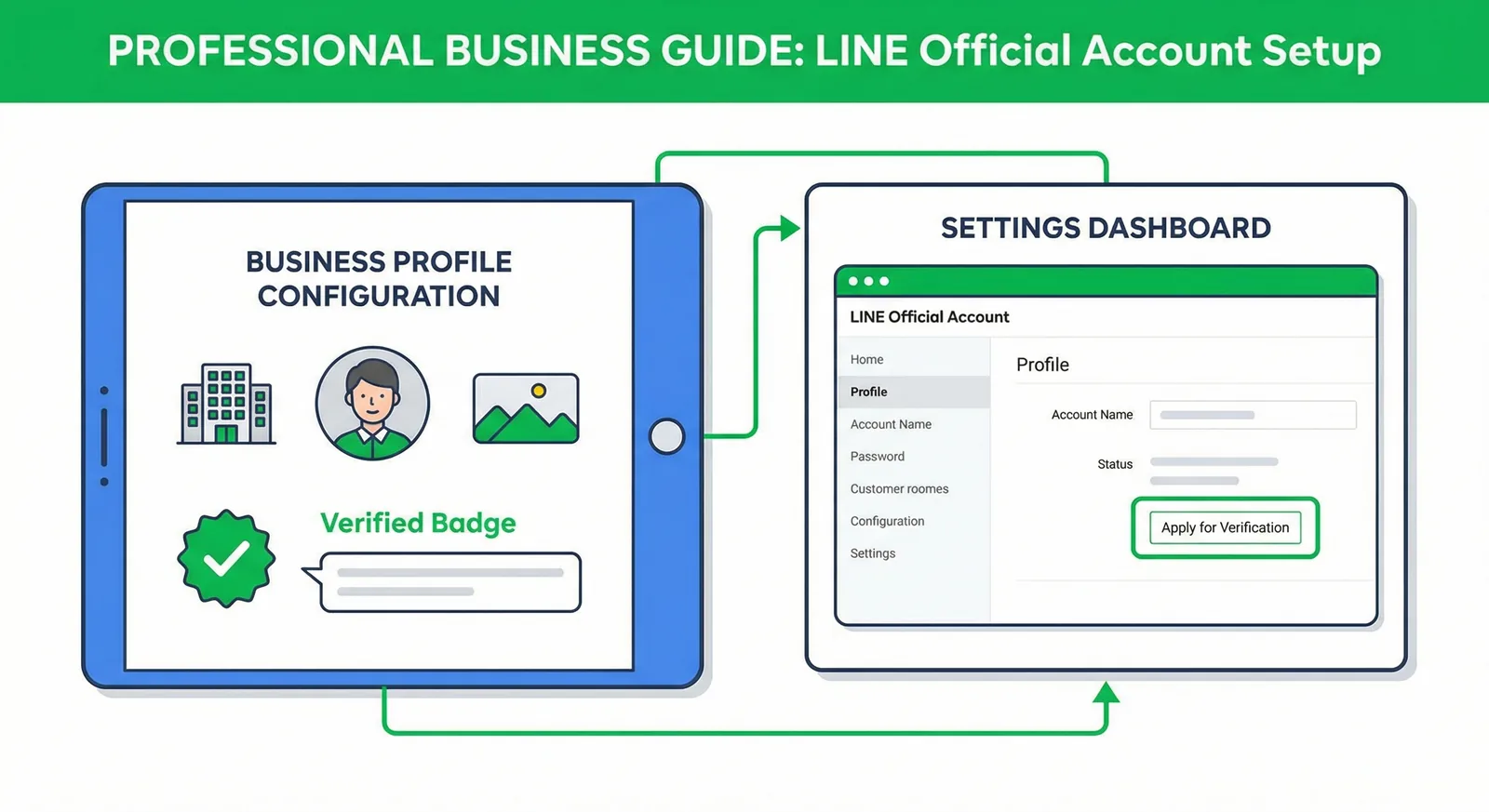
LINE Official Account Pricing 2026: Plans by Country
What a LINE Official Account really costs in October 2026: free and paid plans in Thailand, Japan and Taiwan, extra-message prices, Taiwan's November 1 price change, how messages are counted, worked examples and ways to cut your bill.
Read More
LINE Rich Menu: Sizes, Templates & Setup Guide
Create a LINE Rich Menu with the right image size, useful buttons and a clear layout. Includes templates, setup steps and an AI-assisted design workflow.
Read More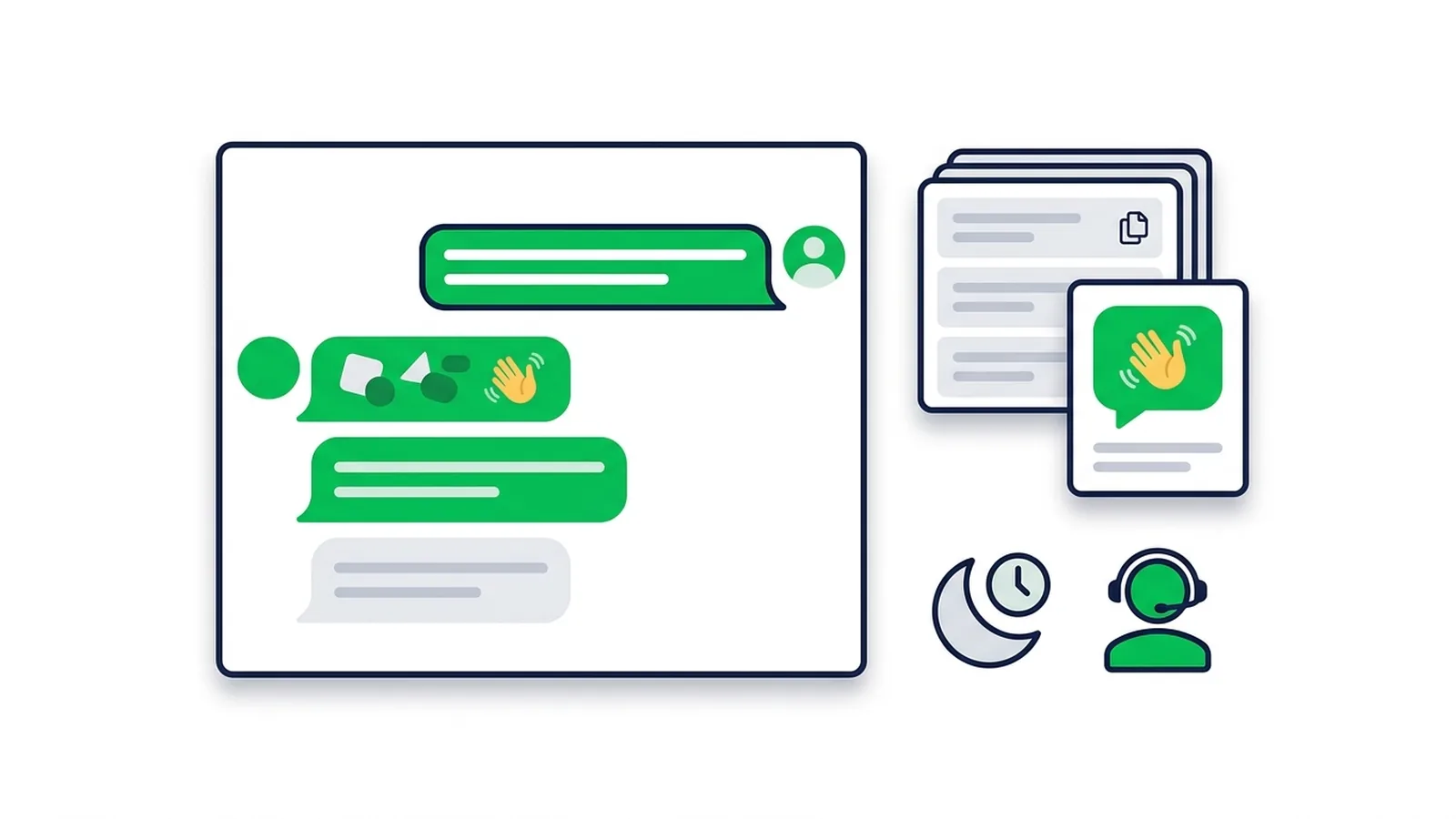
LINE Auto-Reply & Greeting Message Examples (50 Templates)
Copy-paste templates for every automatic message a LINE Official Account sends: greeting (welcome) messages by industry, keyword replies, after-hours and holiday notices, staff handoff, chat scripts for admins and follow-ups, checked against LINE's rules as of October 2026.
Read MoreReady to Automate Your LINE Business?
Start automating your LINE communications with LineBot.pro today.