LINE Rich Message vs Card & Flex Message: Sizes & Setup
What a LINE rich message is and how it differs from card-based, rich video and Flex Messages — with LINE's official sizes, limits and step-by-step setup for each format.
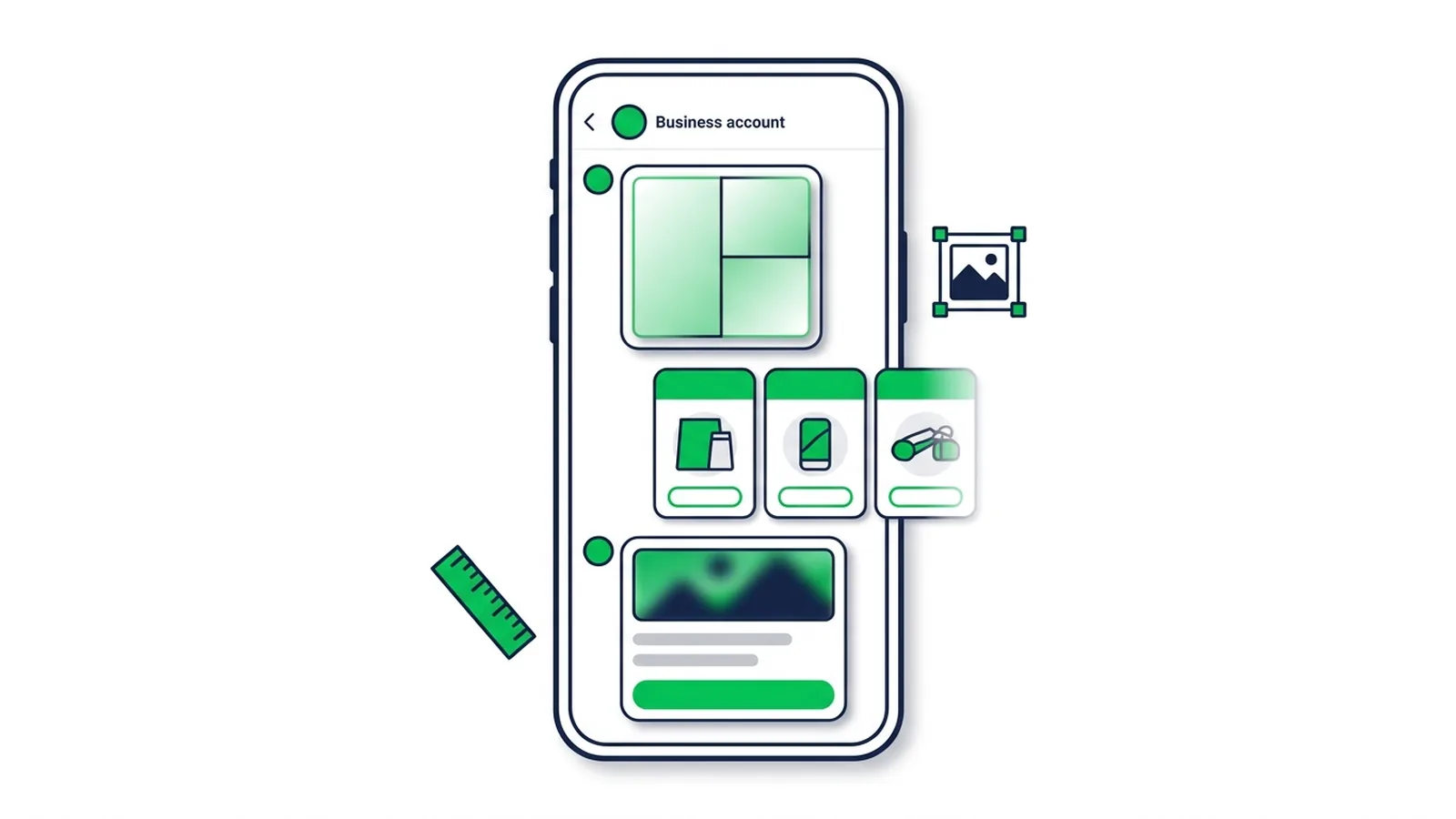
#What Is a LINE Rich Message?
A LINE rich message is one large image, 1040 px wide, split into up to 8 tap areas — each area opens a link or a coupon, or sends a keyword. You create it in LINE Official Account Manager and send it in a broadcast like any other speech bubble. On the Messaging API, the same format is called an imagemap message.
LINE OA Manager offers three visual message formats, and the Messaging API adds a fourth:
- Rich message — one image with tap areas. Best for a single, bold offer.
- Card-based message — a swipeable carousel of up to 9 cards (product, location, person or image) plus an optional "see more" card.
- Rich video message — a video that plays automatically in the chat, with an optional button after it ends.
- Flex Message — a fully custom layout (images, text, prices, buttons) written in JSON and sent through the Messaging API. LINE OA Manager has no Flex editor.
Watch out for one naming trap. Outside LINE OA Manager, "rich message" is used loosely for any visual message, and many tools — LineBot.pro included — call their Flex Message cards "rich messages". Our AI rich message maker, for example, produces a Flex Message, while the Rich message menu of LINE OA Manager produces the image-with-tap-areas format. This guide covers both.
None of these is a rich menu. A rich menu is the panel pinned under the chat that stays there; a rich message is a message in the conversation that scrolls away as new messages arrive. If the menu is what you need, read how to create a LINE rich menu.
#Rich, Card, Video or Flex: Which to Use
| Format | Where you make it | Size and file spec | Tap areas | Best for | Counts as |
|---|---|---|---|---|---|
| Rich message | LINE OA Manager (web or app) | 1040 px wide, 1040 × 1040 square by default; JPG or PNG up to 10 MB | Up to 6 on square templates, up to 8 on the tall 1040 × 1850 template | One strong offer or announcement | 1 bubble (a broadcast holds up to 3) |
| Card-based message | LINE OA Manager (full editor on the web) | Product and location photos at 1.54:1, person photos cropped to a circle; JPG or PNG up to 10 MB | Up to 2 buttons per card (1 on image cards) | Several products, branches or staff side by side | 1 bubble |
| Rich video message | LINE OA Manager, web version only | Video up to 200 MB, landscape, square or vertical | 1 button after playback | Product demos, launches, how-to clips | 1 bubble |
| Flex Message | Messaging API, or a tool connected to it | JSON up to 30 KB per bubble and 50 KB per carousel; JPEG or PNG images up to 10 MB | As many buttons and tappable parts as the layout holds | Menus, receipts, booking confirmations, bot replies | 1 message object (an API call holds up to 5) |
Message counting works the same for every format: LINE counts one message per friend who receives a send, however many bubbles it contains. A broadcast with a rich message and a text bubble sent to 2,000 friends uses 2,000 messages of your monthly quota. Free plans are small — 300 messages a month in Thailand and 200 in Japan and Taiwan, as of October 2026 — so one visual broadcast can use up a whole month. The plan-by-plan numbers are in our guide to LINE OA pricing and message quotas.
#Rich video message in brief
A rich video message plays automatically when the friend opens the chat. LINE accepts landscape, square and vertical videos up to 200 MB, and a vertical video takes over the chat screen. You can show one button after the video ends, with your own label and link. Two rules from LINE Thailand's help center: rich video messages can only be created in the web version of LINE OA Manager, and friends can't save, forward or share the video. Use it when movement sells — a dish being plated, a haircut before and after, a 20-second product demo.
#Rich Message Size and Templates
Every rich message template is 1040 px wide; only the height changes. These are the official specs as of October 2026, from LINE Japan's OA Manager manual and LINE Thailand's help center:
| Spec | Value |
|---|---|
| Width | 1040 px on every template |
| Default template | Square 1040 × 1040, one tap area |
| File | JPG or PNG, max 10 MB |
| Tap actions | Link (URL up to 1,000 characters), Coupon or Text |
| Action label | Up to 100 characters, read aloud by screen readers |
| Title | Shown in the push notification and the chat list |
| Limit | Up to 5,000 saved rich messages per account |
The template picker offers these layouts:
| Template size | Tap-area options |
|---|---|
| 1040 × 1040 (square) | 1; 2 side by side (520 + 520 px); 2 stacked (520 + 520 px); 3 rows of 346 px; 4 as a 2 × 2 grid of 520 × 520 px; 6 as a 3 × 2 grid of 346 × 520 px; plus several 2–3-area mixes with one large tile |
| 1040 × 350 | 1 (a thin banner strip) |
| 1040 × 585 | 1 or 2 |
| 1040 × 700 | 1 or 2 (listed as 1040 × 695 in LINE Thailand's help center) |
| 1040 × 1300 | 1, 2 or 3 |
| 1040 × 1850 | 1, 2, 4 or 8 |
| Custom | 1040 px wide, 520–2080 px high, one tap area |
Exporting tips:
- Export at exactly 1040 px wide and the template's height, so nothing gets cropped. LINE itself advises checking the template screen before you upload.
- Snap buttons to the template's grid (520 px halves, 346 px thirds) so that no button straddles two tap areas.
- Use JPG for photos (smaller files load faster) and PNG for flat graphics with a lot of text.
- No designer? The Create image tool in the web version of LINE OA Manager places your photos, text, background colours and borders on the chosen template.
Developer note — imagemap messages. On the Messaging API the same idea is an imagemap message. baseSize.width is always 1040, and your server must return the image at 240, 300, 460, 700 and 1040 px wide under baseUrl/{width}, without a file extension. Images are JPEG or PNG up to 10 MB, you can define up to 50 tap areas, actions can open a URL, send a message or copy text to the clipboard, and a video can play inside the image.
#Card-Based Message Types and Image Size
A card-based message is LINE OA Manager's built-in carousel. Friends swipe sideways through up to 9 cards, plus an optional closing "see more" card, and each message uses a single card type:
| Card type | Photos | Text fields (max characters) | Buttons |
|---|---|---|---|
| Product | 1–3 | Label 10, title 20, description 60, price with currency | Up to 2 |
| Location | 1–3 | Label 10, title 20, address 60 (with a map pin), hours or price | Up to 2 |
| Person | 1, cropped into a circle | Name 20, up to 3 tags of 10, description 60 | Up to 2 |
| Image | 1, filling the card | Label 10 | 1 |
Button labels take up to 15 characters, and a button can open a link, a coupon, a reward card or a survey. Limits come from LINE's manuals in Japan and Thailand and differ slightly between countries, so trust the character counter in your own OA Manager.
Card image size. LINE Taiwan's manual recommends a 1.54:1 ratio for product, location and closing-card photos — for example 1040 × 676 px — in JPG, JPEG or PNG up to 10 MB. Person photos have no fixed ratio because LINE crops them into a circle, so center the face. The image card lets you crop your photo in the editor; keep text and faces away from the edges.
Where you can use it. A saved card-based message can go into a broadcast, your greeting message or an auto-response. Its title (up to 20 characters) is what appears in the push notification and chat list, so write it like a teaser: "3 new set menus this week" beats "Cards Oct".
Build card-based messages in the web version of LINE OA Manager. According to LINE Japan's manual, the mobile app can only create image cards.
#Flex Message: Bubbles, Carousels and Limits
A Flex Message is a Messaging API message whose layout you define in JSON, following the rules of CSS Flexbox. Because it is code, it can show what a small web card shows: a hero photo, a price, a receipt table, a booking time and several buttons. Chatbots and LINE marketing tools typically use it for card-style messages — it's the format behind most "rich messages" you see outside LINE OA Manager.
How a Flex Message is built:
- Container: a bubble (one card) or a carousel (up to 12 bubbles of the same width that friends swipe through).
- Blocks inside a bubble: header, hero (an image, a video or a box), body and footer. Use only the ones you need.
- Components: box, text, span, image, video, icon, button and separator.
Official limits from the Messaging API reference, as of October 2026:
| Item | Limit |
|---|---|
| Bubbles per carousel | 12 |
| JSON size | 30 KB per bubble, 50 KB per carousel |
| altText | Up to 1,500 characters, shown in notifications and the chat list |
| Bubble sizes | nano, micro, deca, hecto, kilo, mega (default), giga |
| Images | HTTPS URL, JPEG or PNG, up to 10 MB (LINE recommends 1 MB or less) |
| Image aspect ratio | Free, but the height can't exceed 3× the width; default 1:1 |
| Video in the hero | LINE 11.22.0 or later; set an altContent image for older apps |
For hero images, 20:13 is the safe default: it's the ratio LINE uses in its own documentation examples and the same 1.54:1 shape as card images. Use 16:9 for wide banners and 1:1 for product shots, and set aspectMode to cover so the photo fills the frame. A minimal bubble looks like this:
{
  "type": "bubble",
  "hero": {
    "type": "image",
    "url": "https://example.com/weekend-set.jpg",
    "size": "full",
    "aspectRatio": "20:13",
    "aspectMode": "cover"
  },
  "body": {
    "type": "box",
    "layout": "vertical",
    "contents": [
      { "type": "text", "text": "Weekend set menu", "weight": "bold", "size": "xl" },
      { "type": "text", "text": "Two mains and two drinks, Saturday and Sunday only", "wrap": true, "color": "#555555" }
    ]
  },
  "footer": {
    "type": "box",
    "layout": "vertical",
    "contents": [
      { "type": "button", "style": "primary", "action": { "type": "uri", "label": "Book a table", "uri": "https://example.com/book" } }
    ]
  }
}
To send it, wrap the bubble in a message object with "type": "flex", an altText and the bubble as contents. Sent as a reply to a friend's message, a Flex Message is free; sent as a push, multicast, narrowcast or broadcast, it counts toward your quota.
#How to use the Flex Message Simulator
The Flex Message Simulator is LINE's free tool for designing Flex Messages without code:
- Open it and log in with your LINE account.
- Click Showcase to start from a ready-made layout, or start from an empty bubble.
- Edit text, images and buttons in the tree view and property panels — the preview updates as you go.
- Click View as JSON and copy the result.
The simulator only previews: to deliver the message to friends you still need the Messaging API or a tool connected to your channel. Rendering also varies slightly with the phone's OS, LINE version, screen and fonts, so test on both iOS and Android before a big send.
#How to Create Each Format
#Rich message in LINE OA Manager
- On the web, go to Home > Rich media messages > Rich message and click Create new. In the LINE Official Account app, it's Home > Rich message.
- Enter the title. It appears in the push notification and the chat list, so write the offer ("20% off all mains this weekend"), not an internal file name.
- Click Select template and choose the layout before you design: the template fixes the image height and the tap areas.
- Upload your 1040-px image (up to 10 MB), or click Create image to build one on the template.
- Set an action for each area: Link, Coupon or Text. A Text action sends a keyword on the friend's behalf — if it matches one of your auto-response keywords, LINE answers automatically.
- Save, then create a broadcast and add the rich message as one of its up to 3 bubbles.
#Card-based message
- In Rich media messages, open Card-based messages and create a new one.
- Enter a title (up to 20 characters) and choose the card type: Product, Location, Person or Image.
- Fill in the first card, then add cards up to 9 in total. Cards can be copied, reordered and deleted.
- Optionally switch on the closing "see more" card with one action, such as "See all products".
- Save, then add it to a broadcast, your greeting message or an auto-response.
#Rich video message
In Rich media messages > Rich video message, create a new message, enter the title, upload the video (up to 200 MB), choose whether to show an action button after playback, then add the link and the button text. This works in the web version only.
#Flex Message
- Turn on the Messaging API for your account in LINE OA Manager: Settings > Messaging API (web version, admin role).
- Design the bubble in the Flex Message Simulator or generate it with a tool, then copy the JSON.
- Send it with the Messaging API — push, multicast, narrowcast or broadcast — or as your bot's reply. Each request can carry up to 5 message objects.
- Prefer no code? Use a tool that sends Flex Messages for you. For the sending side, read how to broadcast on LINE OA; our LINE broadcast tool sends AI-made Flex Messages to all friends or a list of user IDs, now or on a schedule.
#Design Tips and Examples by Industry
- One message, one goal. Every extra button splits attention; two or three clear tap areas are easier to scan than six small ones.
- Design for a phone screen. The image is shown at a fraction of its 1040 px, so headlines need big, bold type and few words.
- Make each area look tappable. Draw a button, an arrow or a label inside every tap area and keep it away from the split lines.
- Leave a margin. Chat bubbles have rounded corners; keep text and logos off the outer edges.
- Treat the title and altText as the headline. It's the only text on the lock screen and in the chat list. "Today only: second bubble tea free" says more than "Promo 14/10".
- Keep Flex text as real text. Put the headline and price in text components, not inside the photo: they stay sharp on every phone and you can edit them without redrawing the image.
- Check dark mode. LINE has a dark theme, and an image with a white frame floats awkwardly on a black chat background.
- Chain into automation. A Text action that sends "Menu" can trigger your keyword auto-reply with the full menu.
| Business | Best format | What it looks like |
|---|---|---|
| Restaurant or café | Rich message, square, 2 stacked areas | Top: photo of the weekend set with its price, linking to your order page. Bottom: "Book a table", linking to the booking form |
| Beauty salon or clinic | Card-based message, Person cards | One card per stylist or doctor, tags such as "Colour" and "Senior", and a "Book with Mai" button |
| Fashion or retail shop | Card-based message, Product cards | Up to 9 new arrivals with prices; closing card "See the full collection" |
| Product launch | Rich video message, vertical | A 15-second demo that ends with a "Shop now" button |
| Business with a booking system | Flex Message | A booking confirmation with date, time, address and a "Change booking" button, sent by your system |
#Let AI Draft the Image and JSON
If you'd rather not open an image editor or write JSON, the Rich Message generator in LineBot.pro turns a short description into a ready-to-send Flex Message bubble:
- What you get: a wide 16:9 hero image (1200 × 675 px) drawn by AI, a short kicker line, a headline, body text and one button — plus a "Call us" button when your prompt includes a phone number. Download the image and the LINE Flex JSON together, or copy the JSON.
- Built to pass LINE's checks: an AI reviewer checks the image and redraws it if it fails, and the JSON is assembled by code rather than written freely by a model, so the structure is valid. Only links you typed are used; without a link, the button sends a keyword your auto-reply can answer.
- Your language and brand: write in Thai, Japanese, Traditional Chinese or English. Save a brand profile once in AI Studio (name, colour, tone, rules) and every message follows it.
- Cost: 8 credits per rich message. Failed generations are refunded automatically.
- Sending: connect your LINE OA by pasting its Channel ID, channel secret and access token, then create a Campaign: describe the message, preview it and send it to all friends or to a list of LINE user IDs, now or at a scheduled time. Sending costs no credits — your LINE plan's monthly quota applies. A generated rich message can also be the keyword auto-reply of your Visual LINE agent.
- The OA Manager format too: ask the AI assistant in AI Studio for an imagemap. It draws on a 1040-px grid (2 × 2, 2 × 3, 3 × 2, 1 × 3 or 3 × 1); the 2 × 2 and 1 × 3 grids match the square 4-area and 3-row templates of LINE OA Manager, so you can upload the image there as a rich message, and every grid comes with imagemap JSON for the Messaging API. An imagemap costs 10 credits and a template message 8, plus 2 credits for the assistant turn.
What it doesn't do, so you can plan: one bubble per generation (no Flex carousels), no logo or photo upload, and no open or click analytics.
New accounts get 50 free credits without a card — enough for 6 rich messages. After that, you buy one-time credit packs: no subscription, and credits don't expire. See LineBot.pro pricing.
Create your first LINE rich message free →
#Frequently Asked Questions
Q: What size is a LINE rich message?
Every template is 1040 px wide. The default is a 1040 × 1040 px square; other templates are 1040 × 350, 585, 700, 1300 or 1850 px, and the custom template accepts any height from 520 to 2080 px. Upload a JPG or PNG of up to 10 MB.
Q: What is the difference between a rich message and a rich menu?
A rich message is a message: it lands in the chat, uses your monthly quota when you broadcast it, and scrolls away. A rich menu is a fixed panel under the chat that's always there and free to tap. Use both — the menu for evergreen links, rich messages for campaigns.
Q: Can I send a Flex Message from LINE Official Account Manager?
No. LINE OA Manager has no Flex Message editor; its own visual formats are rich messages, card-based messages and rich video messages. Flex Messages go through the Messaging API, either from your own code or from a tool connected to your channel, such as LineBot.pro Campaigns.
Q: How many cards can a card-based message have?
Up to 9 cards of one type (product, location, person or image), plus an optional closing "see more" card.
Q: Does a rich message count as more than one message?
No. LINE counts one message per friend per send, whatever the number of bubbles (up to 3 in an OA Manager broadcast). Sending to 1,000 friends uses 1,000 messages.
Q: Is the Flex Message Simulator free?
Yes. It's a free LINE tool — you only need to log in with a LINE account. It previews layouts and exports JSON, but it doesn't send messages to your friends.
Next steps:
- Make one in minutes with the AI LINE rich message maker
- Get it to your friends: how to broadcast on LINE OA
- Pin your key links under the chat: how to create a LINE rich menu
- Budget your sends with the LINE OA pricing guide
Related Services
About LineBot.pro
LineBot.pro is an AI tool for LINE Official Accounts: it creates Rich Menus, Rich Messages and banners, sends broadcast campaigns and runs keyword auto-replies. Our team writes these guides based on hands-on work with the LINE Messaging API.
Contact usRelated Articles
LINE OA Broadcast: How to Send, Quotas & Tips (2026)
How to send a broadcast from LINE Official Account Manager on the web and in the app, which message types and filters you can use, how LINE counts messages against your monthly quota, image sizes, timing tips and ready-to-adapt examples.
Read More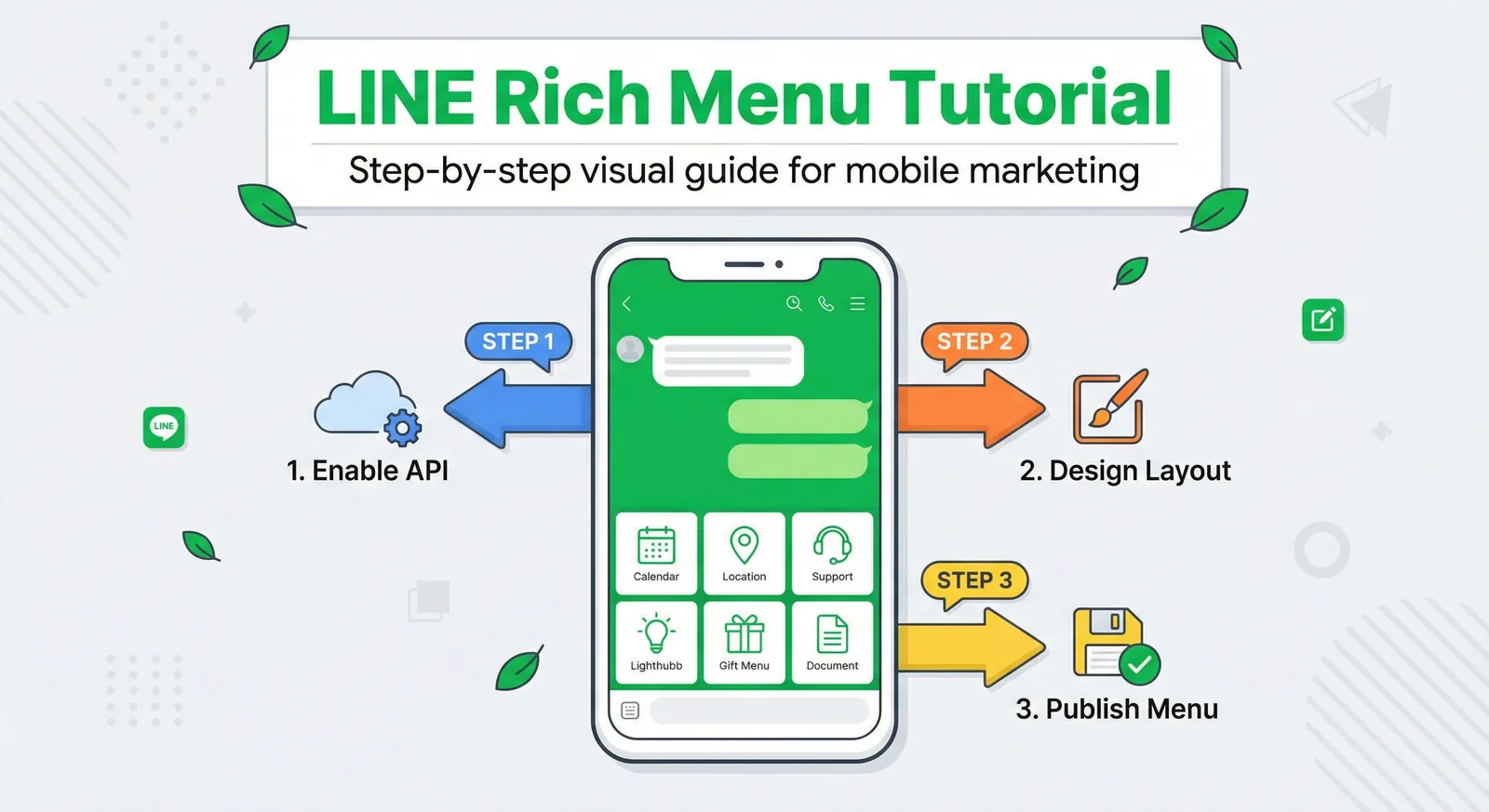
LINE Rich Menu: Sizes, Templates & Setup Guide
Create a LINE Rich Menu with the right image size, useful buttons and a clear layout. Includes templates, setup steps and an AI-assisted design workflow.
Read More
LINE Official Account Pricing 2026: Plans by Country
What a LINE Official Account really costs in October 2026: free and paid plans in Thailand, Japan and Taiwan, extra-message prices, Taiwan's November 1 price change, how messages are counted, worked examples and ways to cut your bill.
Read MoreReady to Automate Your LINE Business?
Start automating your LINE communications with LineBot.pro today.