LINE Bot MCP Server Tutorial: Connect AI Agents to LINE
How LINE's official, open-source LINE Bot MCP Server lets AI agents such as Claude Desktop send messages, broadcast, read profiles and manage rich menus on your LINE Official Account: the tools, setup with npx or Docker, message quotas, security and limits.
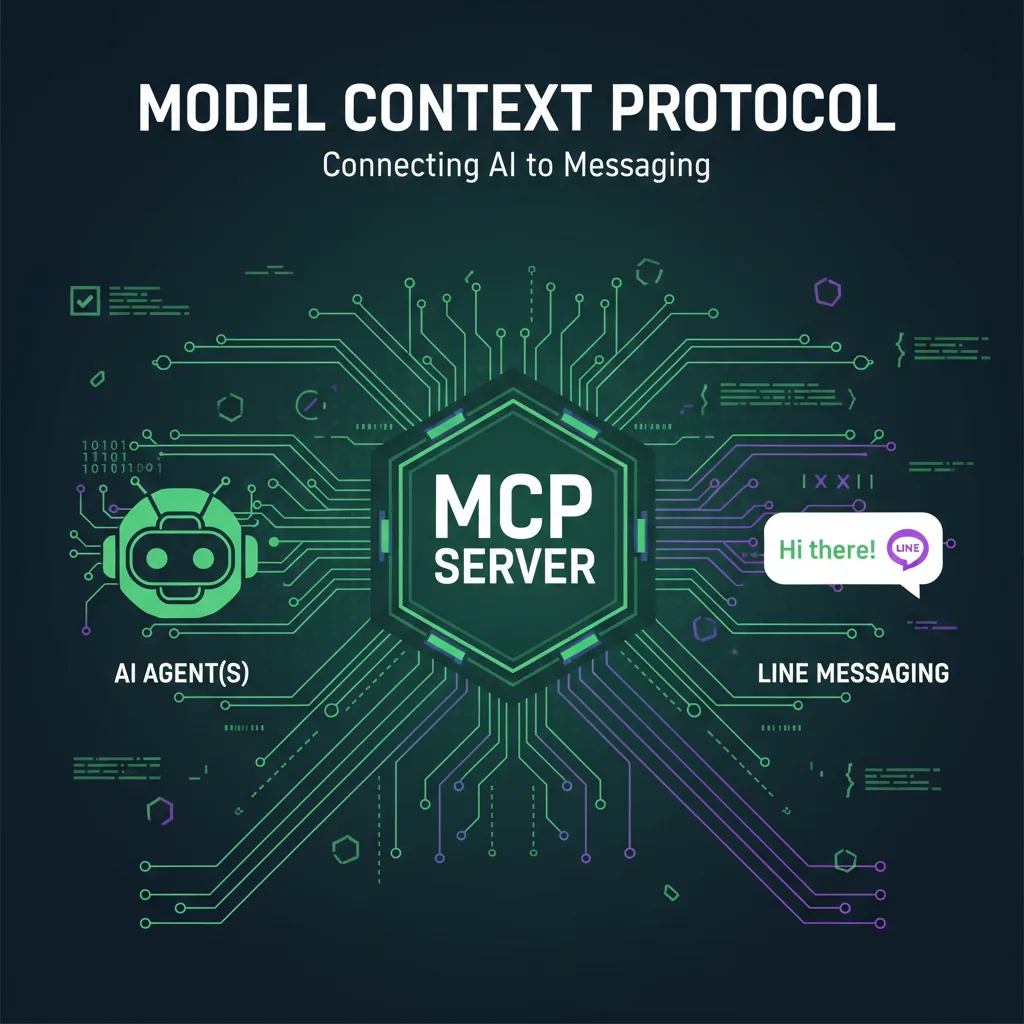
#What the LINE Bot MCP Server Does
The LINE Bot MCP Server is LINE's official, open-source connector between an AI agent and your LINE Official Account. Add it to an MCP client such as Claude Desktop and you can ask, in plain language, to send a message to a user, broadcast to all friends, check your monthly message quota, look up a profile or create a rich menu; the agent then calls the Messaging API for you. LY Corporation, the company behind LINE, published it on GitHub as line/line-bot-mcp-server in April 2025 under the Apache 2.0 license. As of October 2026 the latest npm release is 0.5.0, and the README still describes it as a preview for experimental use.
To be clear about who makes what: the MCP server is LINE's tool. LineBot.pro doesn't run an MCP server or offer an MCP integration. This tutorial explains how LINE's server works, how to set it up safely and where it stops; the last section shows where tools like ours fit next to it.
#What it is, and what it isn't
- It is a way for you or a teammate to operate a LINE Official Account through an AI assistant: send, broadcast, read some account data, manage rich menus.
- It isn't a chatbot. The server never receives your customers' messages because it has no webhook; it acts only when someone gives the agent an instruction. Automatic replies to customers still need a webhook bot (see building AI features for LINE bots) or a ready-made LINE OA chatbot.
- It isn't finished. LINE's announcement says it's published on a trial basis and doesn't support all Messaging API features yet.
#What Is the Model Context Protocol?
The Model Context Protocol (MCP) is an open standard for connecting AI applications to external systems. Anthropic open-sourced it on November 25, 2024, and many AI apps and developer tools now support it, including Claude, ChatGPT, Visual Studio Code and Cursor (modelcontextprotocol.io, October 2026).
Three roles matter:
| Role | What it is | In this tutorial |
|---|---|---|
| MCP host | The AI application you talk to | Claude Desktop, or another MCP client |
| MCP client | The connection the host opens to each server | Created by Claude Desktop |
| MCP server | A program that exposes tools, resources and prompts | The LINE Bot MCP Server |
The host asks each server which tools it offers. When the model decides to use one, the host sends the call to the server and passes the result back to the model. MCP defines two transports: stdio, for a server that runs on your own computer and is launched by the host, and Streamable HTTP, for remote servers. The LINE Bot MCP Server uses stdio: it runs on your machine, and your channel access token stays in your local configuration.
You → AI app (MCP host, e.g. Claude Desktop)
        │  stdio
        ▼
  LINE Bot MCP Server (runs on your computer)
        │  HTTPS + channel access token
        ▼
  LINE Messaging API → your LINE Official Account → your friends
#Tools and Requirements
Version 0.5.0 on npm exposes these tools (README and package checked on October 14, 2026):
| Tool | What it does | Main inputs | Uses your message quota |
|---|---|---|---|
| push_text_message | Sends a text to one user | userId (or DESTINATION_USER_ID), message.text | Yes, 1 message |
| push_flex_message | Sends a Flex message (bubble or carousel) to one user | userId, message.altText, message.contents | Yes, 1 message |
| broadcast_text_message | Sends a text to every friend | message.text | Yes, 1 per friend reached |
| broadcast_flex_message | Sends a Flex message to every friend | message.altText, message.contents | Yes, 1 per friend reached |
| get_profile | Display name, picture URL, status message and language of a user | userId | No |
| get_message_quota | Monthly message limit and current usage | none | No |
| get_rich_menu_list | Lists the account's rich menus | none | No |
| create_rich_menu | Creates a rich menu with 1 to 6 actions, draws and uploads a simple image, sets it as default | chatBarText, actions | No |
| delete_rich_menu | Deletes a rich menu | richMenuId | No |
| set_rich_menu_default | Makes a rich menu the default | richMenuId | No |
| cancel_rich_menu_default | Removes the default rich menu | none | No |
| get_follower_ids | Lists your friends' user IDs, page by page | start, limit | No |
The README on GitHub also lists get_group_summary (name and icon of a group chat). It wasn't in the 0.5.0 package on npm when we checked, so expect it in a later release.
Worth knowing before you use them:
- Push and broadcast count against your monthly message quota. A broadcast uses one message per friend it reaches. Replies are free on LINE, but this server can't reply: without a webhook it never receives a reply token.
- get_follower_ids only works for verified or premium LINE Official Accounts, a Messaging API restriction.
- create_rich_menu draws a plain image from a built-in template with your button labels, then makes the menu the default for everyone, replacing the current default. A default rich menu set through the Messaging API also takes priority over the one set in LINE Official Account Manager (Messaging API reference). Try it on a test account first.
- The model writes the Flex JSON for push_flex_message and broadcast_flex_message. Check it, or give the agent JSON you already validated.
#Requirements
- Node.js 22 or later for the npx method, or Docker.
- A LINE Official Account with the Messaging API enabled.
- A long-lived channel access token for that account and, optionally, your own user ID as the default recipient for tests.
#Setup With Claude Desktop, Step by Step
#Step 1: Enable the Messaging API
In LINE Official Account Manager, open Settings → Messaging API and enable it. This creates a Messaging API channel under a provider in the LINE Developers Console. No account yet? Follow the LINE Official Account setup guide first. For experiments, use a separate test account rather than your main one.
#Step 2: Get the channel access token and your user ID
In the LINE Developers Console, open the channel:
- Messaging API tab: issue a channel access token (long-lived). This is your CHANNEL_ACCESS_TOKEN.
- Basic settings tab: copy Your user ID (it starts with U). Use it as DESTINATION_USER_ID so test messages go to you.
#Step 3: Add the server to Claude Desktop
In Claude Desktop, open Settings → Developer → Edit Config. This opens claude_desktop_config.json (~/Library/Application Support/Claude/ on macOS, %APPDATA%\Claude\ on Windows). Add the configuration from LINE's README:
{
  "mcpServers": {
    "line-bot": {
      "command": "npx",
      "args": ["@line/line-bot-mcp-server"],
      "env": {
        "NPM_CONFIG_IGNORE_SCRIPTS": "true",
        "CHANNEL_ACCESS_TOKEN": "FILL_HERE",
        "DESTINATION_USER_ID": "FILL_HERE"
      }
    }
  }
}
| Variable | Required | Meaning |
|---|---|---|
| CHANNEL_ACCESS_TOKEN | Yes | The long-lived channel access token from step 2 |
| DESTINATION_USER_ID | No | Default recipient when a tool call doesn't include a userId |
| NPM_CONFIG_IGNORE_SCRIPTS | No, but in LINE's example | Tells npm not to run install scripts when npx downloads the package |
npx fetches the latest release. Because the project is a preview, you can pin a version, for example "@line/line-bot-mcp-server@0.5.0", and upgrade deliberately.
#Alternative: Docker
LINE's README builds the image from source; no prebuilt image is listed:
git clone https://github.com/line/line-bot-mcp-server.git
cd line-bot-mcp-server
docker build -t line/line-bot-mcp-server .
{
  "mcpServers": {
    "line-bot": {
      "command": "docker",
      "args": [
        "run", "-i", "--rm",
        "-e", "CHANNEL_ACCESS_TOKEN",
        "-e", "DESTINATION_USER_ID",
        "line/line-bot-mcp-server"
      ],
      "env": {
        "CHANNEL_ACCESS_TOKEN": "FILL_HERE",
        "DESTINATION_USER_ID": "FILL_HERE"
      }
    }
  }
}
#Step 4: Restart and test
Quit Claude Desktop completely and open it again; the LINE tools appear under Connectors. Then try:
Send me "Hello from Claude" on LINE.
Claude asks for your approval before running the tool, then calls push_text_message with your DESTINATION_USER_ID. The message arrives in your LINE app and counts as one message against the account's quota.
If the tools don't appear, read the MCP logs (~/Library/Logs/Claude on macOS, %APPDATA%\Claude\logs on Windows). To test the tools without Claude, LINE's README suggests the MCP Inspector:
# inside a clone of line/line-bot-mcp-server
npm install
npm run build
npx @modelcontextprotocol/inspector node dist/index.js \
  -e CHANNEL_ACCESS_TOKEN="YOUR_CHANNEL_ACCESS_TOKEN" \
  -e DESTINATION_USER_ID="YOUR_USER_ID"
#What You Can Ask It to Do
| You ask | Tool the agent calls | Counts against your quota |
|---|---|---|
| "How many messages do we have left this month?" | get_message_quota | No |
| "Tell U1234… that the shop closes at 6 pm today." | push_text_message | Yes, 1 |
| "Send me a card for our buy-1-get-1 latte offer with a menu button." | push_flex_message | Yes, 1 |
| "Broadcast: we're closed on Monday for the public holiday." | broadcast_text_message | Yes, 1 per friend |
| "Which language does this customer use in LINE?" | get_profile | No |
| "Which rich menus do we have, and which one is the default?" | get_rich_menu_list | No |
| "Make a rich menu with Menu, Book and Map buttons." | create_rich_menu | No, but it replaces the default menu |
#Flex messages
For push_flex_message and broadcast_flex_message, the agent passes a Flex container (a bubble or a carousel) as message.contents, plus an altText that customers see in notifications. A minimal bubble:
{
  "type": "bubble",
  "hero": {
    "type": "image",
    "url": "https://example.com/latte.jpg",
    "size": "full",
    "aspectRatio": "20:13",
    "aspectMode": "cover"
  },
  "body": {
    "type": "box",
    "layout": "vertical",
    "contents": [
      { "type": "text", "text": "Iced latte: buy 1 get 1", "weight": "bold", "size": "lg", "wrap": true },
      { "type": "text", "text": "Today until 6 pm", "size": "sm", "color": "#666666" }
    ]
  },
  "footer": {
    "type": "box",
    "layout": "vertical",
    "contents": [
      { "type": "button", "style": "primary", "action": { "type": "uri", "label": "See menu", "uri": "https://example.com/menu" } }
    ]
  }
}
Images must be HTTPS URLs that LINE can reach. Send the message to yourself first, then broadcast it.
#Good uses
- Owner and manager tasks: check the quota before a promotion, send a one-off message to a customer who asked for it, announce a closure.
- Drafting and testing: have the agent build a Flex message and push it to your own account to see it on a phone.
- Account housekeeping: list rich menus, switch the default, delete old ones.
What it isn't for: answering customers automatically, scheduling campaigns or targeting part of your audience. The server has no webhook, no scheduling and no narrowcast.
#Adding Your Own MCP Tools
LINE's tools are general: push_text_message sends to any user ID the model gives it. For business tasks it's often safer to write a small MCP server of your own whose tools do one thing and look up the recipient in your database. The model can ask for "the status of order A1024", but it can't choose who receives the message.
// shop-line-tools.ts: your own MCP server, next to LINE's
import { McpServer } from "@modelcontextprotocol/sdk/server/mcp.js"
import { StdioServerTransport } from "@modelcontextprotocol/sdk/server/stdio.js"
import { messagingApi } from "@line/bot-sdk"
import { z } from "zod"
import { findOrder } from "./orders" // your own database code

const line = new messagingApi.MessagingApiClient({
  channelAccessToken: process.env.CHANNEL_ACCESS_TOKEN!,
})

const server = new McpServer({ name: "shop-line-tools", version: "1.0.0" })

server.registerTool(
  "send_order_status",
  {
    title: "Send order status",
    description: "Look up an order and push its current status to the customer who placed it.",
    inputSchema: { orderId: z.string().describe("Order number, for example A1024") },
    annotations: { destructiveHint: true },
  },
  async ({ orderId }) => {
    const order = await findOrder(orderId)
    if (!order?.lineUserId) {
      return { content: [{ type: "text", text: "Order not found, or the customer isn't linked to LINE." }], isError: true }
    }
    // The recipient comes from your database, never from the model.
    await line.pushMessage({
      to: order.lineUserId,
      messages: [{ type: "text", text: "Order " + orderId + ": " + order.statusLabel }],
    })
    return { content: [{ type: "text", text: "Sent the status of order " + orderId + "." }] }
  },
)

await server.connect(new StdioServerTransport())
Notes on this example:
- It uses the official @line/bot-sdk (version 11 requires Node.js 22 or later) and the TypeScript MCP SDK. LINE's own server is built the same way, with registerTool and the stdio transport.
- Run it as an ES module (it uses top-level await) and log to stderr, never stdout: with stdio, stdout carries the protocol.
- Its push messages count against your quota like any other push.
Register it next to LINE's server in the same file:
{
  "mcpServers": {
    "line-bot": {
      "command": "npx",
      "args": ["@line/line-bot-mcp-server"],
      "env": {
        "NPM_CONFIG_IGNORE_SCRIPTS": "true",
        "CHANNEL_ACCESS_TOKEN": "FILL_HERE",
        "DESTINATION_USER_ID": "FILL_HERE"
      }
    },
    "shop-line-tools": {
      "command": "node",
      "args": ["/absolute/path/to/dist/shop-line-tools.js"],
      "env": { "CHANNEL_ACCESS_TOKEN": "FILL_HERE" }
    }
  }
}
#Two-way bots still need a webhook
An MCP server acts when the agent calls it. To react to customer messages (replying within seconds with the free reply API), you need a webhook endpoint that verifies LINE's signature and answers. That's a different architecture, covered in building AI features for LINE bots and LIFF apps and the LINE chatbot development tutorial.
#Security, Quotas and Good Practice
| Risk | What to do |
|---|---|
| A leaked channel access token lets anyone send as your account | Keep it in the local config or a secret store, never in a repository or a shared prompt. If it leaks, reissue it in the LINE Developers Console. |
| The agent sends or broadcasts the wrong thing | Keep tool approval on. LINE marks its sending and rich menu tools as destructive (destructiveHint) so clients can warn you. Sent messages can't be edited or deleted. |
| A broadcast uses up the monthly quota | Ask for get_message_quota first: a broadcast costs one message per friend reached. |
| create_rich_menu replaces the menu customers see | Test on a separate LINE Official Account, and note your designed menu's ID so you can restore it with set_rich_menu_default. |
| Customer data ends up in AI chats | get_profile returns names, pictures and status messages. Fetch only what you need and follow your data protection law (PDPA in Thailand and Taiwan, APPI in Japan). |
| Preview software changes | Pin the npm version and read the release notes before upgrading. |
Habits that help:
- Experiment on a test LINE Official Account; the free plan is enough.
- For customer-facing text, give the exact wording and ask the agent to show you the message before it sends.
- For anything a teammate runs often, prefer a narrow custom tool to the general ones.
#Where LineBot.pro Fits
LineBot.pro has no MCP server, and nothing in this tutorial needs it. It's useful around LINE's server in three places:
- Designed Flex messages. The AI rich message maker produces a Flex card (a 1200 × 675 px hero image, headline, text and button) and its JSON for 8 credits. Copy the JSON and ask the agent to send it with push_flex_message instead of letting the model improvise a layout.
- Designed rich menus. create_rich_menu draws a plain template image. The AI rich menu maker generates a branded image with 1 to 6 buttons plus its JSON for 10 credits; you upload the menu in LINE Official Account Manager.
- Broadcasts without code. If you only want to send campaigns, LineBot.pro Campaigns writes the message with AI and broadcasts it to all friends or to a pasted list of user IDs, now or scheduled. Sending costs 0 credits; LINE's quota applies.
Need custom MCP tools, a webhook bot or an integration with your own systems? That's custom LINE API development. New accounts get 50 free credits, and credits come in one-time packs with no subscription.
#Frequently Asked Questions
Q: Is the LINE Bot MCP Server official?
Yes. LY Corporation, the company behind LINE, publishes it in the line organization on GitHub and announced it on the LINE Developers site in April 2025. It's still a preview.
Q: Is it free?
The server is open source (Apache 2.0) and free to run. Messages it pushes or broadcasts count against your LINE Official Account's monthly quota, and your AI app may have its own price.
Q: Can it answer my customers automatically?
No. It has no webhook, so it never sees incoming messages; it acts only when you instruct the agent. Automatic replies need a webhook bot.
Q: Which AI apps can use it?
Any MCP client that can launch a local stdio server. LINE's README shows configurations for Claude Desktop and Cline.
Q: Does LineBot.pro have an MCP server?
No. LineBot.pro makes rich menus, Flex messages and banners with AI, runs keyword bots and sends campaigns. You can pass its Flex JSON to LINE's MCP server, and custom MCP tools are available as custom development.
Q: Is it safe to give an AI agent my channel access token?
The token stays in your local configuration and the server runs on your computer, but anything that can use it can message your friends. Start on a test account, keep tool approval on and reissue the token if it's exposed.
Next steps:
- Check LINE's README on GitHub for the latest tools
- Build a webhook bot with AI features for LINE bots and LIFF apps
- Create a Flex message card to send through the agent
- Talk to us about custom LINE API development
Related Services
About LineBot.pro
LineBot.pro is an AI tool for LINE Official Accounts: it creates Rich Menus, Rich Messages and banners, sends broadcast campaigns and runs keyword auto-replies. Our team writes these guides based on hands-on work with the LINE Messaging API.
Contact usRelated Articles
Building AI Features for LINE Bots and LIFF Apps (2026)
A developer guide to adding AI to LINE: a webhook architecture that fits LINE's limits, grounded Gemini answers with @google/genai, letting AI choose approved replies, customer photos, LIFF and LINE MINI App security, costs, and a real production example.
Read More
LINE Chatbot Development Tutorial 2026: Node.js & Python
Build a LINE bot step by step with the Messaging API: enable the channel, verify webhook signatures, reply with Flex Messages and quick replies, run a booking flow with postbacks, add AI answers limited to your FAQ and deploy. Node.js (@line/bot-sdk v11) and Python (line-bot-sdk v3) code.
Read More
@line/bot-sdk Express Middleware Example (v11, TypeScript)
A complete, type-checked Express + TypeScript webhook for @line/bot-sdk v11: where to mount middleware(), how validateSignature works in Node, Python and PHP, replyMessage with a Flex bubble, sentMessages and quote tokens, and the errors you'll actually hit.
Read MoreReady to Automate Your LINE Business?
Start automating your LINE communications with LineBot.pro today.